Camtasia alternatives: The 11 best tools compared
 22 minutes



Camtasia combines screen recording and video editing in one tool, with cursor effects, annotations, and other features for creating tutorials. But it isn’t the right fit for every project. If you mainly need affordable screen recording, transcript-based editing, or interactive eLearning, another tool may be a better fit.
Recording a short software demo calls for different features than building a training course with quizzes and LMS tracking. The right alternative depends on what you need to create and how you plan to use it.
We selected these 11 free and paid options for their documented features, pricing, and fit for specific tasks. We explain which Camtasia workflows they cover and the compromises involved.
Best Camtasia alternatives at a glance
| Tool | Best for | What to know | Pricing (USD) |
| Tool | Best for | What to know | Pricing (USD) |
| iSpring Suite AI | PowerPoint-based training courses | Requires Windows and PowerPoint; not a full replacement for advanced video editing | 14-day trial; $1,290/author/year |
| ScreenPal | Affordable instructional videos | Simpler cursor and timeline controls; hosted quizzes aren’t SCORM packages | Free plan; $48/year (Deluxe) |
| ActivePresenter | Interactive software simulations | More setup for interactions; SCORM export requires Pro | Free evaluation; $499 one-time (Pro) |
| Wondershare DemoCreator | Software demonstrations and tutorials | Recording and editing, but not dedicated interactive simulation authoring | Watermarked trial; $59.99/year (Cross-Platform Yearly) |
| Descript | Transcript-based video editing | Less suited to detailed cursor-path editing | Free plan; $192/user/year (Hobbyist) |
| Wondershare Filmora | General-purpose video editing | Individual and business licenses differ; AI credits are limited | Watermarked trial; $49.99/year (Individual Basic plan) |
| OBS Studio | Free screen recording | No integrated post-production timeline editor | Free |
| Loom | Quick recordings and team feedback | Advanced AI editing requires Business + AI | Free plan; $180/user/year (Business) |
| ScreenFlow | Detailed screencast editing on Mac | Mac-only; major upgrades may cost extra | Watermarked demo; $199 one-time |
| Screen Studio | Automatically styled screen recordings | Mac-only; video export requires an active subscription | $108/year |
| Microsoft Clipchamp | Basic training videos | Personal and work versions have different licensing | Personal: Free; Work: Standard $36/user/year, Premium $84/user/year |
Prices are in USD, based on official pricing information checked in November 2026. Subscription prices reflect annual billing; one-time licenses are labeled separately. Features and licensing terms vary by plan.
Key features to consider before replacing Camtasia
Before switching tools, check whether an alternative can handle your existing projects and the types of videos you create regularly. A lower price or simpler interface won’t help if you lose the powerful editing features you rely on, such as detailed cursor controls or complex timeline animations.
Here are five things to consider:
- Recording and editing tools. Do you need basic screen capture and trimming, or more advanced controls for cursor movements, zoom effects, annotations, and audio editing? Not every screen recorder offers Camtasia’s editing capabilities.
- Output and learning interactions. Will you publish standalone MP4 videos, share recordings through links, or create interactive courses with quizzes and LMS tracking? These require different publishing workflows.
- Updating existing content. If you maintain a library of Camtasia tutorials, check whether you can reuse your source files and edit existing projects. Moving to another tool may require rebuilding timelines, animations, or other elements.
- System requirements and compatibility. Check the operating system requirements, then test a representative recording and export on your computer, especially if you work with long videos or multiple tracks.
- Total cost. Compare plans that include the features you actually need. Consider annual subscription costs, business licensing, export restrictions, AI allowances, and paid upgrades.
The 11 best Camtasia alternatives in 2026
1. iSpring Suite AI — Best for PowerPoint-based corporate training
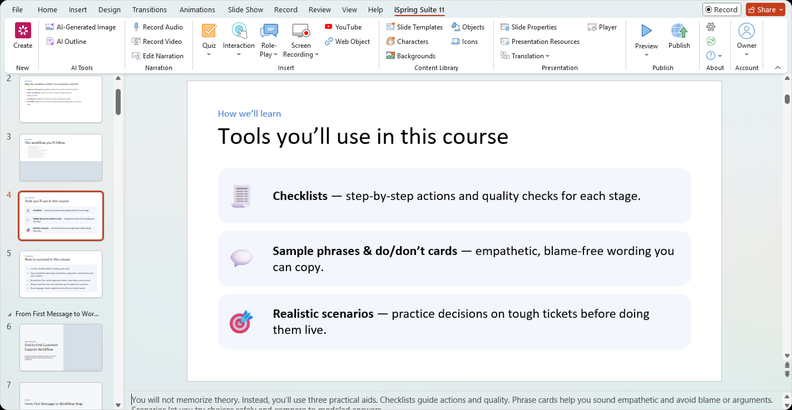
iSpring Suite AI helps L&D teams combine presentations, screen recordings, quizzes, and interactive activities in an online course.
The desktop authoring environment works directly with PowerPoint. You can turn existing slides into an online course, record screen and webcam footage, add narration, create assessments, and publish the material to an LMS. A customer-service onboarding course could combine PowerPoint slides, a recorded CRM walkthrough, a knowledge check, and a branching customer conversation.
iSpring Suite AI can also assist with preparing this content. Its AI features support drafting and revising training text, generating questions and images, creating an AI voiceover, and translating course content. AI-generated voiceovers may still require manual adjustments to synchronize narration with slide animations.
The finished course can be published in formats including SCORM, xAPI, and cmi5.
Pros
- Builds courses directly in PowerPoint, combining slides, recordings, assessments, and branching dialogue activities.
- Supports LMS publishing alongside AI assistance with training text, questions, images, and narration.
Cons
- Doesn’t replace Camtasia’s detailed cursor animation and advanced video-editing controls.
- Desktop authoring requires Windows and PowerPoint; keep source files and the iSpring project folder together on a local working drive.
Pricing
iSpring Suite starts at $970 per author/year, while iSpring Suite AI starts at $1,290 per author/year.
The standard iSpring Suite edition includes screen recording, quizzes, and LMS publishing. iSpring Suite AI adds AI tools for drafting training content, generating quiz questions and images, creating voiceovers, and translating courses.
A 14-day free trial is available without a credit card. The trial is intended for evaluation, and published trial content includes a watermark.
2. ScreenPal — Best for budget-friendly screen recording and editing
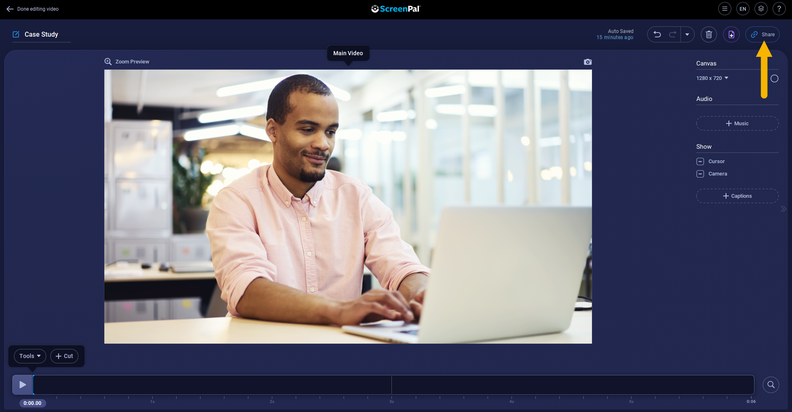
ScreenPal is a practical alternative to Camtasia for people who regularly create instructional videos but don’t need Camtasia’s full range of editing controls. It combines screen and webcam recording with a built-in editor, so you can edit video, add captions and annotations, adjust audio, and apply zoom effects.
For example, a trainer could record a five-minute walkthrough of an internal application, remove mistakes, highlight the relevant buttons, and export the finished video as an MP4. Short walkthroughs like this can also serve as microlearning modules, focusing on one task or procedure at a time.
ScreenPal also supports educational video workflows. Its hosting platform includes video quizzes, while eligible team plans offer LTI integration that can transfer quiz grades to a compatible LMS. However, this is different from generating a SCORM package. Teams that rely on SCORM-based training should confirm that their preferred publishing workflow is supported.
Pros
- Screen and webcam recording, trimming, captions, annotations, and zoom effects in a single app.
- Lower entry price for everyday tutorial production than Camtasia.
Cons
- Less control over cursor movement and complex timeline animations than Camtasia.
- Hosted quizzes and LTI integration require a different workflow from SCORM publishing.
Pricing
ScreenPal’s free tier limits recordings to 15 minutes and doesn’t add a watermark. Computer audio recording and some other features require a paid plan.
Deluxe costs $48/year, while Max costs $120/year and includes additional AI features. Both prices reflect annual billing.
3. ActivePresenter — Best for interactive software simulations
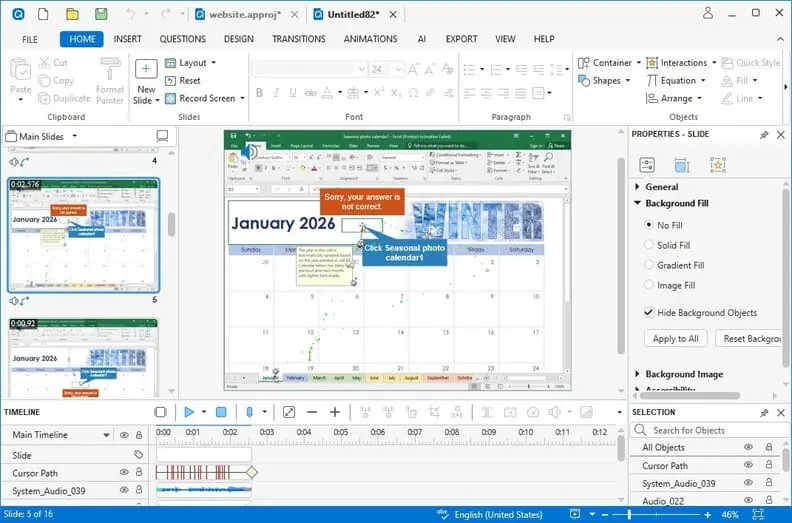
ActivePresenter combines screen recording, video editing, and eLearning authoring. Its main advantage for instructional designers is the ability to create interactive software simulations. For CRM training, a video can demonstrate creating a customer record; an ActivePresenter simulation lets learners practice those steps and receive feedback.
ActivePresenter supports this through its software simulation tools, questions, variables, events, and actions. It also includes editing features for instructional recordings. Smart Studio provides tools, such as automatic zooming, cursor smoothing, and keyboard overlays, while the editor supports audio and video adjustments.
ActivePresenter exports videos in MP4, WebM, MKV, AVI, and WMV formats. You can choose the output video format that suits your project, but standard video files don’t preserve eLearning interactions. For interactive eLearning content, ActivePresenter Pro offers SCORM 1.2 and SCORM 2004 export, plus HTML5 and xAPI publishing.
Pros
- Turns software demonstrations into practice activities with learner feedback.
- Combines recording and editing with quizzes and LMS publishing in the Pro edition.
Cons
- Configuring interactions, learner actions, and feedback requires more preparation than making a standard video tutorial.
- The free edition is for evaluation and noncommercial use, not corporate training production.
Pricing
ActivePresenter Standard costs $249, while Pro costs $499 — both as one-time purchases. Each license includes one year of free upgrades to new major versions.
Too much to read? Get a summary from AI
4. Wondershare DemoCreator — Best for recorded demonstrations and tutorials
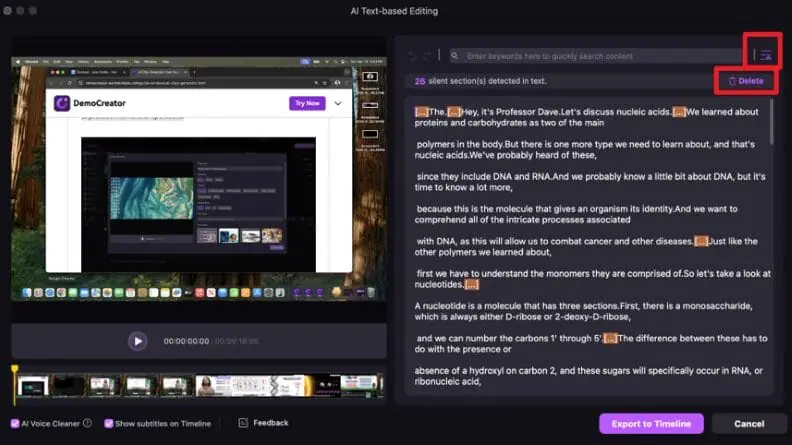
Wondershare DemoCreator is a video editing tool for screen recording, webcam capture, and software demonstrations. It can capture screen and webcam footage at up to 4K UHD, depending on the recording source, plus microphone and system audio. Recordings can be edited on a timeline with separate tracks.
DemoCreator also includes tutorial-specific tools, such as Smart Zoom, cursor highlighting, hotkey tips, and drawing tools. For example, an instructor demonstrating a reporting dashboard could zoom in on an important menu, highlight keyboard shortcuts, and add annotations to clarify each step.
DemoCreator also provides AI-assisted capabilities, including audio cleaning, transcript-based editing, and subtitle generation on both Windows and Mac.
Check the documentation for your operating system before purchasing, because the availability of individual features may differ between Windows and Mac.
Pros
- Combines screen and webcam capture with a multitrack timeline editor.
- Zoom, cursor highlights, hotkey tips, and drawing tools help explain software procedures.
Cons
- Cursor effects applied during single-track recording can’t be edited afterward; editable effects require multitrack recording.
- Not a replacement for interactive software simulation authoring in tools like ActivePresenter.
Pricing
DemoCreator offers a watermarked free trial. The Cross-Platform Yearly plan costs $59.99/year, while the Quarterly plan costs $29.99 per quarter. A perpetual license is available for $79.99 as a one-time purchase.
5. Descript — Best for transcript editing with AI tools
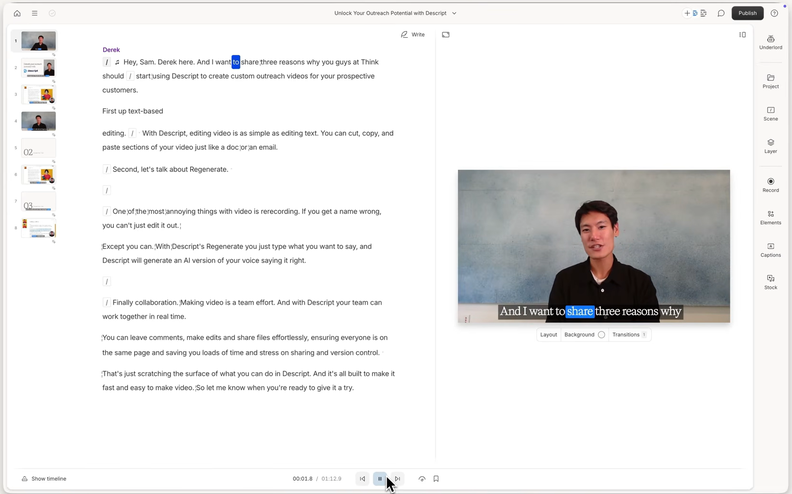
Descript supports transcript-based video editing in a browser, with projects hosted in the cloud. You can record your screen, camera, and microphone, and then work with a transcript of the recording. Deleting spoken words in the transcript removes the corresponding video footage.
Editing from the transcript can simplify the editing process for narrated tutorials, especially when removing pauses or repeated phrases.
Descript also offers Studio Sound to reduce background noise, plus filler word removal, auto captions, and AI voices for narration.
Pros
- Transcript-based editing helps revise narrated tutorials without locating every spoken-word cut on a timeline.
- It combines screen recording with captions, filler word removal, audio cleanup, and AI narration.
Cons
- The transcript, cuts, and timing still need to be checked against the recording before export.
- It’s less suited to tutorials that depend on detailed cursor movement, zoom animations, and extensive visual editing.
Text-based editing isn’t exclusive to Descript: Camtasia Essentials also includes transcription and editing through Audiate.
Pricing
Descript offers a free plan with one media hour per month and watermarked 720p exports.
The Hobbyist plan costs $192/person/year with annual billing and includes 10 media hours and 400 AI credits per month, plus watermark-free 1080p exports. Creator and Business plans offer higher allowances.
6. Wondershare Filmora — Best for video editing with AI features
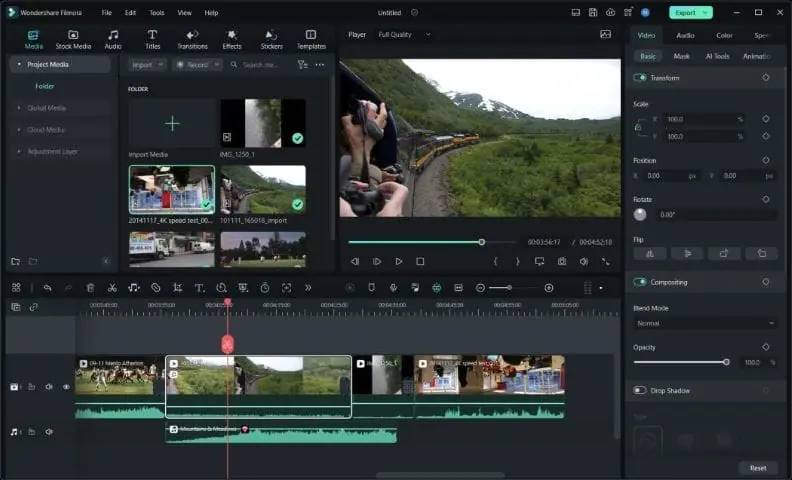
Wondershare Filmora is a general-purpose video editor that also supports screen recording. For professional editing tasks, such as preparing interviews and product demos, Filmora provides a timeline editor with titles, transitions, audio tools, and chroma key for a green screen effect.
Filmora can record screen activity and webcam footage, with annotations and mouse effects for demonstrations. Its AI tools can also generate captions and background music. For example, an internal communications team might edit YouTube videos, product demos, training announcements, and interviews in a single editor.
Pros
- A single editor for training announcements, interviews, product demos, and other video projects.
- Includes creative effects, captions, and screen-recording tools with annotations and mouse highlights.
Cons
- Less specialized cursor-editing tools for software tutorials than Camtasia.
- Creative assets and AI usage have separate allowances; check included effects before building reusable training-video templates.
Pricing
Filmora is a budget-friendly Camtasia alternative for general video editing, with an individual Basic plan starting at $49.99/year; Advanced costs $59.99/year.
The perpetual license doesn’t necessarily include future major-version upgrades. Review Wondershare’s dedicated business licensing instead of assuming that individual subscriptions cover team use.
7. OBS Studio — Best for free screen and audio recording
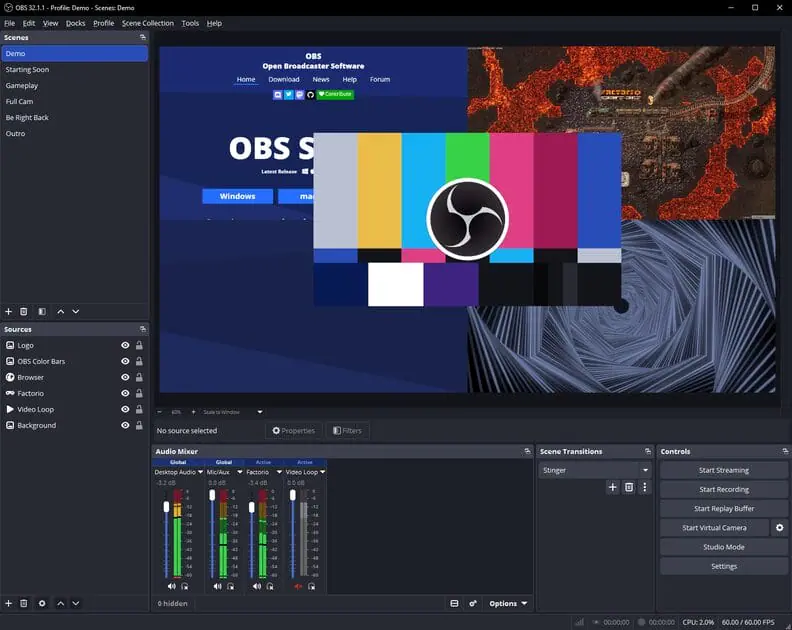
OBS Studio is a free, open-source screen recorder for video capture and live streaming. It supports Windows, macOS, and Linux, and can capture application windows, webcams, audio sources, and displays across multiple monitors.
OBS lets you arrange screen, webcam, and audio sources in scenes and switch layouts during recording. For example, a software instructor could prepare one scene showing the application full-screen and another with a webcam overlay, switching between the two during a demonstration.
OBS also supports audio mixing with noise suppression, gain, and other adjustments.
Pros
- For basic screen recording, OBS beats Camtasia on price: it’s free, with no watermarks or commercial licensing fees.
- Flexible scenes combine screens, webcams, and audio sources, with layouts you can switch during recording.
Cons
- OBS has a significant learning curve: configuring scenes and audio sources takes practice.
- OBS doesn’t include a full timeline editor, so trimming, cursor-path changes, and detailed annotations generally require another app. It also lacks course-authoring tools for assessments and SCORM.
Pricing
OBS Studio is completely free, adds no recording watermark, and permits commercial use under its open-source license.
8. Loom — Best for quick recordings and team feedback
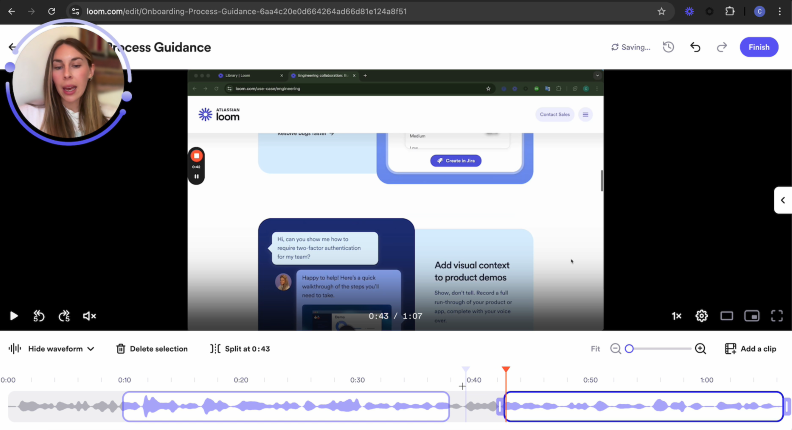
Loom supports online video editing alongside recording, sharing, and discussing videos. With the Business, Business + AI, and Enterprise plans, you can trim recordings and combine clips in its web editor.
You can start a screen or webcam recording from the desktop app or with keyboard shortcuts and then share the video through a link. Colleagues can watch the video directly from that link and leave comments, making Loom useful for asynchronous communication. For example, if an instructional designer needs to have a subject matter expert explain a complex internal procedure, the expert can record a walkthrough and send it for review instead of scheduling a meeting.
Loom’s collaboration tools help training professionals develop content: the designer can ask questions and use the recording as reference material when building the course.
Loom Business + AI supports transcript editing, filler word and silence removal, and automatic summaries for eligible recordings. The standard Business plan does not include all those AI tools.
Pros
- Records and shares walkthroughs through a link, with comments for asynchronous review.
- Useful for collecting subject matter expert explanations and discussing procedures while developing training.
Cons
- Less suited to complex animations and heavily edited tutorials than Camtasia.
- Viewing and engagement information does not replace LMS-based assessment results.
Pricing
Loom Starter is free, with a five-minute recording limit and up to 25 videos per person.
Business costs $180/user/year, while Business + AI costs $240/user/year, both with annual billing. Monthly billing is also available at $18 and $24 per user, respectively. MP4 downloads and AI editing tools depend on the plan and user role.
9. ScreenFlow — Best for multitrack screencast editing on Mac
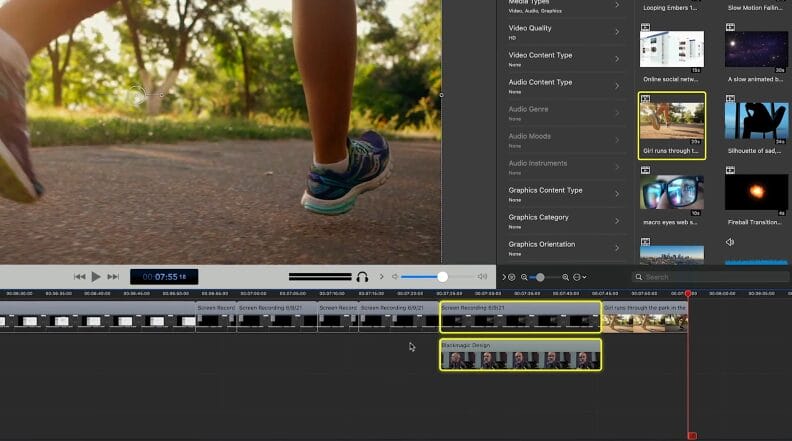
ScreenFlow combines screen capture with a multi-track editor for macOS. It supports screen and camera recording, microphone audio, and footage from compatible iPhone or iPad devices.
ScreenFlow offers desktop editing depth through multiple tracks, nested clips, animations, annotations, audio editing, and several export formats. For example, an instructor creating an iPad application tutorial could capture the device screen, add camera footage, arrange multiple clips, and insert annotations to explain the interface.
Pros
- Combines screen capture with detailed multitrack editing, nested clips, animations, and annotations.
- Can include footage from compatible iPhone and iPad devices in application tutorials.
Cons
- Mac-only authoring complicates source-project handoff to Windows colleagues; check who needs to edit, not just watch the export.
Check compatibility with your macOS version before purchasing.
Pricing
ScreenFlow costs $199 as a one-time purchase. Major version upgrades may require an additional payment. The optional Stock Media Library costs $99/year, while Premium Support costs $59/year.
The demo adds a watermark to exported videos.
10. Screen Studio — Best for automatically styled Mac screen recordings
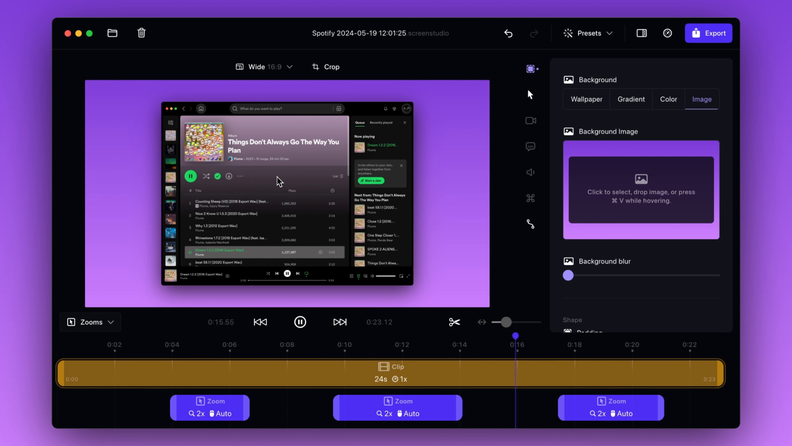
Screen Studio is a macOS application designed for creating polished screen recordings. Its standout capabilities include automatic zooming, cursor smoothing, customizable backgrounds, and webcam layouts.
The software can use cursor activity to emphasize parts of the screen, reducing the need to configure every visual movement manually. For example, a SaaS training team could create a series of product demos with consistent visual elements, including backgrounds, cursor effects, and webcam layouts.
Screen Studio also provides trimming, playback-speed controls, background music, and MP4 or GIF export.
Pros
- Automatic zoom and cursor smoothing reduce manual styling work for short demonstrations.
- Customizable backgrounds and webcam layouts help keep a series of product demos visually consistent.
Cons
- Less suited to complex timelines and extensive custom visual adjustments than Camtasia.
- Mac-only; exporting video requires an active subscription.
For longer, complex productions, compare timeline control and test performance with a representative project.
Pricing
Screen Studio costs $108/year with annual billing or $29/month with monthly billing. New perpetual licenses are no longer offered. You can explore the editor without an active subscription, but exporting videos requires a paid plan.
11. Microsoft Clipchamp — Best for simple training videos
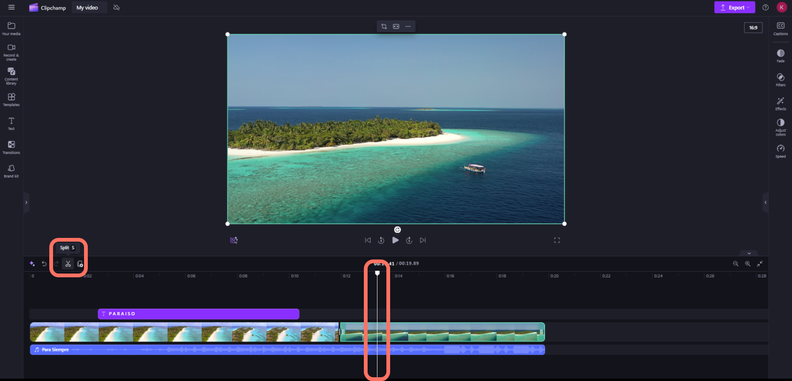
Microsoft Clipchamp combines screen recording with a timeline-based video editor. Its features include screen and webcam capture, trimming, text overlays, captions, basic audio editing, and video exports. You can also generate narration from text and adjust it alongside video clips on the timeline.
Clipchamp is also relevant to organizations already using Microsoft 365, although its personal and work versions have different licensing and feature sets.
The work version is included in selected Microsoft 365 and Office 365 subscriptions and may fit existing organizational file-management workflows.
Pros
- Combines screen recording and basic timeline editing for straightforward training videos.
- May fit existing Microsoft 365 workflows when the work version is included in your organizational license.
Cons
- Lacks Camtasia’s emphasis on sophisticated cursor effects and advanced instructional video editing.
- In-editor screen and webcam recordings are limited to 30 minutes per session; longer videos require assembling multiple clips.
Pricing
Clipchamp’s personal free plan includes watermark-free exports up to 1080p. Premium personal features, including 4K exports, are available through Microsoft 365 Personal, starting at $99.99/year.
For businesses, Clipchamp Standard costs $36/user/year, while Premium costs $84/user/year. Standard is also included in eligible Microsoft 365 business subscriptions, so organizations should check their existing licenses before purchasing a separate plan.
Which is the best Camtasia alternative for you?
There is no universal best Camtasia alternative; prioritize your deliverable and editing needs.
For free screen recording, OBS Studio offers flexibility without licensing costs. Microsoft Clipchamp is another option when basic editing and watermark-free 1080p exports are sufficient.
For tutorial videos, compare ScreenPal and DemoCreator. Descript helps with narration-heavy editing, while Wondershare Filmora offers broader creative video editing tools. ScreenFlow handles detailed Mac timelines, Screen Studio automates short Mac screencasts, and Loom is suited to quick explanations and feedback.
For interactive eLearning, consider iSpring Suite AI and ActivePresenter. iSpring Suite AI is a good fit for creating PowerPoint-based training courses with screen recordings, quizzes, AI-assisted authoring, and LMS publishing. ActivePresenter is worth considering if you need detailed software simulations with practice interactions and assessments.
Camtasia vs. ActivePresenter vs. iSpring Suite AI for course creators
All three products support instructional content, but they differ in how that content is created and used.
| Training need | Camtasia | ActivePresenter | iSpring Suite AI |
| Training need | Camtasia | ActivePresenter | iSpring Suite AI |
| Edited software demonstrations | Detailed recording and video editing | Screen recording, automated zoom and cursor effects, and video editing | Screen recording within course authoring |
| Quizzes and LMS publishing | Quizzes and SCORM | Pro: quizzes, SCORM, and xAPI | Quizzes, SCORM, xAPI, and cmi5 |
| Practice in a software interface | Primarily recorded demonstrations | Dedicated interactive software simulations | Screencasts and quizzes; not an equivalent dedicated software-simulation workflow |
| Branching activities | Interactive hotspots and video questions; no dedicated branching scenario editor | Scenarios using actions and variables | Branching dialogue role-plays |
| PowerPoint-based courses | Can incorporate presentation material | Supports PowerPoint import | Authors courses directly in PowerPoint |
| Desktop authoring | Windows and Mac | Windows and Mac | Windows with desktop PowerPoint |
Consider this practical example: you’re developing training for customer service representatives who use a CRM.
With Camtasia, you could record a software walkthrough, refine cursor movements and zoom effects, add questions, and publish the resulting training through an appropriate LMS. Camtasia Create and Pro also include AI script generation and voice narration through Audiate.
With ActivePresenter, you could build a simulation in which employees practice entering customer records and receive feedback on their actions.
With iSpring Suite AI, you could combine an introduction, recorded demonstrations, knowledge checks, and branching customer-service conversations in a structured course. AI tools could assist with drafting quiz questions, revising explanations, or producing narration.
For a more in-depth comparison, read Adobe Captivate vs. Camtasia vs. iSpring Suite.
Frequently asked questions
Is there a free Camtasia alternative without a watermark?
If you’re looking for the cheapest Camtasia alternative, free tools are a good starting point. OBS Studio is open source and doesn’t watermark screen recordings.
Microsoft Clipchamp’s personal free version supports watermark-free video exports up to 1080p and includes basic editing features.
ScreenPal also provides a free recorder and editor without an export watermark, but its recording duration and available features are limited.
For more advanced editing, compare the free-plan restrictions before selecting a tool. A free recorder doesn’t necessarily replace Camtasia’s video editing tools.
Can I open Camtasia projects in another video editor?
Other video editors may not support native Camtasia project files, including editable tracks, animations, and effects. You can often reuse video or audio files exported from the project, but transferring the editable project itself may require rebuilding parts of the timeline.
If you maintain a large library of Camtasia tutorials, confirm project compatibility before switching and account for the time needed to migrate existing content.
Do training videos need SCORM to work in an LMS?
Not necessarily. Many LMSs allow you to upload an ordinary MP4 video. However, if you need to measure learner understanding or document compliance training, quizzes and assessments can provide results that an LMS can track alongside course completion. SCORM is one way to send completion and assessment data to the LMS.
Camtasia can publish videos with quizzes as SCORM 1.2 or SCORM 2004 packages for LMS reporting. TechSmith’s Results Service has been discontinued, so you can no longer use it to collect quiz results. Exporting a standalone MP4 doesn’t preserve interactive questions.
ActivePresenter Pro and iSpring Suite also support SCORM publishing, although their quiz features and authoring workflows differ.
Conclusion: Choosing an alternative to Camtasia
When comparing Camtasia alternatives, start with the content you need to produce, the editing controls you rely on, and how the finished video or course will reach learners.
If your goal extends beyond video tutorials to structured online courses, try iSpring Suite AI for free to evaluate its course-authoring workflow.
Create online courses and assessments in record time.





How to Make a Training Video Right in PowerPoint

8 Types of Training Videos for Effective eLearning

The 10 Best SCORM Authoring Tools for 2026 [Free and Paid]
