
15 Best eLearning Authoring Tools for 2026
 30 minutes





When searching for the authoring software that checks all the boxes, the sheer variety of options can be overwhelming.
The best option is the one that matches your training goals, content requirements, team expertise, and development workflow. A PowerPoint-based tool like iSpring Suite may suit trainers and subject-matter experts who need to create interactive courses quickly, while cloud-based platforms like Articulate 360 are often better for distributed teams that require collaboration and responsive content.
More advanced desktop solutions may be appropriate for complex simulations, branching scenarios, or highly customized learning experiences. You should also evaluate ease of use, interactivity, multimedia support, accessibility, assessment capabilities, LMS compatibility, and cost. This guide compares fifteen leading authoring tools to help you identify the solution that best fits your specific needs.
eLearning Authoring Tools Comparison Table
| Rank* | Tool | Standards | Teamwork | Starting price/yr | Main limitation | Best for |
| 4.6 | iSpring Suite AIDesktop + Cloud | SCORM ✓xAPI ✓cmi5 ✓ | ✓ | $1,290 | PowerPoint-dependent | PowerPoint-based corporate training and rapid SCORM course creation |
| 4.2 | Adobe CaptivateDesktop | SCORM ✓xAPI ✓cmi5 ✓ | — | Custom | Learning curve | Software simulations and immersive learning experiences |
| 4.7 | EasygeneratorCloud | SCORM ✓xAPI ✓cmi5 — | ✓ | $1,399 | Limited customization | Collaborative course creation by subject matter experts |
| 4.7 | Articulate 360Desktop + Cloud | SCORM ✓xAPI ✓cmi5 ✓ | ✓ | $1,749 | Expensive | Enterprise course development with advanced interactive design |
| 4.5 | CamtasiaDesktop | SCORM —xAPI —cmi5 — | — | $210 | Not a full authoring tool | Instructional videos and software demonstrations |
| 4.5 | CoassembleCloud | SCORM ✓xAPI —cmi5 — | ✓ | $2,500 | Limited advanced authoring | Organizations combining course creation with LMS delivery |
| 4.4 | ElucidatCloud | SCORM ✓xAPI ✓cmi5 ✓ | ✓ | $1,650 | Enterprise pricing | Large teams producing branded eLearning at scale |
| 4.6 | H5PWeb | SCORM ✓**xAPI —cmi5 — | ✓ | Free / $1,560 | No built-in AI | Creating interactive learning activities for free |
| 4.2 | LectoraDesktop + Cloud | SCORM ✓xAPI ✓cmi5 ✓ | ✓ | $1,549 | Dated UI | Accessible, compliance-focused eLearning |
| N/A | PartaCloud | SCORM ✓xAPI —cmi5 — | ✓ | $900 | Only supports external AI agents | Compliance-focused corporate training |
| 4.6 | SynthesiaCloud | SCORM —xAPI —cmi5 — | ✓ | $168 | Video only | Multilingual AI training videos |
| 4.5 | AbsorbCloud | SCORM ✓xAPI ✓cmi5 ✓ | ✓ | Custom | LMS first | Organizations needing LMS and course authoring in one platform |
| 4.5 | ColossyanCloud | SCORM ✓xAPI —cmi5 — | ✓ | $708 | Video only | Fast AI avatar-based training videos |
| 4.4 | dominKnow ONECloud | SCORM ✓xAPI ✓cmi5 ✓ | ✓ | $2,000 | Learning curve | Collaborative enterprise authoring across multiple content types |
| 4.5 | GomoCloud | SCORM ✓xAPI ✓cmi5 ✓ | ✓ | Custom | Limited interactivity | Responsive mobile-first eLearning |
* Rank is calculated as the average of each tool’s user ratings on G2 and Capterra. Ratings are current at the time of writing.
** H5P publishes SCORM packages through compatible integrations and plugins instead of providing a built-in standalone authoring feature.
What Are eLearning Authoring Tools?
eLearning authoring tools are platforms that let you create, manage, and distribute interactive digital training content.
They literally bridge the gap between static information (PDFs or presentations) and engaging, dynamic iterations that can be tracked and measured.
“Good eLearning isn’t just about putting information on a screen. It’s about creating engaging content, interactive experiences that really help people learn.”

Key Reasons for Using eLearning Authoring Tools
One of the biggest benefits of using elearning authoring software, also referred to as an LMS authoring tool, is that they drastically speed up course creation. You can save 40-60% of your time thanks to features like pre-built templates and drag-and-drop functionality.
Next, elearning authoring tools let you spice up your content with interactive elements such as quizzes, branching scenarios, and simulations. Plus, they support microlearning by breaking down complex topics into bite-sized pieces that are easier to digest.
They also make it easy to whip up content quickly and update it just as fast. You can make changes in-house and publish them on the spot, ensuring that your team always has access to the latest information.
Moreover, modern authoring tools are designed to meet accessibility and industry technical standards such as WCAG 2.1, SCORM, or xAPI. This means your courses can be easily downloaded into learning management systems and are accessible on smartphones, tablets, and desktops.
And you will definitely save big by involving in-house subject matter experts instead of hiring external developers or programmers.

Core Types of eLearning Authoring Tools
Authoring tools come in all shapes and sizes, each designed to cater to specific needs and use cases. Thus, they can be classified in various ways based on their functionalities and applications. Two of the most common ways to classify them are by deployment and architecture, and by content and specialty.
Classification by deployment helps differentiate tools based on how they are hosted and what their underlying technical frameworks are.
Meanwhile, categorizing by content and specialty focuses on the types of learning materials that can be created, such as interactive simulations, assessments, or video-based courses.
Let’s start with the first one.
Cloud-Based / SaaS Tools
These solutions are hosted online. They allow for real-time review and make it easier to work together on course development, regardless of location.
Key features:
- Access via browser.
- Real-time co-authoring and stakeholder review.
- Responsive courses automatically adapt to desktop, tablet, and phone.
Best fit for: solopreneurs and distributed team managers who need to rapidly create, update, and deploy training content without installing software.
Examples: iSpring Cloud, Gomo Learning
Desktop Tools
Such applications need to be downloaded and installed on local computers. They offer advanced functionality, higher customization options, and greater flexibility for complex, interactive, or simulation-heavy projects.
Key features:
- Built-in tools to meet WCAG standards, including closed captioning, screen reader compatibility, and keyboard navigation.
- Integrated translation workflows often supporting XLIFF export/import to manage multi-language versions of a single course.
- Unlike cloud-based tools, desktop software allows for content creation and editing without an active internet connection.
Best fit for: instructional designers who work in restricted environments and require in-depth features to create detailed learning experiences.
Examples: iSpring Suite, Lectora
For a more detailed comparison of the strengths, limitations, and use cases of each type, see our article on Desktop vs. Cloud Authoring Tools.
PowerPoint Add-Ins
These are perfect for those who are comfortable with traditional presentation software. They work both online and offline and allow you to create visually appealing slides that can include text, images, audio, and video.
You can also easily convert existing PowerPoint presentations into interactive eLearning modules.
Key features:
- Embedding of high-quality images, videos, audio narration, and GIFs.
- Private speaker notes and a timer for the instructor, while only the slide is shown to students.
- Insertion of hyperlinks, clickable “Zoom” slides for non-linear navigation, and interactive buttons.
Best fit for: trainers, subject matter experts, and HR professionals who need to quickly create interactive courses, quizzes, and simulations without leaving the familiar PowerPoint interface.
Examples: iSpring Suite, Articulate Storyline 360
LMS-Integrated Tools
An LMS serves as the delivery mechanism where learners access courses, complete assessments, and track their progress. However, some of them offer built-in authoring capabilities. These allow users to create and manage courses within the same platform where learners access their content.
Key features:
- Changes made to course materials are immediately reflected in the LMS.
- Same interface and navigation throughout the learning journey.
- Built-in tracking features that allow course creators to track learner progress, engagement, and performance.
Best fit for: organizations focused on rapid content development and delivery.
Examples: iSpring LMS, Cornerstone
Now, to the content and specialty.
Scenario-Based and Simulation-Focused Tools
This software takes learning to the next level by immersing students in realistic situations.
It allows you to create branching scenarios where learners can make choices that affect the outcome of their learning experience.
Key features:
- Learners can make mistakes, gain experience, and learn from them without real-world, high-stakes consequences.
- Actionable feedback on decisions or actions taken.
- Active learner participation, which leads to better knowledge retention and faster skill application.
Best fit for: organizations and professionals operating in high-stakes, high-risk, or complex industries where practical skill application, decision-making, and safety are critical.
Video, Microlearning, and Interactive Media Tools
While they don’t possess all the features that professional media editors offer, these tools still let you create short, engaging videos and interactive content that can be consumed quickly.
They focus on delivering small chunks of information that are easy to digest. Moreover, they often include quizzes and simulation elements that keep learners engaged and reinforce their understanding.
Key features:
- Short video clips, typically 1–5 minutes, focus on a single learning objective, such as a “how-to” demonstration.
- Animated videos and screen recordings break down complex abstract concepts into understandable, engaging stories.
- Content is easily accessible on mobile devices, so learners can consume it anytime, anywhere.
Best fit for: educators dealing with fast-paced environments, remote teams, or complex information that requires high retention rates.
Adaptive, Branching, and Personalized Learning Tools
Are you looking to create customized learning paths that adjust based on a learner’s performance and preferences? These tools have got you covered!
If someone is struggling with a concept, you can provide them with additional resources or exercises that are tailored to their needs and learning styles.
Key features:
- Automatic adjustment of content difficulty based on learner performance (e.g., easier for struggling learners, more challenging for advanced learners).
- Extra resources, remediation, or scaffolding for topics where the learner struggles.
- Storytelling and simulations that mimic complex workplace challenges (e.g., customer service calls, compliance dilemmas).
Best fit for: institutions with learners who have varied prior knowledge, learning styles, and cultural backgrounds.
Examples: Skillwell, area9Lyceum
Collaborative and Employee-Generated Learning Tools
Last but certainly not least are collaborative and employee-generated learning tools. These platforms encourage teamwork and knowledge sharing among employees.
They enable learners to collaborate on projects, share resources, and even create their own content.
Such an approach not only fosters a sense of community but also empowers employees to take ownership of their learning journey. It’s an excellent way to harness the collective knowledge within an organization.
Key features:
- User-friendly interfaces (e.g., drag-and-drop) that enable non-instructional designers to create high-quality training content quickly, often in hours rather than months.
- Features like comment threads, course reactions, “likes,” and tagging enable active participation and peer reviews, ensuring that content is iteratively improved.
- Structured learning circles led by in-house experts, encouraging peer mentoring and the sharing of practical, tacit knowledge.
Best fit for: organizations that are shifting away from top-down, one-size-fits-all training toward agile, decentralized, and peer-to-peer knowledge sharing.
Examples: Khan Academy, DreamBox Learning
How We Evaluated eLearning Authoring Tools
| Criterion | Why it matters |
|---|---|
| Ease of use | Important for SMEs, HR teams, trainers, and fast course production |
| Authoring speed | Determines how quickly teams can convert existing content into courses |
| Interactivity | Quizzes, branching, simulations, role-plays, drag-and-drop |
| AI capabilities | Course outlines, quiz generation, text improvement, image generation, translation |
| Standards support | SCORM 1.2, SCORM 2004, xAPI, cmi5, AICC |
| LMS compatibility | Ability to publish, upload, track progress, and report accurately |
| Accessibility | WCAG / Section 508 support, captions, keyboard navigation, screen reader support |
| Collaboration | Review links, comments, co-authoring, version control |
| Localization | Translation workflows, text-to-speech, multi-language publishing |
| Pricing and TCO | License cost, add-ons, support, required software |
| Best-fit use case | Corporate training, higher education, compliance, software training, video learning |
Our assessment is based on hands-on product review, vendor documentation, public pricing, user-review platforms, and suitability for common L&D workflows. Pricing and feature availability were last verified in April 2026.
The Top 15 eLearning Authoring Tools: A Detailed Comparison
Now that we have a basic idea of what we’re going to address with this comparison chart, let’s look at each of the entries in detail.
Overview
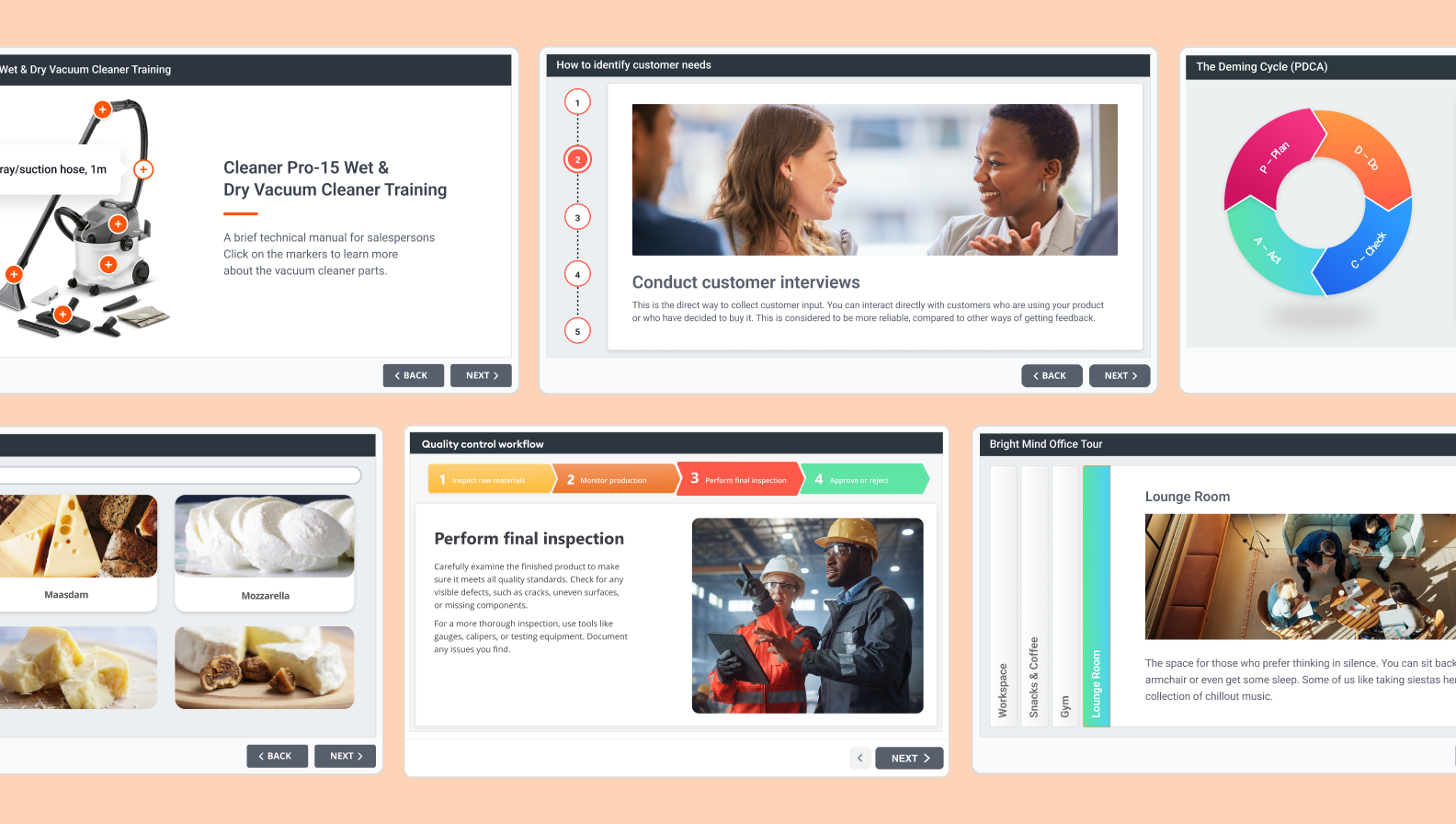
iSpring Suite AI by iSpring Solutions is a PowerPoint-based eLearning authoring software designed for rapid course development.
PowerPoint sits at the center of iSpring Suite AI for a practical reason: in many organizations, that’s where training starts. The toolkit builds on those presentations instead of asking teams to recreate them elsewhere.
iSpring Suite AI is designed less for professional course developers and more for the people who know the subject best. HR teams, trainers, managers, and subject matter experts can build LMS-ready courses without changing the way they already work.
The platform combines a familiar PowerPoint workflow with AI-assisted course creation, offering text, quiz, and image generation, text-to-speech, writing assistance, and automatic translation into more than 70 languages.
Standout features:
- Native PowerPoint authoring
- QuizMaker with 14+ question types
- Dialogue simulations, screen recording, and video studio
- AI-powered text, quiz, image generation, translation, and writing assistance
- Content Library with 310,000+ templates, characters, icons, and other assets
- Publishes to SCORM 1.2, SCORM 2004, xAPI, and cmi5
“Integration of PowerPoint with interactive tools in iSpring Suite AI simplifies the authoring process, allowing educators to focus on content quality rather than technical hurdles.”

Pros
- Easy for PowerPoint users to pick up without learning a new authoring environment
- Fast course production, especially when existing PowerPoint materials can be reused
- Comprehensive authoring toolkit for courses, quizzes, simulations, and videos
- Cuts down routine authoring work with AI assistance
- Native integration with iSpring LMS
Cons
- Requires Microsoft PowerPoint on Windows for the full desktop authoring experience
- Less suitable than some competitors for highly customized trigger-based interactions or advanced software simulations
Pricing
iSpring Suite’s price is $970–$1,290 (billed annually). A 14-day free trial is available.

Overview
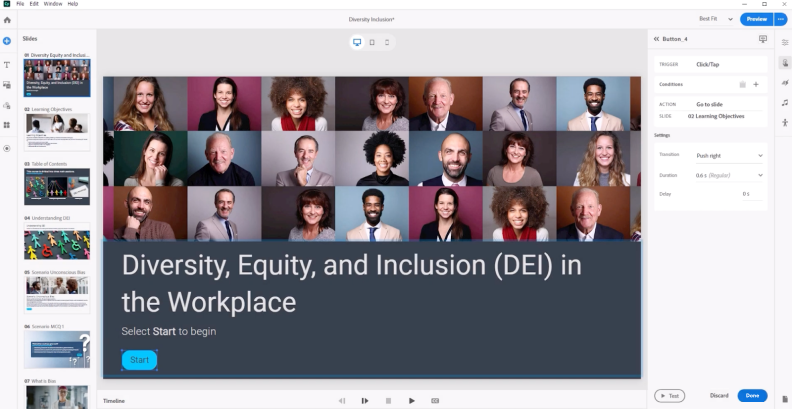
Adobe Captivate positions itself as a versatile, AI-driven platform for instructional designers, capable of producing software simulations, virtual reality (VR) experiences, and interactive videos.
Standout features:
- Adobe Firefly-powered image generation, text rephrasing, and AI-generated avatars for voiceovers
- VR scenarios, allowing users to interact with hotspots in 360-degree scenes
Pros
- Integrates well with Photoshop, Illustrator, and Audition for asset editing
- Offers “Fluid boxes” and responsive blocks that automatically adjust layout, saving time on multi-device development
Cons
- Steep learning curve compared to competitors
- Requires a relatively powerful computer to run smoothly
Pricing
$479.88/year for the individual plan. Team plan pricing is available upon request. A 30-day free trial is available.
Overview
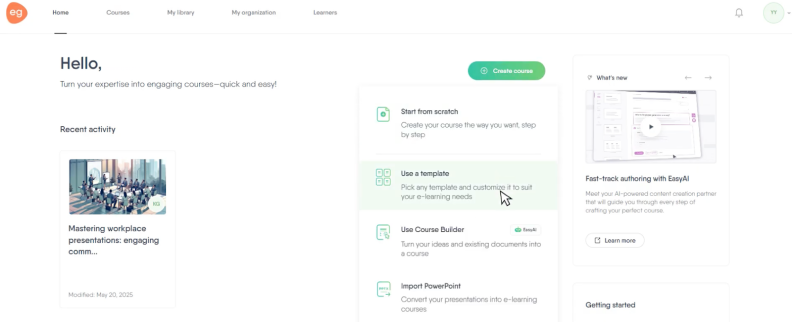
EasyGenerator is focused on accelerating course creation for non-designers through intuitive drag-and-drop templates and AI features.
It enables “employee-generated learning,” allowing subject matter experts to create content quickly. Key strengths include collaboration tools, built-in analytics, and responsive design, although it offers limited advanced customization compared to complex alternatives.
Standout features:
- WYSIWYG drag-and-drop interface
- Intuitive collaboration features
Pros
- Minimum sub-hour live chat response times
- Drag-and-drop interface
- Detailed learner tracking
Cons
- Fewer advanced design or interactivity options compared to competitors
- Need to re-upload content after extensive changes to media
Pricing
Pro plan is $1,399/year for 1 author; Team plan is $6,995/year for 5+ authors. A 14-day free trial is available.
Too much to read? Get a summary from AI
Overview
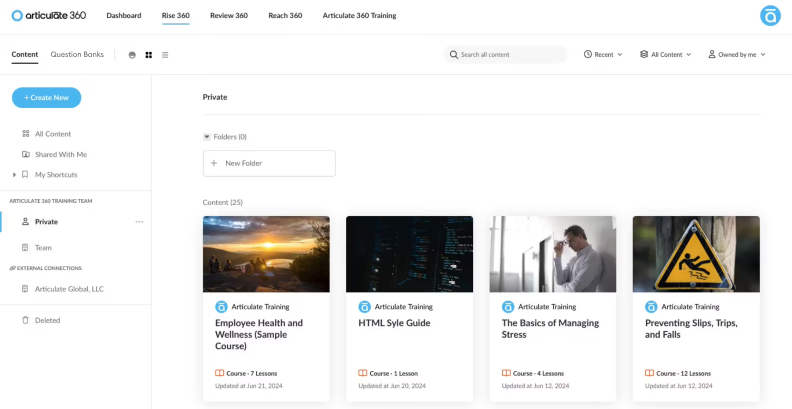
Articulate 360 is another widely recognized eLearning authoring suite.
It offers a comprehensive subscription-based ecosystem of nine applications, primarily designed to create interactive, responsive, and engaging training content for various devices.
The platform is best known for its two flagship tools: Rise 360 (for rapid, responsive web-based course creation) and Storyline 360 (for highly customized, complex, slide-based interactions).
Standout features:
- Sophisticated branching scenarios and advanced interactivity
- Built-in basic LMS capabilities
Pros
- The subscription offers everything needed for rapid authoring and review
- The eLearning Heroes community provides vast resources, examples, and troubleshooting help
- Users receive regular new features and AI enhancements
Cons
- Costly annual subscription that can’t be customized
- Storyline’s advanced features (variables, triggers) take time to master
Pricing
Individual plans start at $1,499/year; Standard Teams at $1,749 per user/year. A 30-day free trial is available.
Overview
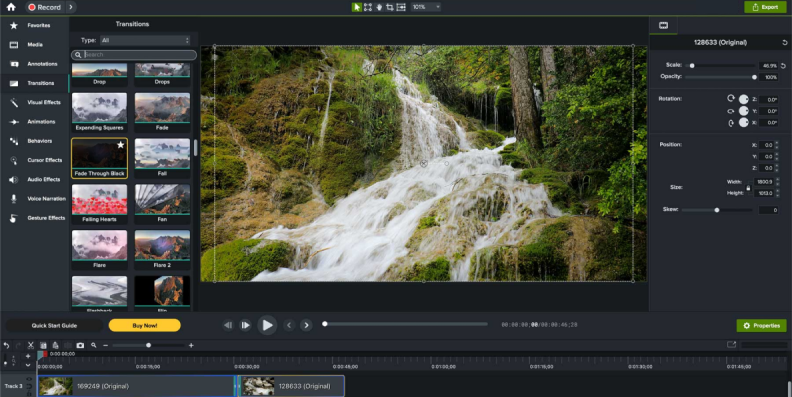
Camtasia is a desktop-based screen recording and video editing tool that stands somewhere between simple screen recorders and advanced video editing software like Adobe Premiere.
Camtasia is frequently used in eLearning for creating video-led online training content, such as software simulations, tutorials, and interactive video-based microlearning.
Standout features:
- Captures the screen, webcam, system audio, and microphone simultaneously
- Allows inserting questions, hotspots, and clickable callouts directly into the video to measure viewer retention
- Automatically smoothes cursor, highlighting, spotlighting, and editing (e.g., magnifying)
Pros
- Designed for beginners
- Available for both Windows and macOS
Cons
- Lacks advanced, branching, and complex simulation capabilities
- Requires a robust computer, as it can be demanding on RAM
Pricing
Individual plans start at $31.20/year. Team plans for up to 99 users are $158.40 per user/year. A free account is available, but your videos will have a Camtasia watermark.
Overview
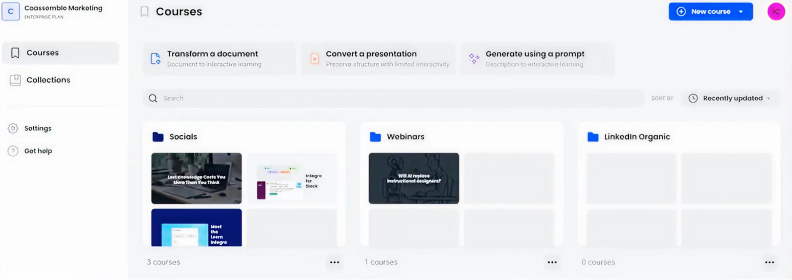
Coassemble is a cloud-based, all-in-one learning management system and authoring tool for course creation that enables creating, delivering, and tracking online training within a single platform using template-based, interactive, and mobile-friendly content.
Standout features:
- Gamification and diverse interaction types
- Spaced repetition and active engagement modules
Pros
- Combines content authoring and a learning management system
- Simple, intuitive interface
Cons
- Very few advanced interactive or layout options
- Lacks features for selling courses directly
Pricing
A Build plan starts at $2500/year.
Overview
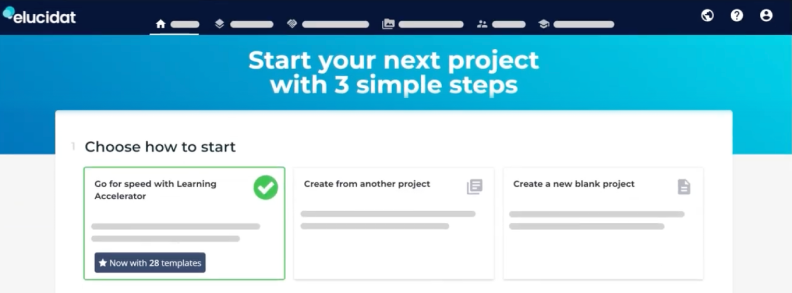
Elucidat is an eLearning authoring tool designed for large enterprises and teams that want to create high-quality, fully responsive, and compliant digital learning at scale.
It enables non-technical users to build courses and offers advanced analytics and collaborative capabilities.
Standout features:
- Pre-built templates and layout structures
- Courses automatically adapt to any device
Pros
- Highly responsive
- Caters to the needs of large teams
Cons
- Primarily designed for online content consumption
- Built-in characters not available
Pricing
Growth plan is at $1,650/user/year (for 3-5 users). Pricing for larger plans is available on request. A 14-day free trial after the demo.
Overview
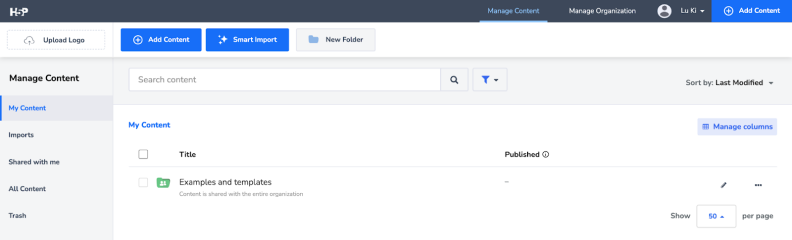
H5P is an open-source content collaboration framework that allows users to create, share, and reuse interactive HTML5-based learning content directly within a web browser.
It serves as a cost-effective alternative to proprietary authoring tools and allows users to create videos, quizzes, games, and presentations that are mobile-friendly and easily embedded into learning management systems.
Standout features:
- Integrates directly with Moodle, Canvas, Blackboard, Brightspace
- Can be self-hosted (free) or used via the paid cloud service
Pros
- Offers 50+ content types, including interactive videos, 360-degree virtual tours, and branching scenarios
- Content is stored as a single file, allowing for easy, centralized updates
Cons
- Users cannot record video directly within the tool
- Self-hosted H5P has very basic analytics for tracking learner engagement
Pricing
The free open-source version is at H5P.org. The commercial version starts at $870/year for 3 authors. A 14-day free trial is available.
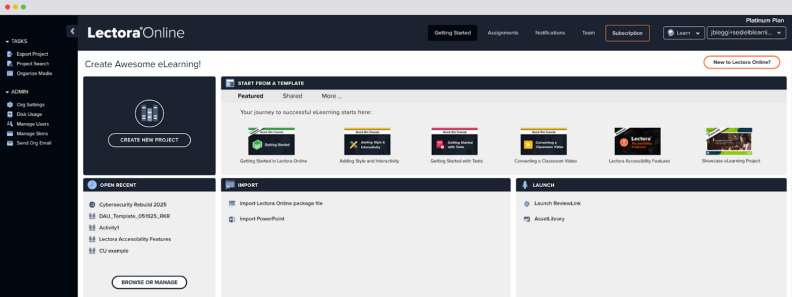
Overview
Lectora is part of the ELB Learning suite, renowned for its “unlimited” development potential and the ability to design complex, highly interactive, and fully accessible courses.
Unlike more restrictive, slide-based tools, Lectora uses an object-based hierarchy that allows for highly complex branching and custom variables.
It is available as both a cloud-based application (Lectora Online) and a desktop application (Lectora Desktop).
Standout features:
- Integrated access to the ELB Learning Asset Library, featuring millions of templates, cutout people, and stock images
- Deep If/Then/Else logic, adaptive triggers, and variable-based personalization
Pros
- Provides extensive tools to meet rigid compliance standards
- Can build virtually anything, including complex simulations
Cons
- Advanced features like variables can be confusing for beginners
- Updating older, fixed-page courses to a responsive design can be challenging
Pricing
Starts at $1,549/year. A 30-day free trial is available.
Overview
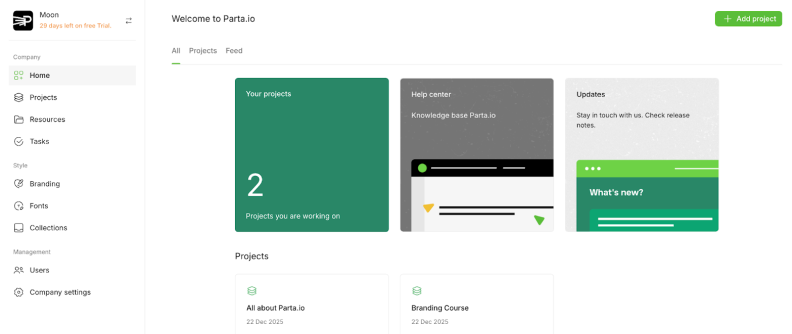
Parta.io is a productivity-focused eLearning authoring platform founded in 2022, designed specifically for collaborative team workflows, including Learning and Development and customer education teams.
It positions itself as a 3rd-generation tool that offers a middle ground between simple, rigid, rapid authoring tools and complex desktop solutions.
Standout features:
- Google Docs/Figma-style simultaneous editing
- Element-level feedback that makes it easier to work with SMEs
Pros
- Allows defining “Brand Packages” (colors, fonts, layout settings) that can be applied to entire projects
- Eliminates version control issues by allowing teams to co-create in the same space
Cons
- Requires an investment of time to build your core set of branded block templates
- May produce occasional minor bugs or error messages
Pricing
The Solo plan is $600/year. The Studio plan (under 20 creators) starts at $900/year per user. A 30-day free trial is available.
Overview
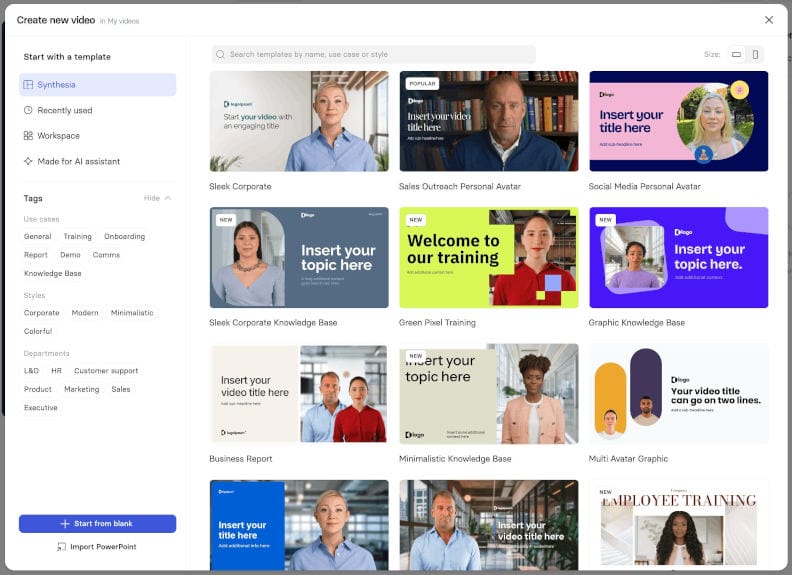
Synthesia is an AI video generation platform that’s primarily designed for creating structured training content, including presenter-led formats, for compliance, onboarding, and microlearning content.
It transforms text-based scripts into professional-grade videos featuring realistic AI avatars, eliminating the need for traditional film crews, actors, cameras, or studios.
Standout features:
- Over 240 avatars and customizable backgrounds for rapid creation of training videos
- Support of 140+ languages and accents with built-in translation features
Pros
- Creates videos quickly from text
- Supports over 160 languages
- Offers many avatars and templates
- Simplifies video updates and localization
Cons
- Avatars may sometimes look unnatural
- Creative editing options can feel limited
- Paid plans may be expensive for small teams
- Video usage is limited by plan credits
Pricing
The Starter plan is $168 per user/year.
Overview
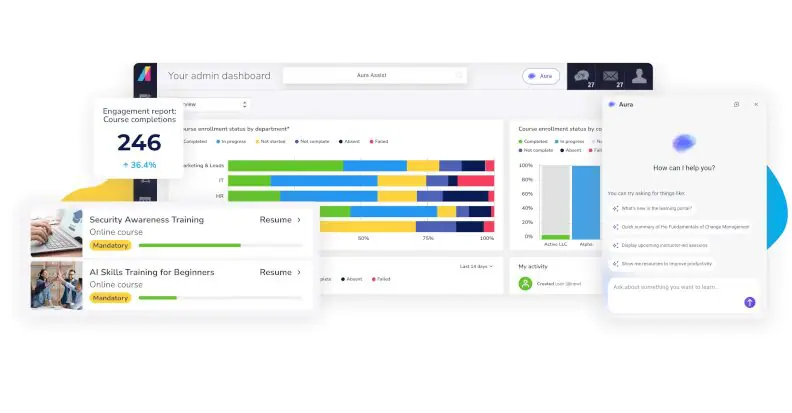
Absorb is a learning management system intended for corporate training, onboarding, and compliance that is frequently praised for its modern, intuitive user interface.
While primarily a management system, Absorb includes a native course authoring tool, Absorb Create, which leverages AI to generate, edit, and publish content directly within the LMS.
Standout features:
- Uses AI to generate slides, images, and assessments from prompts, uploaded PDFs, or pasted text
- Includes a shared environment for team collaboration and a built-in reviewer feature for stakeholder feedback
Pros
- Seamless “create-to-publish” workflow within the Absorb LMS ecosystem
- Built-in features for vision/hearing impairments and keyboard compatibility
Cons
- Template-based course structures and restrictive design training
- Complex content library management
Pricing
The quote is provided on demand. According to reviews, fees can range widely, often between $5k–$50k+ for onboarding and configuration.
Overview
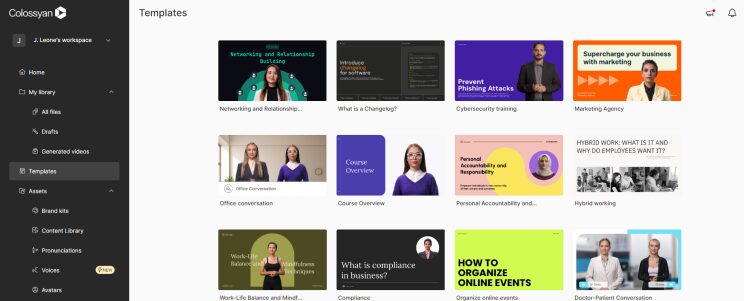
Colossyan is an AI-powered video generation platform designed primarily for creating, editing, and managing workplace training videos.
It lets you convert text, PDFs, and PowerPoint presentations to professional videos featuring lifelike AI avatars.
Colossyan focuses heavily on eLearning needs by offering interactive features like in-video quizzes, branching scenarios, and SCORM export capabilities, setting it apart from standard text-to-video tools.
Standout features:
- Diverse avatars with natural facial expressions, gestures, and lip-syncing, supporting 100+ languages and accents
- Allows users to update scripts or visuals without re-rendering or re-recording the entire video
Creation of a custom “Instant Avatar” from a video
Pros
- Rapidly turns scripts into high-quality videos without filming or expensive equipment
- Engages students through decision-based learning paths
Cons
- Advanced features like SCORM exports and branding are locked behind higher pricing tiers
- Starter plans have low monthly video minute caps (e.g., 10–15 minutes)
Pricing
Starts at $708/year for 480 minutes of video. A 30-day free trial is available. A free plan is also available.
Overview
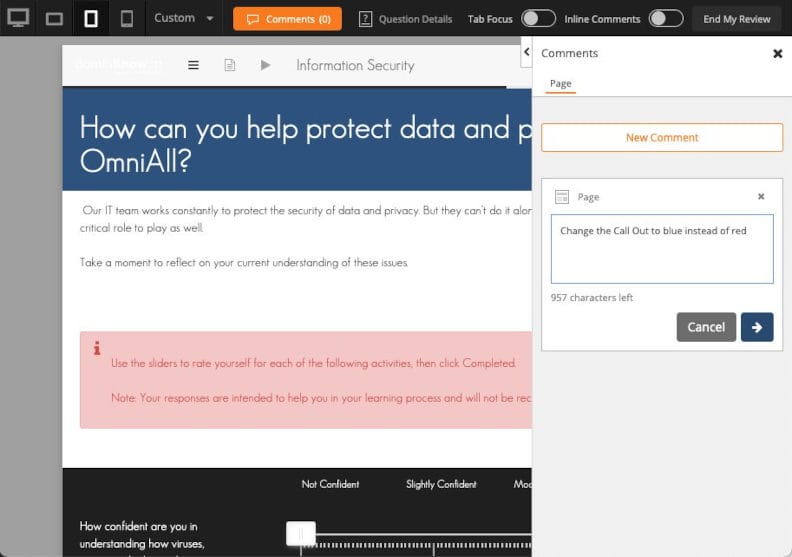
dominKnow | ONE combines the capabilities of a cloud-based eLearning authoring tool and a learning content management system, and allows you to collaborate on interactive, responsive eLearning content from a single platform.
It offers three key features: responsive authoring (Flow), fixed-layout authoring (Claro), and software simulation (Capture), thus reducing the need for multiple tools.
Standout features:
- Simultaneous publishing to multiple formats, such as LMSs, web portals, and knowledge bases
- A built-in content management system that streamlines real-time collaboration
- A centralized media library that helps to update assets across all projects simultaneously
Pros
- Active and responsive community
- Robust implementation of xAPI for detailed tracking and analytics
Cons
- Might be overwhelming for inexperienced users
- Completely cloud-based
Pricing
The Business plan starts at $2000 per author/year.
Overview
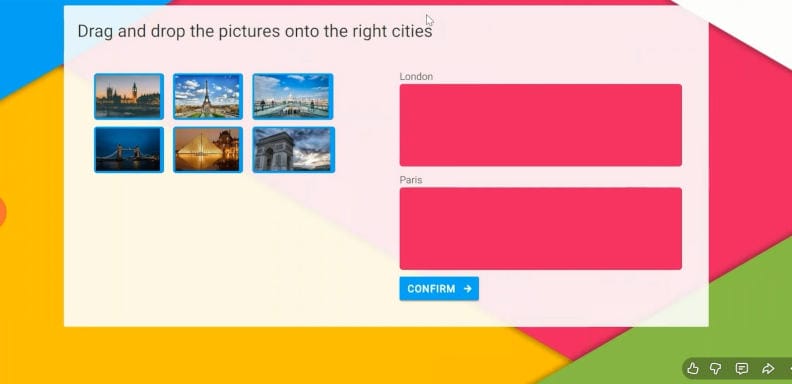
Gomo is a hosting suite designed for creating responsive, multi-device learning content for enterprise teams.
As a SaaS platform, it supports collaborative, real-time course development and features a drag-and-drop interface and a variety of ready-made templates.
Standout features:
- Content can be hosted on Gomo servers and updated instantly across all devices, including within existing SCORM LMSs via a wrapper
- Offers xAPI reporting dashboards to analyze learner data
Pros
- Entirely browser-based
- Mobile-first design
Cons
- Less flexible for complex, highly custom designs
- Lacks built-in tools for video editing or screen capturing
Pricing
The quote is available on demand.
How to Choose Your First (or Next) Authoring Tool: Decision-Making Checklist
The list we provided above is a curated selection of the many tools available on the market and is intended as a starting point. To help you navigate this landscape better, we also provide this checklist that can help you align your specific needs and preferences with the right tool.
| Feature | Checkpoints | Why It Matters |
| Ease of use |
| A user-friendly interface reduces the learning curve for your team, enabling subject-matter experts and non-designers to contribute effectively and allowing for faster course development. |
| Interactivity |
| Interactive elements enhance learner engagement and retention by making the learning experience more immersive. |
| Multimedia Support |
| Using multimedia can cater to different learning styles. It also helps break up text-heavy content, making lessons more engaging and easier to digest. |
| Responsiveness |
| If courses are not optimized for mobile use, learners can become frustrated or disengaged. |
| Accessibility |
| By prioritizing accessibility, you ensure that all learners have equal opportunities to succeed in their training programs. |
| Assessments |
| Assessments help measure how well learners understand and retain the material. |
| Localization |
| Localization ensures that training materials are relevant and accessible to a global audience. |
| LMS Compatibility |
| LMS compatibility is crucial if you want to deploy your content effectively across different platforms or use your existing LMS with the new authoring tool. |
| Cost |
| A transparent pricing structure helps avoid unexpected expenses down the line. |
How Authoring Tools Drive Real Learning Impact
Even with all the above being said and the best eLearning tools at your disposal, making a genuine difference in learner outcomes is not always easy.
The real magic happens when you create engaging, relevant, and measurable learning experiences that encourage active participation rather than passive consumption.
So, if you want to tie your training directly to business performance, it’s time to think beyond just generating content, and iSpring Solutions is here to help!
FAQ
What is an eLearning authoring tool?
Most organizations already have the information they want to teach. It’s sitting in PowerPoint decks, PDFs, manuals, or internal documentation. An authoring tool turns that material into structured learning content, with elements such as quizzes, interactions, scenarios, and videos.
What is the best eLearning authoring tool?
The best authoring tool is the one that removes the key obstacles in your development process. For some teams, that’s complexity. For others, it’s limited collaboration, accessibility gaps, inadequate AI assistance, or incompatibility with an existing LMS.
Which authoring tool is easiest to use?
Subject matter experts and HR teams often prefer tools with familiar interfaces and guided workflows. That’s one reason PowerPoint-based and template-driven authoring platforms remain popular in workplace learning.
Which tool is best for PowerPoint?
Choose iSpring Suite AI when PowerPoint is more than a starting point and needs to remain the working file. That matters when HR regularly updates onboarding slides, product teams revise training after each release, or compliance courses change whenever a policy does. Storyline is more flexible for custom-built experiences, while Adobe Captivate is often a better fit for application training.
Which authoring tools support SCORM, xAPI, and cmi5?
Not every eLearning authoring software supports all three standards. Some examples are iSpring Suite AI, Articulate 360, Lectora, and dominKnow ONE. Other tools may support SCORM only or offer more limited publishing options.
Which is better: iSpring Suite, Articulate 360, or Adobe Captivate?
These products don’t attend to the same needs. iSpring is built for speed. Articulate prioritizes flexibility. Captivate has always appealed to teams that spend more time creating simulations than updating policy training.
What is the best eLearning authoring tool for corporate training?
There is little value in choosing a powerful authoring tool that only one specialist knows how to use. iSpring Suite AI is a good corporate option because HR can update onboarding, compliance can revise policy training, and sales enablement teams can maintain product courses in a familiar PowerPoint workflow. Articulate 360 offers greater creative freedom, but requires more authoring experience.
What is the best free eLearning authoring tool?
If you need to create a few simple learning activities, several free options like iSpring Free or H5P are available. If you’re choosing software for ongoing corporate training, a free trial of a professional authoring tool is often more valuable than a permanently free plan with limited functionality.
How much do eLearning authoring tools cost?
For a single author, expect to pay roughly $600–$2,000 annually for a professional authoring tool. The subscription price is only part of the cost. If multiple people create courses, you’ll also want to consider reviewer access, asset libraries, AI features, hosting, and support, since those may be included—or priced separately.
Which eLearning authoring tools work on Mac
Browser-based tools such as Easygenerator, Elucidat, and dominKnow ONE work on macOS without additional setup. iSpring offers options for both operating environments: iSpring Suite AI is ideal for Windows-based desktop authoring, while iSpring Cloud AI runs in a browser and can be used on a Mac. This distinction is worth considering as you refine your shortlist.
Create online courses and assessments in record time.





The 10 Best Free eLearning Authoring Tools in 2026

The 60+ Best Instructional Design Software and Tools for 2026
