Articulate Storyline 360 vs Adobe Captivate: A Complete Comparison
 25 minutes







Picking the wrong authoring tool can cost you money, missed deadlines, and frustration when your course doesn’t turn out as expected.
Articulate and Captivate have been industry leaders for years, but do they still hold up in 2026? To figure this out, the iSpring team of instructional designers has reviewed both authoring tools thoroughly to see if they truly meet the needs of today’s eLearning designers.
Explore this complete overview of ease of use, types of content, pricing, content libraries, and support, and make an informed decision in the battle of Storyline vs Captivate.
| Articulate Storyline | Adobe Captivate | |
| User experience and ease of use | Intuitive interface, most functions visible on the toolbar, AI assistant, and AI chat | Confusing for beginners; requires time and tutorials to learn |
| Content types | Slide courses, branching, simulations, 360° virtual tours, AI-powered narrations, AI-assisted generation of images, animations, and JavaScript interactions | Slide-based courses, scrollable content, branching scenarios, narrations, software simulations, AI generation of images and text, AI-powered TTS, talking AI avatars |
| Assessments | 25+ quiz types, free-form questions, AI quiz generation based on your course content, question pools, negative scoring | Fewer question types, CSV import, graded knowledge checks, AI-generated questions |
| Ready-made assets | 22M+ characters, icons, and templates with good filters and fast search | Plentiful but standardized, with limited filters and slow navigation; AI avatars |
| Learning accessibility features | Excellent: offers AI assistant and accessibility checker | Excellent |
| Team collaboration | Review 360 feedback and Team Slides for shared assets | Online sharing with commenting; no co-authoring |
| Publishing options | SCORM, AICC, xAPI, cmi5, HTML5, MP4, Word, and Reach 360 | SCORM, AICC, xAPI, and Adobe Learning Manager |
| Support | Extensive help docs, tutorials, and an active user community | Good documentation and tech support |
| Pricing | From $1,449/year for individuals and $1,749/year for teams | $39.99/month (individual); volume licenses for organizations |
This comparison covers the current subscription versions of Articulate Storyline 360 and Adobe Captivate. Adobe Captivate Classic is discussed separately where its capabilities differ from the current Captivate application.
Articulate Storyline: A Quick Overview
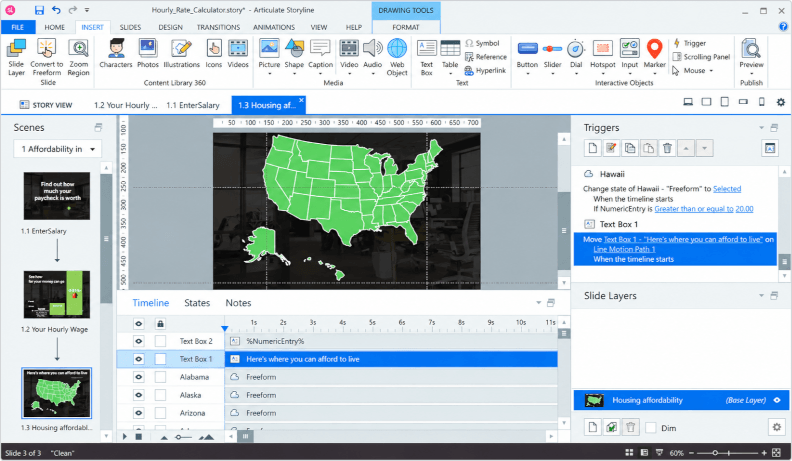
Articulate 360 is a comprehensive, subscription-based software designed to cover every stage of eLearning content development, from course development and collaboration to review and delivery. The package includes multiple apps, each serving a specific need in the course development workflow.
At the heart of the suite is Storyline — a desktop authoring tool known for its flexibility and advanced interactivity. It lets you build custom, slide-based courses with complex logic, branching scenarios, and engaging user experiences. Alongside Storyline, the suite includes:
- Rise, a web-based course creation tool, has a completely different look and feel than Storyline. Rise allows you to create media-rich, responsive content.
- Review, an online collaboration tool that simplifies project reviews, commenting, and course approvals.
- Reach is a lightweight learning management platform for delivering courses and tracking learner interactions and progress (included in the Articulate Teams subscription.)
Articulate has long established itself as a trusted name in the industry and remains one of the most popular choices among instructional designers and L&D professionals. In this article, we’ll take a closer look at Storyline.
Also read:
Adobe Captivate: A Quick Overview
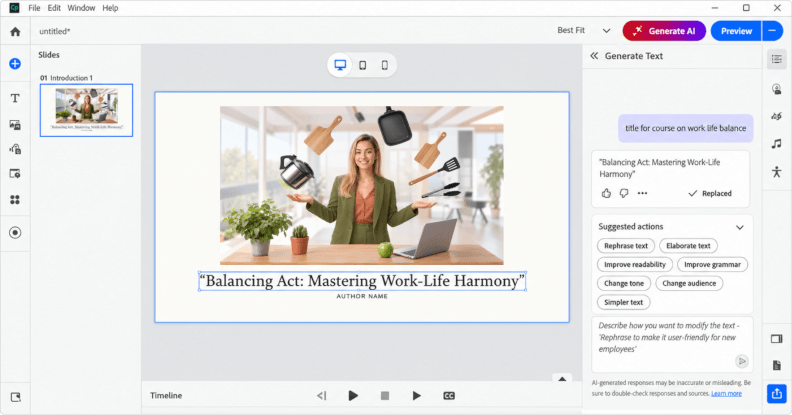
Adobe Captivate is a long-established authoring tool known for its focus on responsive content design and software simulation training. Often used in corporate environments, it’s a solid choice when you need to deliver technical skills training or create content that works seamlessly on desktops, tablets, and smartphones.
Captivate is available as a standalone desktop application, currently offered through an annual subscription. Adobe also offers Learning Manager, a separate learning management system (LMS) for hosting and tracking multiple projects, though it’s not bundled with the authoring tool.
While it may have a less intuitive interface when compared to other tools, Captivate remains a popular choice among instructional designers who need advanced actions and responsive content delivery options.
Also read:
- The Best Adobe Captivate Alternatives
- Adobe Captivate vs. Camtasia vs. iSpring Suite
- The Best eLearning Authoring Tools and Software
- The Best FREE eLearning Authoring Tools
Articulate Storyline vs Captivate: A Detailed Breakdown
In this section, we’ve detailed the comparison of Articulate Storyline vs Captivate in terms of their key capabilities and characteristics for eLearning designers.
1. User experience and ease of use
Articulate Storyline
One of the biggest reasons Storyline is so widely used is its user-friendly design.
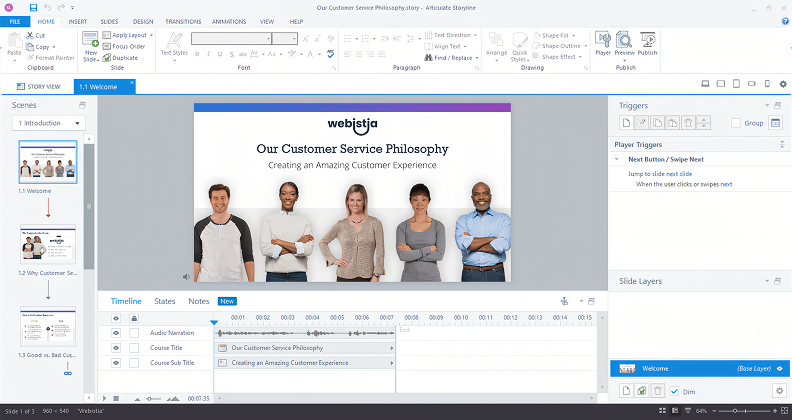
Storyline’s slide-based workspace makes it easy to get started, yet it offers in-depth functionality for those who want more control over interactivity and logic. Its AI Assistant can also take some of the routine work out of course creation, helping generate or edit text, images, and quiz questions without leaving Storyline. Overall, Storyline strikes a good balance between external simplicity and rich functionality.
Adobe Captivate
When it comes to the Captivate authoring software, the interface feels more technical compared to other authoring tools we’ve used. It does give you a lot of power and flexibility once you know your way around, but it’s not the kind of tool you can just dive into and assemble a course quickly on day one.
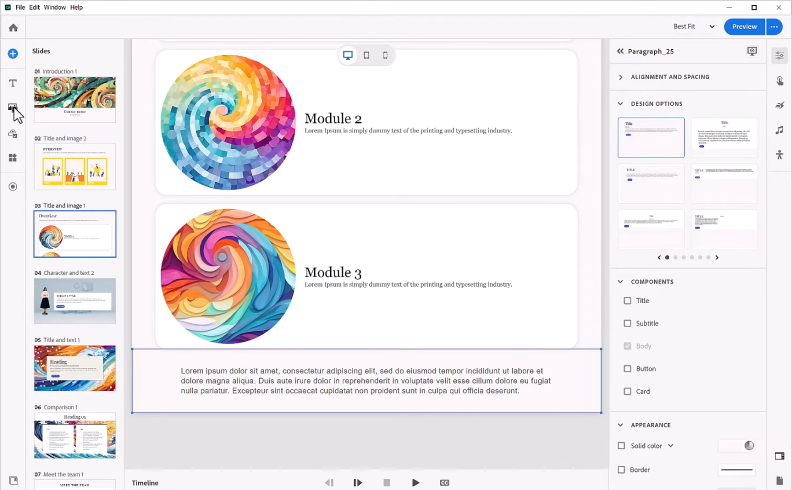
That said, if you’re familiar with other Adobe products or comfortable with technical tools, you’ll probably adjust faster. But for those who are new to learning design (or in a rush), Captivate’s UI may feel a bit overwhelming.
In terms of user interface in the Storyline vs. Captivate battle, our vote goes to Storyline.
Too much to read? Get a summary from AI
2. Content types
Articulate Storyline
One of the things course designers appreciate most about Storyline is how versatile it is, whether you need something quick and polished like a PowerPoint presentation or complex, highly customized projects.
With the Articulate Storyline authoring software, the creative possibilities are wide open. You can use gamification features to develop custom slide-based courses with buttons, checkboxes, sliders, dials, hotspots, and drag-and-drop activities.
AI adds another layer to Storyline’s content options. You can generate images, narration, and sound effects without leaving the authoring environment. Its newer AI tools can also create animations and JavaScript-based interactions from prompts.
We’ve found it especially powerful for branching scenarios and simulations. However, the learning curve is real — you’ll need to understand triggers, slide layer functionality, and the timeline. But once you do, the control you get is unmatched.
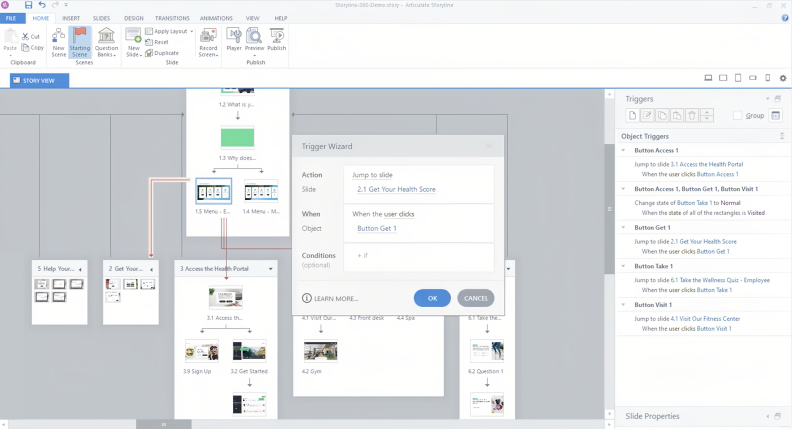
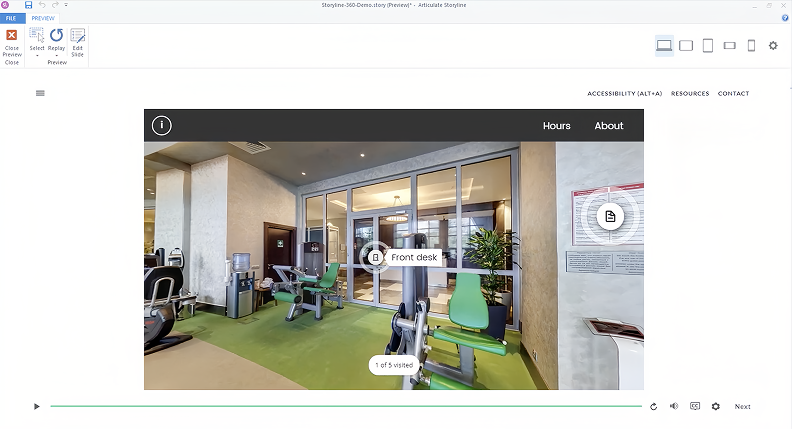
A standout feature we’ve used recently is the ability to create 360-degree virtual tours. You can import panoramic images, add hotspots, and build immersive experiences like virtual walkthroughs or safety inspections — all without the need for full VR setups.
Storyline also makes it easy to work with audio and video. You can record voiceovers directly in the tool, trim clips, adjust volume, and even perform basic video editing like cropping or adding logos. And if you’re building a software tutorial, screen recording is built right in.
Adobe Captivate
As for Captivate, slide-based content is at its core. One of its advanced features — something Captivate is known for — is its ability to create realistic software simulations and interactive videos. You can record your screen in three different modes at once: demo, training, and assessment. This means you can guide employees through a process, let them practice it, and then assess their performance — all using the same software simulations.
Also read:
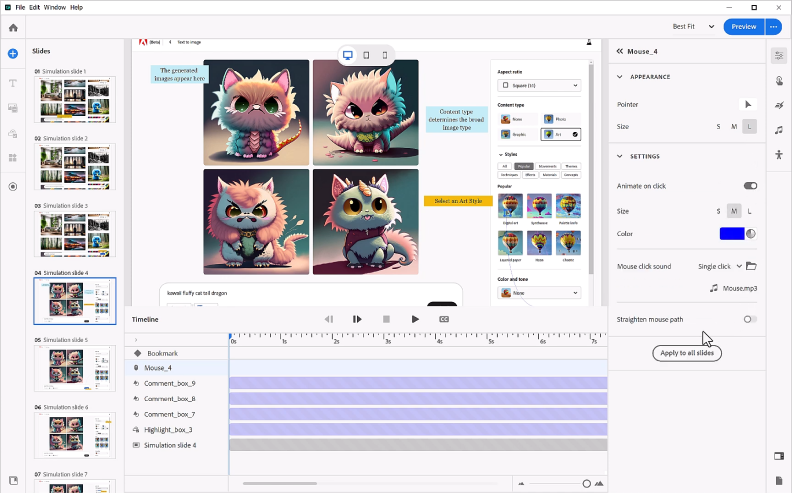
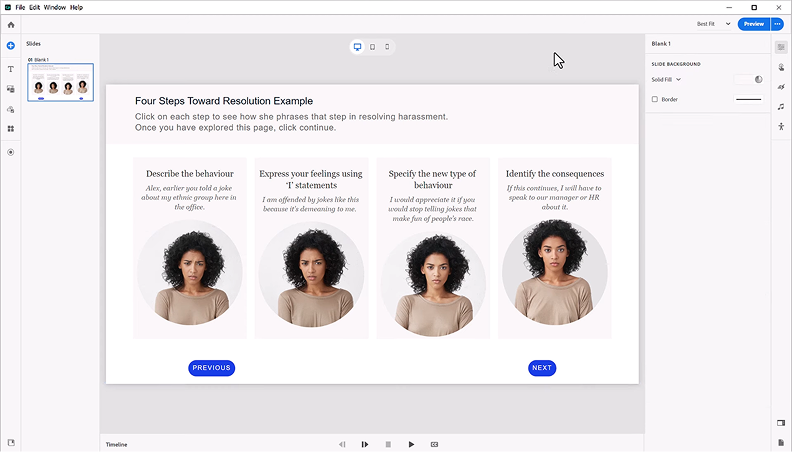
Beyond software simulations, Captivate provides you with an extensive set of interactive elements like checkboxes, dropdowns, buttons, flip cards, image carousels, and accordions to make your content dynamic and responsive:
You can also upload or record audio, use text-to-speech, and edit voiceovers directly inside the tool. Generative AI helps create or rewrite text, generate images, and produce narration without building every asset from scratch. It helps with content production, although it doesn’t fundamentally change Captivate’s more technical interface.
Adobe Captivate places a strong emphasis on responsive content design that adapts across screen sizes.
In the Articulate vs. Captivate comparison for content types, both authoring tools offer rich options.
3. Assessments
Articulate Storyline
With Articulate Storyline, you get over 25 question types right out of the box, including all the essentials for creating complex interactions like drag-and-drop, fill-in-the-blank, and Likert scales. It’s easy to develop both graded quizzes and surveys without starting from scratch every time:
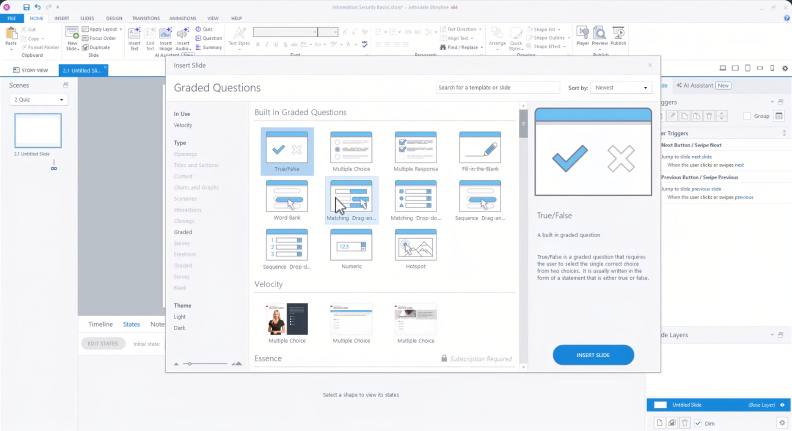
You can also import existing questions or use the AI Assistant to generate individual questions and full quizzes from your course content. Its newer AI chat tools can adjust settings, such as scoring, feedback, answer shuffling, and attempts across multiple questions or question banks, which cuts down on repetitive setup.
For deeper skill checks, you can build branching scenarios that let learners apply knowledge in real-world situations — which is much more engaging than a standard quiz.
Adobe Captivate
When it comes to assessments, Captivate covers the basics well enough, although the range of question types is a bit more limited than some other authoring tools. You get the essentials: multiple-choice, true/false, matching, sequence, and short answer. That’s enough to build solid quizzes, but don’t expect anything too advanced right out of the box.
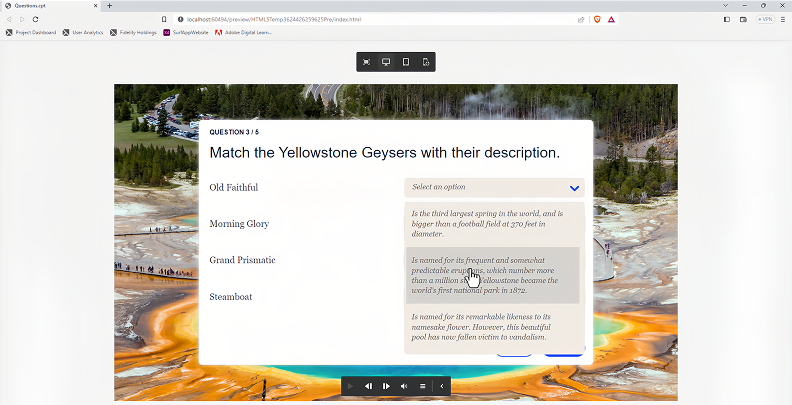
Generative AI can speed up the first draft of an assessment. Captivate can generate multiple-choice, true/false, and open-ended questions from existing slide text, which you can then review and edit before adding them to a knowledge check or quiz.
We found the question pool feature useful for randomizing quizzes and keeping the learner experience fresh. You can shuffle answer choices, provide custom feedback, and choose between graded quizzes and non-graded knowledge checks, depending on how you want to structure the course for your learners.
There’s also an opportunity to import questions via CSV, which speeds things up when dealing with large question banks or migrating existing assessments.
When comparing Articulate Storyline and Adobe Captivate, Storyline clearly takes the lead in assessments with a wider variety of question types, free-form interactions, and advanced scoring options. Captivate covers the core assessment formats and can now use AI to draft questions from existing content, but its assessment tools remain more limited overall.
4. Ready-made assets
Articulate Storyline
One of the biggest perks of working in Storyline is a massive content library. We’re talking over 22+ million ready-to-use course assets, including professionally designed templates, illustrated and photographic characters, each with poses, gestures, and expressions, and a wide range of photos, interactive videos, icons, and illustrations that are easy to search and filter.
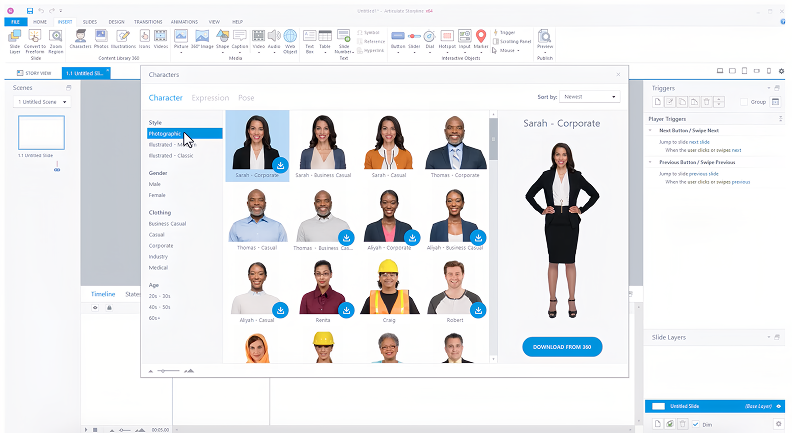
There’s also a built-in image and video search that pulls from trusted stock libraries — all within the authoring environment.
Storyline also adds AI image generation, so if the content library doesn’t have the visual you need, you can create one directly in the authoring environment.
And yes, the library is continuously updated. They regularly add new characters from diverse backgrounds, which is a big plus for inclusive course design.
Adobe Captivate
Comparing Articulate 360 and Adobe Captivate, the latter’s asset library looks impressive. There’s a lot of content to choose from: characters, images, interactive videos, icons, slide templates, audio clips, and more. The big plus is that it includes prebuilt slide layouts via Quick Start Projects — ready-to-go eLearning courses that you can just pick up and customize with your own content, saving time on course development.
Captivate now includes generative AI for image creation as well. If the built-in library feels too limited or too stock-heavy, you can generate custom visuals from prompts. You can also choose from a selection of AI avatars and turn a script into a narrated, lip-synced avatar video without recording a presenter yourself.
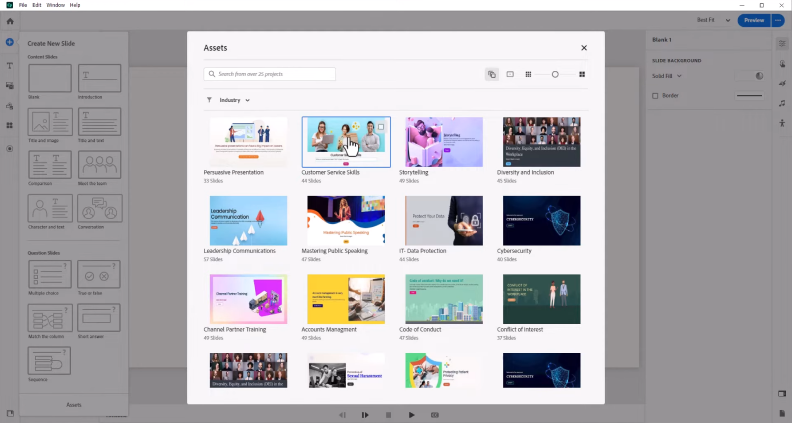
But when we started working with its characters and images, the experience felt a bit clunky. The items themselves are very stock-looking:
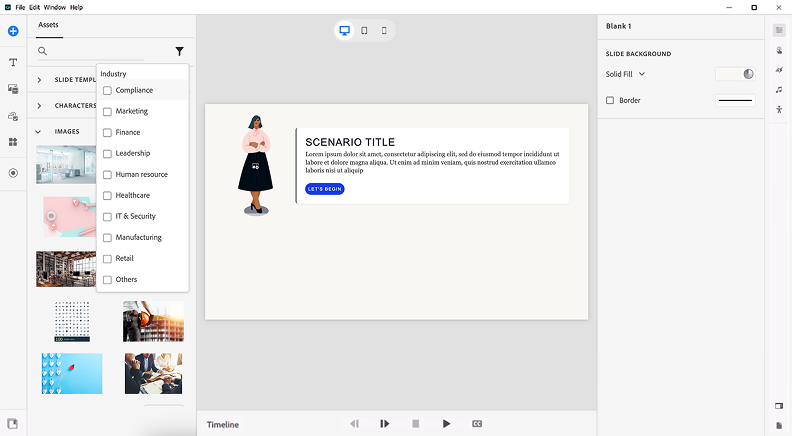
Navigation is also a pain point of Captivate in the Storyline 360 vs. Captivate comparison. There are no filters beyond use-case categories (e.g., compliance, finance, marketing, etc.), so you end up scrolling endlessly through long lists trying to find something relevant. The search is slow, and the asset panel can lag if you scroll too quickly, making the entire content creation process quite frustrating.
5. Learning accessibility
In the Adobe Captivate vs. Articulate Storyline debate, both authoring tools are solid in terms of accessible course design.
Both Articulate Storyline 360 and Adobe Captivate support creating inclusive learning content that aligns with WCAG and Section 508 accessibility standards. The tools have options to add alt text, closed captions, and keyboard navigation, allowing users to build interactive courses that work for learners with visual, hearing, or motor impairments.
In our experience, Storyline stands out for its customizable player settings: users can adjust zoom, toggle accessible text, and enable or disable keyboard shortcuts, which gives them more control over how they experience the course.
Storyline also uses AI to take some of the manual work out of accessibility. The AI assistant can suggest alt text for visual elements and generate closed captions for audio and video, with the option to review and edit both before publishing.
Captivate, on the other hand, offers more granular control over captions, including importing SRT or VTT files and syncing them precisely using the timeline. It also lets you define specific clickable areas for keyboard access and manually set the tab order, which is great for screen reader navigation.
Captivate can also use AI to generate transcripts for closed captions and sync them with audio narration, reducing the amount of manual transcription involved.
 Also read: How to Create Accessible eLearning Content [FREE GUIDE] →
6. Team collaboration
Articulate Storyline
When it comes to team collaboration, the Captivate vs. Articulate comparison reveals a noticeable gap.
Inside Storyline itself, the Team Slides feature has been helpful for keeping things consistent across multiple projects. We save commonly used layouts and interactions so everyone on the team can reuse them without starting from scratch. While you can’t co-edit the same file in real time, you can split up work and then bring everything together effortlessly.
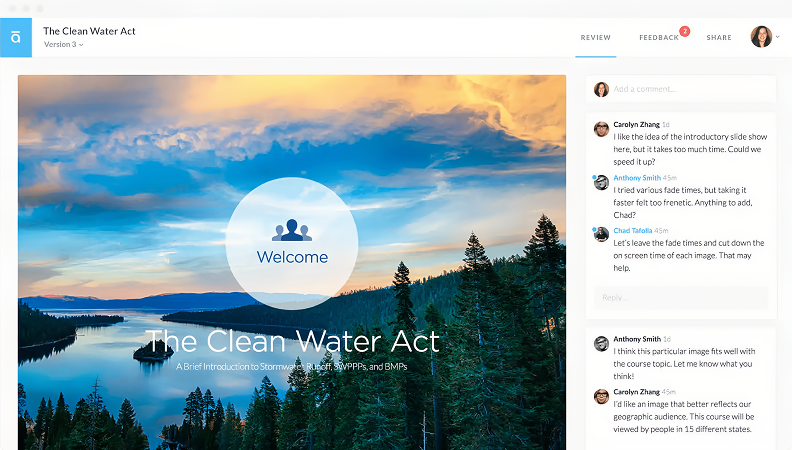
Collaboration on training materials is possible through Review 360. After we publish a course draft from Storyline, we can instantly share a link with team members, SMEs, or stakeholders. They don’t need to install anything — just click, view, and leave in-context comments right on the slide. It feels a lot like commenting in Google Docs, but designed for eLearning.
Adobe Captivate
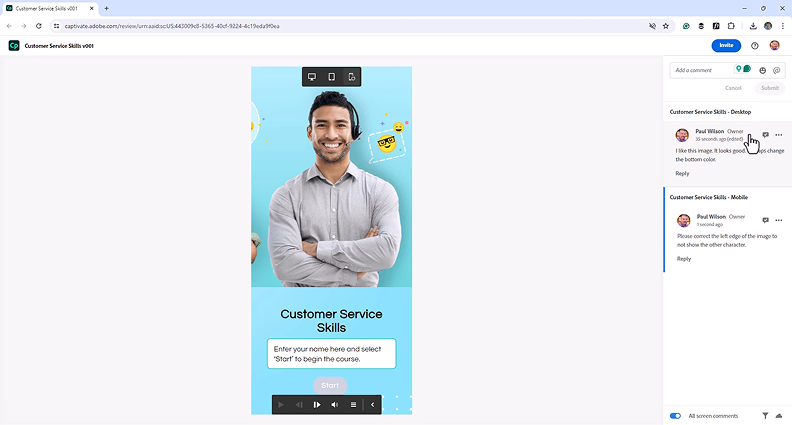
Team collaboration in the new Captivate has improved quite a bit compared to older versions. You can now generate a shareable link and send it to stakeholders, either publicly or with restricted access. The project opens in a browser, and reviewers can leave comments directly on the right-hand side of the slide view, which feels much more streamlined than sending feedback via email.
One detail we like is that reviewers can leave comments separately for desktop, tablet, and mobile device views, so you can catch device-specific issues before publishing. Comments can also be edited, resolved, or tagged to specific team members.
It’s not quite the same as real-time co-authoring, and there’s no shared slide library as in Articulate, but this browser-based review process is a huge step forward for teams working remotely or asynchronously. So, in the Adobe Captivate vs. Articulate Storyline debate on collaboration, Articulate comes out ahead for its polished, team-friendly tools.
7. Publishing options
Articulate Storyline
Once a course is ready to go, Storyline gives you plenty of flexibility in how and where you publish it. You can export content in all the major formats — SCORM (1.2, 2004), AICC, xAPI (Tin Can), and cmi5 — so compatibility is rarely an issue. We’ve published it to a number of various learning management systems, and Storyline has always played nicely with them.
There’s also an opportunity to publish eLearning courses as HTML5 packages for hosting on a website or even as MP4 video files when we just need something quick and linear. Another option is publishing directly to Reach 360, Articulate’s lightweight LMS.
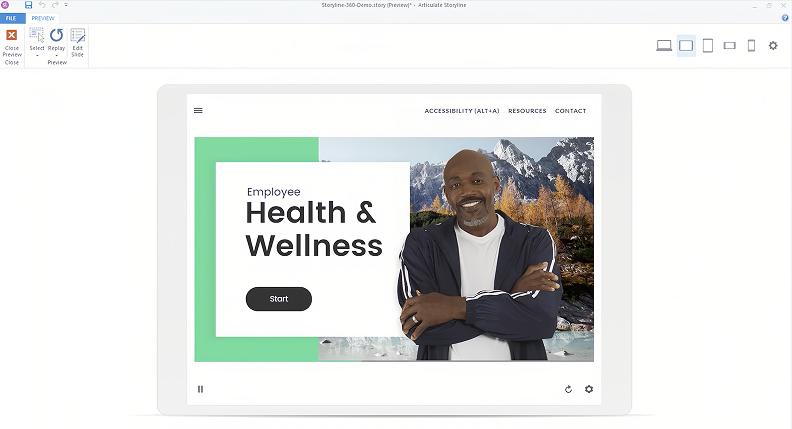
Storyline uses a responsive player that adapts to different screen sizes and various devices. The player hides or reveals UI elements depending on the device, and everything remains touch-friendly.
Also read:
- SCORM 1.2 vs SCORM 2004: Which One Is Better?
- SCORM vs AICC: What is the Difference?
- How to Convert an HTML File to SCORM
- MP4 to SCORM: How to Convert Video Files
Adobe Captivate
For LMS distribution, a Captivate project can be exported as SCORM (1.2, 2004), AICC, and xAPI, or you can publish it directly to Adobe Learning Manager if you’re using Adobe’s ecosystem.
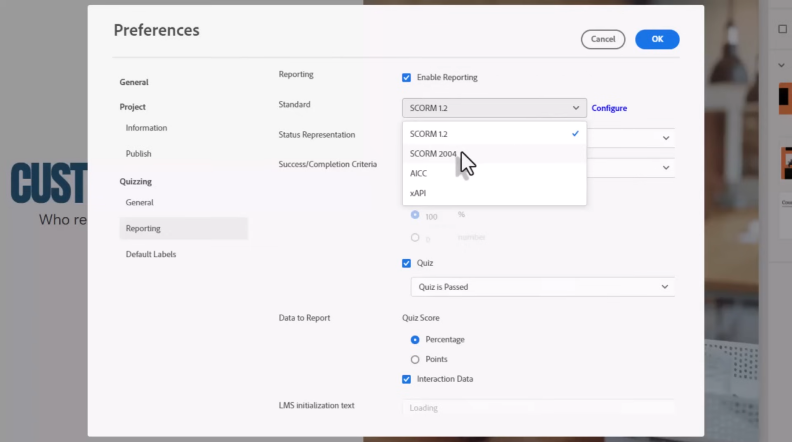
HTML5 publishing option is also available. Whichever publishing option you choose, Adobe ensures responsive content display.
In the Adobe Captivate vs. Storyline comparison, the publishing formats are fairly on par.
8. Support
Articulate Storyline
With Articulate, you’re never left to figure things out alone. The support ecosystem is one of the best we’ve seen in the eLearning space.
Beyond direct support, there’s a huge amount of self-serve content available. The Articulate Help Center is full of detailed documentation, how-tos, and troubleshooting guides that help with the development process.
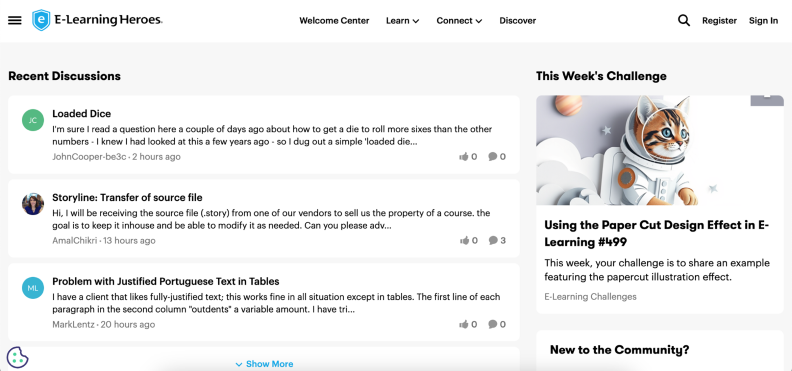
Articulate also offers Artie, an AI support agent available through its support site. It can answer product questions and direct users to relevant documentation, while more complex issues can still be passed to the support team.
The E-Learning Heroes forum is packed with fellow course designers who share tips, templates, and examples. We’ve found answers to some pretty specific questions just by searching the forums.
Adobe Captivate
Adobe offers a fairly detailed help center with guides, FAQs, and tutorials, which we’ve found helpful for looking up specific features or troubleshooting basic issues. There’s also a Captivate Community Forum, where users ask questions and share workarounds.
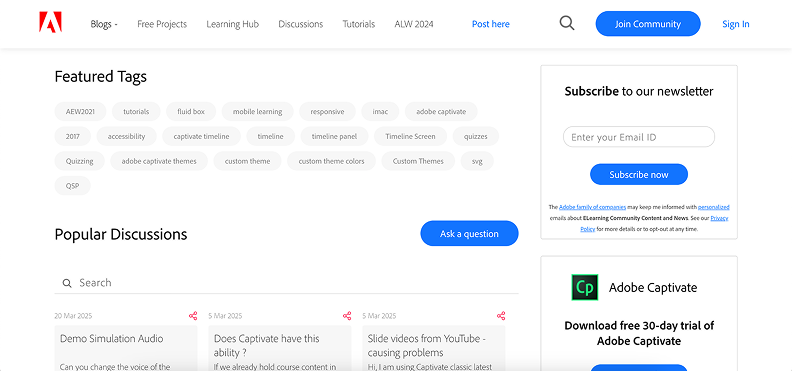
When we’ve needed direct help, Adobe’s support team has been responsive via chat, although wait times can vary depending on the time of day. In general, Captivate gives you the resources you need, but we’ve often relied more on self-help than real-time collaborative interaction.
In the Captivate vs. Storyline comparison, it’s fair to say that users receive good support with both tools. It mostly comes down to what kind of help you prefer: a large peer-driven community or a more traditional support setup.
9. Pricing
Articulate Storyline
Both tools work based on a subscription model. Articulate 360 AI costs $1,449 USD per user annually for a Personal subscription and $1,749 USD per user annually for Teams. These plans include Storyline 360 along with Articulate’s AI-powered authoring features.
While it’s generally quite expensive, Articulate Storyline may offer a discount for educational institutions. A free 30-day trial is available.
Adobe Captivate
Adobe Captivate costs $39.99 per month for individuals in the US, making it substantially less expensive than Articulate 360 AI. The subscription includes generative AI, although usage is credit-based: individual users receive 25 generative credits per month. A 30-day trial is available. It includes 10 credits for standard AI features, such as text and image generation, plus complimentary access to generate up to 40 seconds of avatar video.
10. Customer feedback
Articulate Storyline
Articulate Storyline consistently receives high praise from users for its robust eLearning capabilities. Many appreciate its user-friendly interface and the flexibility offered by these types of tools.
However, some users express concerns about the pricing plans, noting that it can be on the higher side, being especially expensive for smaller teams or individual creators to implement. Additionally, while the platform is generally stable, there are occasional reports of software crashes or freezing, which can disrupt workflow.
Here are some Storyline reviews from G2:
- “Storyline is a one-stop shop for creating anything you can dream of. The addition of AI tools like voice creation and auto caption makes creating engaging eLearning content a snap. Anything you can dream up can be done in Storyline! A great comprehensive eLearning and presentation tool for sure! Great customer support as well. I use this tool all the time!”
- “There is not much I do not like with the Articulate Storyline. I think the most challenging things to learn and get used to are the triggers and layers. Once you get used to it though, it is not that difficult.”
Adobe Captivate
Adobe Captivate garners mixed reviews from users, reflecting both its strengths and areas where it falls short. Many users commend its flexibility and advanced features to develop responsive courses once they become familiar with the platform.
For instance, one reviewer noted, “It’s flexible and relatively powerful once you know what you’re doing.” This sentiment is echoed by others who appreciate the ability to create complex eLearning content.
However, a common critique is the platform’s non-intuitive interface, which can be daunting for newcomers. Users have described the interface as “clunky and scattered,” making it challenging to navigate initially.
Here are some reviews of Captivate from G2:
- “I have tried many different platforms previously but none of the tools helped me to build the content which were not only interactive but engaging as well. The customization options it provides also make the thing feel as if it is mine.”
- “While Adobe Captivate offers so many advanced features for creating interactive eLearning content, I feel that its learning curve can be a bit steep, especially for those new to eLearning authoring. Although I previously had hands-on experience with it, so it didn’t impact me much, but some people around me found it a little hard to understand.”
Final Verdict on Articulate vs Captivate
After working with both tools, here’s our conclusion on the Storyline vs Captivate battle.
Articulate Storyline offers a ton of flexibility. Most key features are visible on the toolbar, and once you get a grip on layers, variables, triggers, and object states, you can build just about anything.
That said, it’s not exactly plug-and-play — there’s definitely a somewhat steep learning curve, but the upside is that you can always find answers or examples in the Articulate Community or on YouTube. For teams that need powerful customization and peer support, Storyline is a great fit.
Adobe Captivate, especially the newest version, looks cleaner and more modern. But you’ll need to invest some time in tutorials and exploration before getting results. Still, once you get comfortable with it, the tool can be used to build sleek, responsive content and detailed software simulations that display perfectly on all screen sizes. So, if you’re creating technical eLearning or you value precise control over responsiveness, Captivate might be the solid option.
The Articulate and Captivate alternative worth exploring
If you’re looking for an eLearning authoring tool that combines ease of use with professional outcomes right out of the gate, we highly recommend checking out iSpring Suite AI.
We’ve worked with it extensively, and what stands out the most is the intuitive PowerPoint-based interface. You don’t need to dig through layers of menus to build a course — everything is right where you expect it to be:
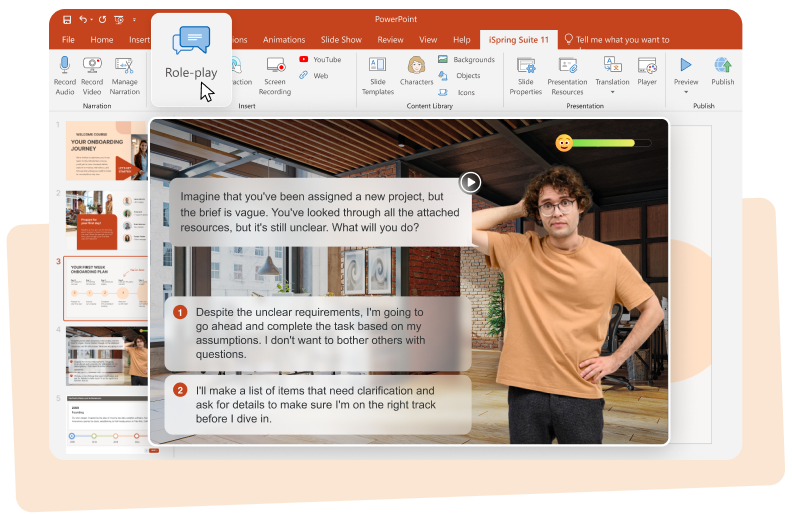
Unlike Captivate, it doesn’t overwhelm you at launch, and unlike Storyline, you can create polished, interactive online courses within hours, not days: slide-based or scrollable interactive content, cheat-proof assessments, and even scenario-based role-plays with no coding required.
For teams operating in restricted environments, desktop iSpring Suite is a fully functional on-premises authoring tool that works without internet access. It can support offline authoring and restricted-network workflows (cloud and AI features require internet access). This is a perfect option for air-gapped or low-connectivity settings. For organizations that leverage cloud collaboration, iSpring Suite AI delivers real-time teamwork in iSpring Cloud AI.
iSpring Suite AI also brings AI directly into the course creation workflow:
- AI Assistant. Draft course text, rewrite or shorten existing content, generate ideas, and create quiz questions without switching to a separate AI tool.
- AI translation. Translate courses into 70+ languages while keeping the original course structure and formatting in place, which is useful when the same training needs to go to teams in different regions.
- AI image generation. Create custom visuals from text prompts when stock assets don’t fit the topic, including images in different styles and with transparent backgrounds.
- Text-to-speech. Turn scripts into natural-sounding voice-overs with AI voices in dozens of languages, so you can add narration without recording every version manually.
You still get the familiar PowerPoint-based workflow, a built-in content library with 130,000+ assets, online publishing, and real-time collaboration in iSpring Cloud AI.
Support is available via phone, chat, and email. There’s also an in-app AI assistant for product questions that provides step-by-step guidance and links to relevant help documentation.
Additionally, the eLearning authoring tool is very budget-friendly, with special discounts for freelancers and academics.
If you’ve already tried Articulate Storyline and Adobe Captivate and still aren’t sure, don’t make a purchasing decision before you try iSpring Suite. Sign up for a free 14-day trial and explore all of its capabilities for learner engagement firsthand:
Start creating courses with iSpring Suite for free →
We hope you found this overview helpful! Whichever tool you go with, make sure it works for your team, your learners, and your workflow. Good luck!
Create online courses and assessments in record time.





How to Create an Online Course: A Comprehensive Guide

The 60+ Best Instructional Design Software and Tools for 2026
The 15 Best Learning and Development (L&D) Tools
Adobe Captivate vs. Camtasia vs. iSpring Suite
