
The 8 Best Training Video Software for 2026
 26 minutes





The training video software you choose shapes the entire training video production process. A simple screen tutorial may take one recording, while a multilingual compliance course could require AI narration, translation, quizzes, and LMS publishing. This guide compares eight training video tools and explains which type of project each one handles best.
Key takeaways
Start with the finished training you need. For an interactive course that an LMS can track, choose iSpring Suite AI. For a screen-recorded tutorial, look at Camtasia. Synthesia makes it easier to produce presenter-led videos in several languages, while Vyond is better for animated stories and role-based scenarios. LearnWorlds adds interactions directly to hosted videos, and Adobe Premiere and DaVinci Resolve offer greater control over camera footage.
The best training video software by use case
A course authoring tool, screen recorder, animation platform, and professional video editor handle different needs. Start with the type of training you need to produce and how you plan to deliver it, then use this table to narrow down the options.
| Software | Best for | Useful training features | What to keep in mind |
| iSpring Suite AI | Complete, interactive, LMS-ready training | Screen recording and editing, AI avatars and voice-overs, interactive quizzes and role-plays, and SCORM, xAPI, and cmi5 publishing | Desktop authoring requires Windows and PowerPoint |
| Synthesia | Producing and localizing presenter-led videos quickly | PowerPoint import, AI dubbing, lip-sync, voice preservation, translation glossaries, and review tools | Usage is credit-based, and SCORM export requires the Enterprise plan |
| Camtasia Editor | Software tutorials and process demonstrations | Screen, webcam, microphone, and system audio recording, editable cursor effects, quizzes, and SCORM export | Its interactions and assessments are fairly basic |
| Loom | Quick screen-recorded tutorials and process updates | Screen and webcam recording, instant link sharing, captions, transcripts, comments, viewer insights, and basic editing | It doesn’t provide quizzes or LMS publishing, and the free plan limits recordings to five minutes |
| LearnWorlds | Adding interactions directly to hosted training videos | In-video questions, buttons, navigation, transcripts, course hosting, certificates, and learner reporting | It’s a complete course platform, not a dedicated video production editor |
| Vyond | Animated scenarios, explainers, and soft-skills training | Customizable characters and scenes, automatic lip-sync, text-to-speech, translation, and AI-assisted video drafting | Detailed scene customization can take time, and advanced interactive video features require higher-tier plans |
| Adobe Premiere | Professionally shot training with high production values | Precise multitrack editing, multicamera workflows, color and audio tools, captions, graphics, and broad format support | It has a steep learning curve and doesn’t provide quizzes or LMS publishing |
| DaVinci Resolve | Professional video editing software; color grading, and audio on a limited budget | A powerful free editor with multicamera editing, color grading, Fairlight audio tools, effects, and flexible export options | It has a steep learning curve and requires separate tools for screen recording and LMS delivery |
We also cover three lighter video editing software alternatives later in the article: VEED.IO for browser-based AI video creation and editing, Powtoon for template-based animation, and VSDC Video Editor for free Windows editing and screen recording.
#1. iSpring Suite AI: an all-in-one solution for creating complete, interactive, LMS-ready training courses
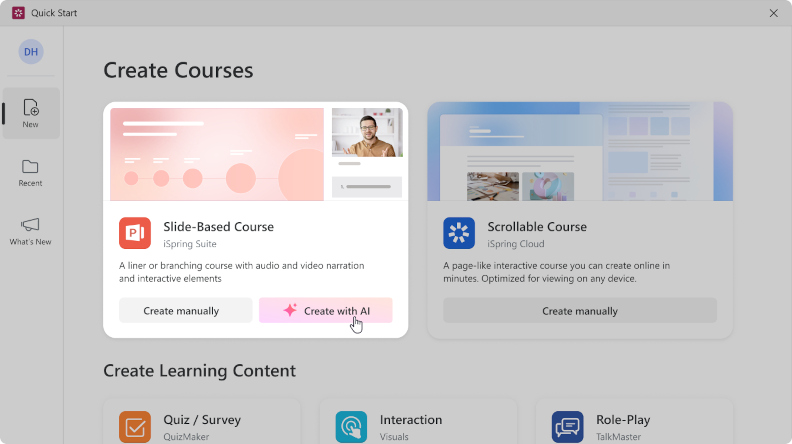
iSpring Suite AI combines a training video creator with a fully AI-powered eLearning authoring toolkit. You can record and edit a screencast, place it in a PowerPoint-based course, add a quiz or role-play, and publish the finished content to an LMS without switching between several tools.
Recent AI updates have expanded this workflow. Authors can now generate an editable course draft from a topic or source materials, create presenter-style videos with AI avatars, produce narration with natural-sounding AI voices, and translate entire courses for international teams.
Features and capabilities
AI tools help teams:
- Generate and refine course text directly in the authoring workflow
- Create original images from text prompts
- Produce more natural narration with ElevenLabs voices
- Add AI narration and transcripts to scrollable courses
- Translate entire courses, quizzes, interactions, and role-plays into a variety of languages
- Generate course outlines and quiz questions
- Build scrollable courses in iSpring Cloud AI
- Review content and collect stakeholder feedback online
Pros
- An easy-to-use interface for teams that are familiar with PowerPoint
- 130,000+ ready-made eLearning assets
- All the export options you could need: MP4, HTML5, cmi5, xAPI, SCORM, and AICC
- Great for creating not only engaging training videos but also any other online training content, such as interactive courses, assessments, and scenarios
- Intuitive interface for more effective video training
Cons
- Desktop course authoring requires Windows and PowerPoint
- Some AI and collaboration features run in the cloud and require internet access
Pricing: $1,290 per year. Volume, academic, freelance, and nonprofit pricing may also be available. Free 14-day trial.
Basic system requirements:
- Windows 10 or 11 and a supported desktop version of Microsoft PowerPoint
- A dual-core processor and 4 GB of RAM, although 8 GB or more is recommended
What iSpring Suite AI is used for
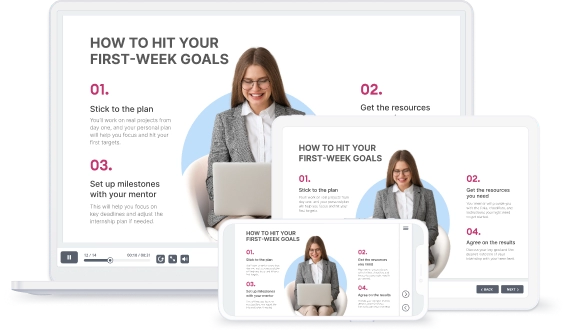
iSpring Suite AI works well when a training video needs to become part of a complete learning experience. An L&D team can generate an initial course from a policy document, add an AI-avatar introduction, record a software demonstration, create narration, and finish with a quiz or role-play. The new engaging online course with training videos can then be published to an LMS for completion and score tracking.
A simpler alternative
ScreenPal is a more focused option for recording and editing screens and webcam footage. It suits short standalone tutorials, but it doesn’t offer AI course generation, role-plays, full-course translation, or the same range of LMS publishing formats.
#2. Synthesia: fast localization and production of multilingual training videos
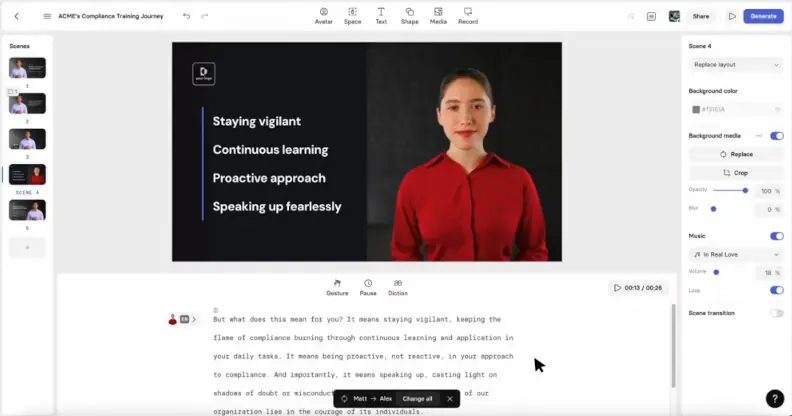
Synthesia helps companies create and localize training videos for international teams. Authors can start with a script or PowerPoint presentation, choose a digital presenter, and generate versions in multiple languages without arranging separate recording sessions.
The platform supports AI dubbing, lip-sync, voice and accent preservation, and translation glossaries for product names and industry terms. This makes it particularly useful for global onboarding, compliance updates, and product training that needs to remain consistent across regions.
Features and capabilities:
- From 9 to 240+ stock AI avatars, depending on the plan
- AI dubbing with optional lip-sync
- More than 60 pre-designed templates
- Team comments and review tools
Pros
- Runs in a browser and doesn’t require advanced local hardware
- Supports personal avatars, cloned voices, and company branding
Cons
- SCORM export, live collaboration, SSO, and Brand Kits require the Enterprise plan
- Provides less detailed editing control than a traditional desktop video editor
- Usage is managed through credits, which can make costs harder to predict for large projects
Pricing: The Starter plan costs the equivalent of $14 per month when billed annually or $19 per month when billed monthly. Creator costs the equivalent of $59 per month with annual billing or $89 month-to-month. Enterprise pricing is available upon request.
Basic system requirements:
- Latest versions of Google Chrome and Microsoft Edge.
- A reliable internet connection
What Synthesia is used for
Synthesia works well when a team needs to produce the same presenter-led training in several languages. An L&D team can import a PowerPoint presentation, generate or edit the script, choose an avatar and voice, add a quiz, and create localized versions without organizing separate recording sessions.
A screen-recording alternative
Wondershare DemoCreator combines screen and webcam recording with a traditional timeline editor and real-time virtual avatars that follow the presenter’s facial expressions and movements. It’s a better fit for software demonstrations and recorded presentations that need more manual editing. Individual plans start at $29.99 per quarter, and a free version is available with limitations.
#3. Camtasia Editor: polished screen-recorded training videos
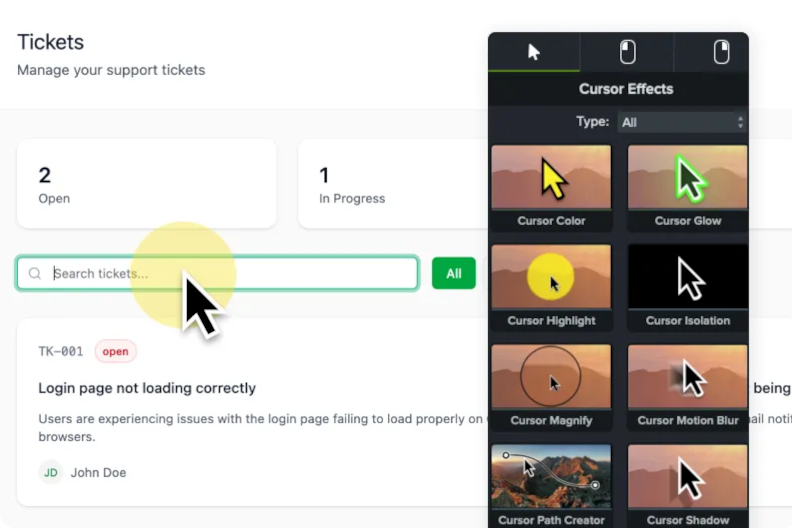
Camtasia is built for training that happens on screen: software tutorials, product walkthroughs, and step-by-step process videos. It records your screen, webcam, microphone, and system audio on separate tracks, giving you plenty of room to clean up and improve the video afterward.
Features and capabilities:
- Screen, webcam, microphone, and system audio recording
- Multitrack editing
- Editable cursor movements, clicks, and effects
- PowerPoint and media import
- Quizzes and SCORM export
Pros
- Lets you fix cursor movements after recording
- Combines screen recording and editing in a single tool
- Supports quizzes and SCORM export for LMS delivery
Cons
- AI voice-overs and several other advanced tools require the Create plan or a more advanced plan
- Its quizzes and interactions are fairly basic compared with those in a dedicated eLearning authoring tool
Pricing: The Starter plan costs the equivalent of $39 per year billed yearly, and includes a watermarked Camtasia Editor; a free download is available. The Essentials plan costs $179.88/year, billed annually.
System requirements:
- Microsoft Windows 10 (64-bit) 20H2 version or later, or macOS 14 or later
- On Windows, a compatible processor with AVX2 support and at least 2 GB of video memory
What Camtasia Editor is used for
Camtasia works well when learners need to see exactly what happens on screen. You can record a software process, remove mistakes and filler words, make important clicks easier to follow, add automated captions, and finish the video with a short quiz.
A free screen-recording alternative
OBS Studio is a free, open-source tool for recording screens, webcams, and multiple audio or video sources. It offers more control over recording scenes and is also suitable for live streaming. However, it doesn’t include Camtasia’s integrated timeline editor, cursor effects, captions, quizzes, or SCORM publishing, so you’ll usually need a separate video editor to finish the training video.
Too much to read? Get a summary from AI
#4. Loom: quick training videos and process walkthroughs
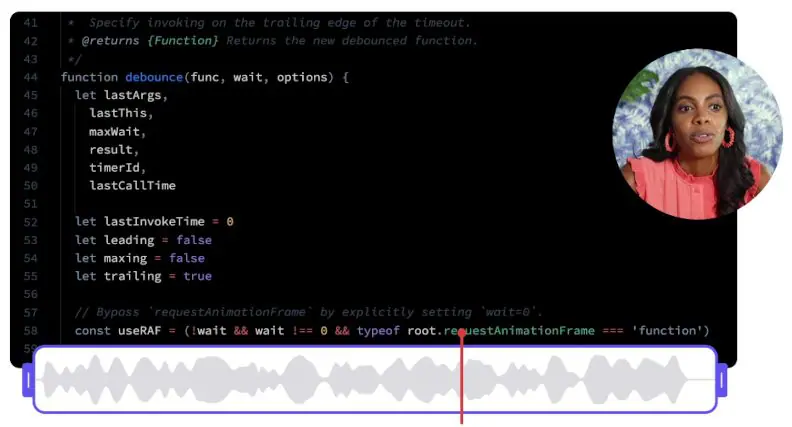
Loom is made for quick explanations. Record your screen, talk through the steps, and send the link once you finish. There’s no need to export the video or upload it elsewhere.
Features and capabilities:
- Screen, webcam, microphone, and system audio recording
- Trimming and video stitching
- Drawing tools, mouse emphasis, and on-screen blur
- Link sharing, embeds, comments, and emoji reactions
- AI-generated summaries, chapters, and tasks on eligible plans
Pros
- Subject matter experts can create short tutorials without learning a full video editor
- Comments tied to the video timeline make reviews and corrections easier
- Works across Windows, macOS, Chrome, iOS, and Android
Cons
- The free plan allows only 25 videos per person and limits each recording to five minutes
- Editing tools are more limited than those in Camtasia or a professional video editor
- Loom does not provide quizzes, SCORM publishing, or learner-level completion tracking
- Transcript editing and most AI features require the Business + AI plan
Pricing: The Starter plan is free. Business plan costs $18 per user per month, and Business + AI costs $24 per user per month. Enterprise pricing is available upon request.
System requirements: Windows 10 or later, or macOS 12.3 or later, and at least 8 GB of RAM for the desktop app
What Loom is used for
Loom suits short training programs that need to reach employees without a long production cycle. A subject matter expert might record a new software procedure, an HR team could explain how to complete an internal form, or a manager could walk employees through an updated workflow.
The platform is less suitable when training requires knowledge checks or formal completion records. In those cases, the recording needs to be added to an LMS or an authoring tool that supports assessments and trackable publishing formats.
A documentation-focused alternative
Zight takes a similar approach to quick recording and link sharing, but it also gives more attention to screenshots, GIFs, and written instructions. The free plan limits recordings to five minutes and includes 1 GB of storage. Paid plans start at the equivalent of $9.95 per user per month ($119.40/year), billed annually. Like Loom, Zight does not include quizzes or LMS publishing.
#5. LearnWorlds: interactive video inside a course platform
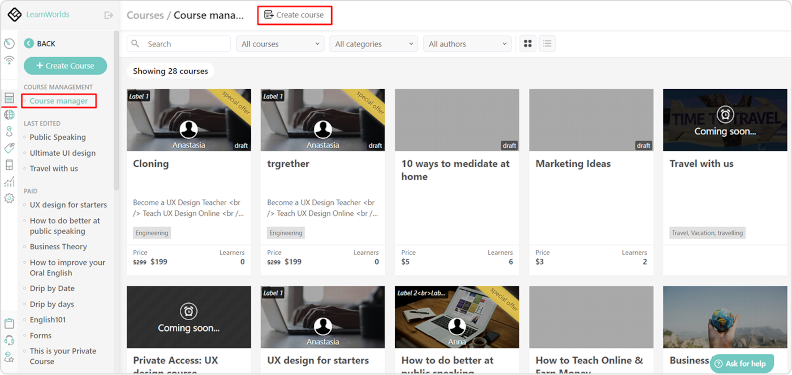
LearnWorlds is an all-in-one platform where you can create, host, and deliver training. Its standout feature is the interactive video editor, which lets you place questions, buttons, text, and other elements directly inside a video instead of asking learners to watch passively.
Features and capabilities:
- Questions and knowledge checks inside explainer videos
- Custom video navigation and tables of contents
- Subtitles, transcripts, and AI-assisted translation
- Video hosting and a customizable course player
- Assessments, certificates, and learning paths
Pros
- Includes tools for selling courses and running a branded online academy
- Works in a browser, with no desktop installation required
- Keeps course creation, hosting, delivery, and reporting in one place
Cons
- The number of course, website, marketing, and administrative settings have a steep learning curve
- Doesn’t provide the same level of video production and timeline editing as a dedicated editor
Pricing: Pro Trainer, the first plan with this feature, costs the equivalent of $79 per month when billed annually or $99 when billed monthly. LearnWorlds offers a 30-day free trial.
System requirements: A current web browser and a reliable internet connection.
What LearnWorlds is used for
The platform is suited to customer education, employee training, coaching programs, and paid online academies. If you already have an LMS and only need to create standalone training videos, much of the platform may go unused.
An enterprise video alternative
Vimeo also lets teams add hotspots, quizzes, polls, buttons, and branching paths to videos. It provides detailed engagement analytics and can connect interactive videos with learning platforms. However, these interactive elements are currently limited to Vimeo Enterprise, which uses custom pricing. Vimeo makes more sense for organizations that primarily need enterprise video hosting and management, while LearnWorlds is designed around complete courses and learner delivery.
#6. Vyond: animated training stories and scenarios
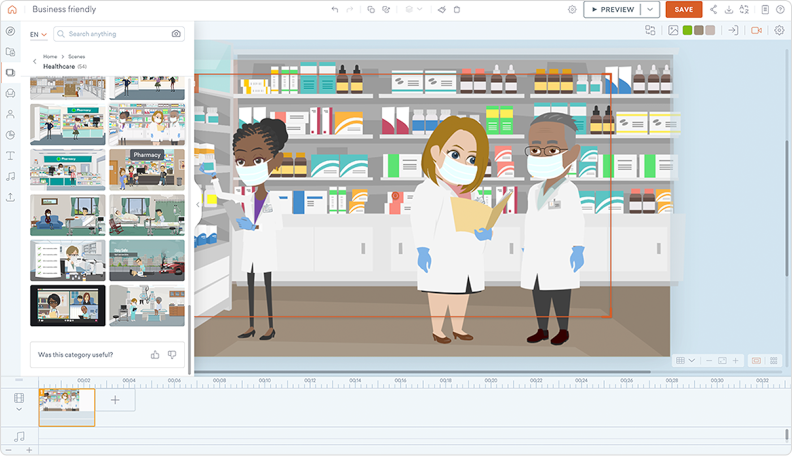
Vyond helps teams explain ideas through animated characters, settings, and stories. Instead of organizing a shoot, you can choose a scene, add characters, give them actions and expressions, and build the video one moment at a time.
Features and capabilities:
- Customizable characters, props, backgrounds, actions, and expressions
- Automatic lip-sync
- More than 650 text-to-speech voices
- Video and caption translation into 95 languages on the Professional and higher plans
- Team collaboration and brand management tools on higher-tier plans
Pros
- Can combine animation with screen recordings, webcam footage, charts, and infographics
- Provides AI tools for turning existing training materials into a first video draft
Cons
- Costs considerably more than many basic animation tools
- Customizing every scene, movement, and expression can take time
- Translation and several advanced creation tools require the Professional plan or higher
Pricing: Starter costs $699 per year or $99 when paid monthly. A free trial is available.
System requirements:
- A stable internet connection
- Current versions of Chrome, Firefox, and Microsoft Edge
What Vyond is used for
Vyond is a good choice when the training depends on people, decisions, or situations rather than a software interface. An L&D team might use it to recreate a difficult customer conversation, show how a manager should respond to a workplace issue, or compare safe and unsafe behavior.
A more affordable animation alternative
Animaker is a platform that allows you to create high-quality training videos by selecting from a wide range of ready-made characters and specifying their movements and facial expressions. With this tool, you can create videos using whiteboard animations and other styles, as well as sound and visual effects from the built-in library.
#7. Adobe Premiere Pro: professionally shot training videos
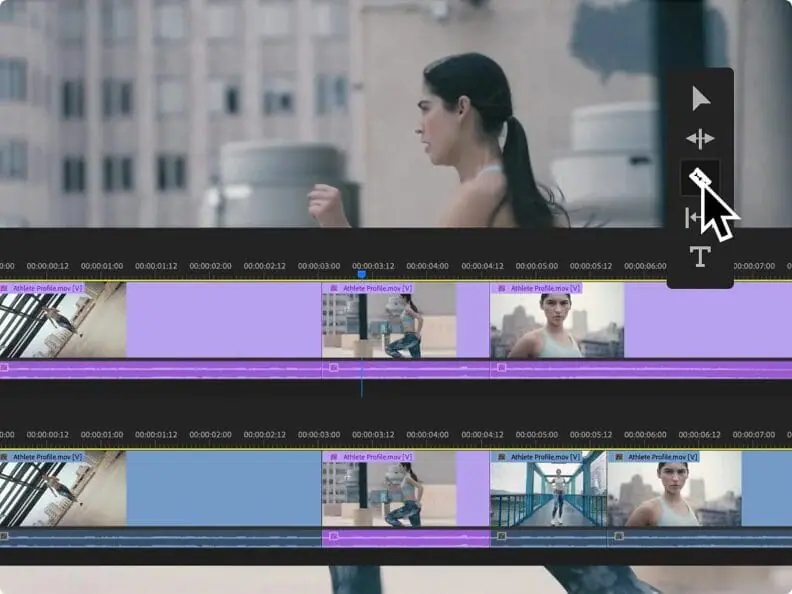
Adobe Premiere Pro, now officially called Adobe Premiere, is built for projects that need more than basic trimming and captions. It gives experienced editors precise control over camera footage, audio, color, graphics, and effects, making it a strong choice for effective training videos with high production values.
Features and capabilities:
- AI-powered tools for complex editing tasks
- Multitrack timeline for video, audio, graphics, and effects
- Generative Extend for adding extra frames or ambient audio to a clip
- Animated titles, graphics, effects, and transitions
- Caption translation into more than 18 languages
- Support for H.264, H.265, ProRes, RAW, and many other professional formats
Pros
- Handles footage from different cameras and in a wide range of formats
- Includes strong tools for improving dialogue, color, and captions
- Works well for longer projects with multiple speakers, locations, or camera angles
- Connects with After Effects, Audition, Photoshop, and other Adobe applications
Cons
- Some advanced animation and audio work is easier in other Adobe applications
- Doesn’t include quizzes, SCORM publishing, or learner tracking
- Takes time to learn if you have no previous editing experience
Pricing: The individual Premiere plan starts at $22.99 per month. The team plan starts at $37.99 per license per month. A 7-day free trial is available.
System requirements:
- Windows 11 (64-bit) version 24H2 (or later)
- Heavy on hardware: requires one of the latest processors, 8 GB RAM minimum, with 16 GB recommended for HD and 32 GB for 4K.
What Adobe Premiere Pro is used for
Premiere is a good fit when the raw footage comes from cameras rather than a simple screen recorder. A training team might use it to combine an instructor interview with workplace demonstrations, presentation slides, close-up shots, and supporting footage.
A Mac-focused alternative
Final Cut Pro is Apple’s professional video editor for Mac and iPad. It includes multicamera editing, color grading, audio tools, motion graphics, captions, object tracking, and other features for producing engaging videos. Its magnetic timeline also offers a different way to organize clips that some editors find faster once they become familiar with it.
#8. DaVinci Resolve: the best free editor for polished training videos
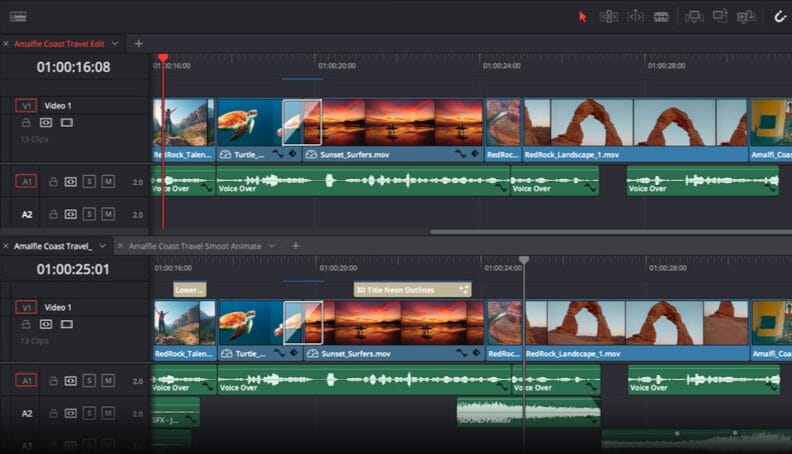
DaVinci Resolve brings advanced editing features: professional editing, color correction, visual effects, motion graphics, and audio post-production into a single application. Its free version is unusually capable, making it a strong choice for teams that want to create high-quality videos without paying for another subscription.
Features and capabilities:
- Multitrack and multicamera video editing
- Professional color correction and grading tools
- Audio editing, repair, and mixing in Fairlight
- Direct export for YouTube, Vimeo, and other platforms
- Studio-only AI tools for media search, text-based editing, voice isolation, noise reduction, and other advanced tasks
Pros
- Feature-rich free version with no time limit
- Suitable for both straightforward training video content and demanding productions
Cons
- akes longer to learn than simpler training video editors
- Does not include a general-purpose screen recorder, so demonstrations usually need to be captured in another tool
- Doesn’t provide quizzes, SCORM publishing, or learner tracking
Pricing: DaVinci Resolve is free. DaVinci Resolve Studio costs $295 as a one-time purchase.
System requirements:
- Windows 10 or 11, macOS 12 or later, Rocky Linux 8.6, or CentOS 7.3
- At least 16 GB of RAM is a practical starting point for HD editing; Fusion and 4K projects benefit from more
- A fast SSD and sufficient storage for the original footage and project files
What DaVinci Resolve is used for
DaVinci Resolve is a good fit when the quality of the finished video matters and your team is comfortable with more advanced editing capabilities.
A simpler cross-platform alternative
Shotcut is a free, open-source video editor for Windows, MacOS and Linux. It supports screen, webcam, and audio capture, as well as multitrack editing and a wide range of media formats. It doesn’t match DaVinci Resolve’s depth in color grading, audio post-production, or visual effects, but its more focused toolset may be enough for basic editing of video training content.
Bonus training video tools review
VEED.IO
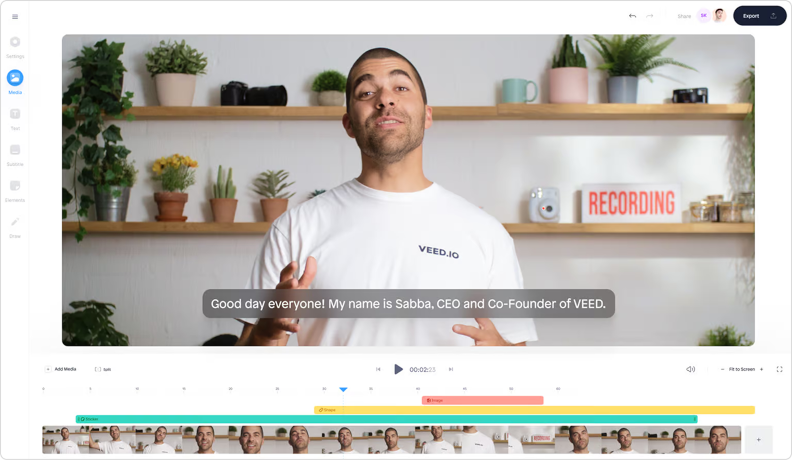
VEED.IO is an AI-powered training video creator that brings AI generation, recording, and editing into a single workspace. Moreover, this video editing tool lets you generate scripts and use its extensive library of royalty-free assets. A limited free plan is available for testing the video training platform, while paid plans start at $147 (the equivalent of $12 per user per month), billed annually.
PowToon
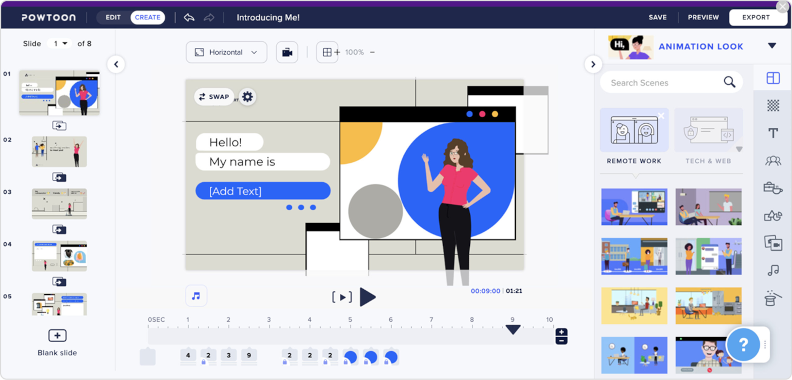
PowToon is another animation video training software with customizable templates. PowToon also offers AI tools for generating video drafts, images, clips, narration, avatars, translations, and dubbing. The free plan is limited to three-minute, 720p animated videos with a PowToon watermark, while paid plans start at $180 (the equivalent of $15 per month), billed annually.
VSDC Video Editor
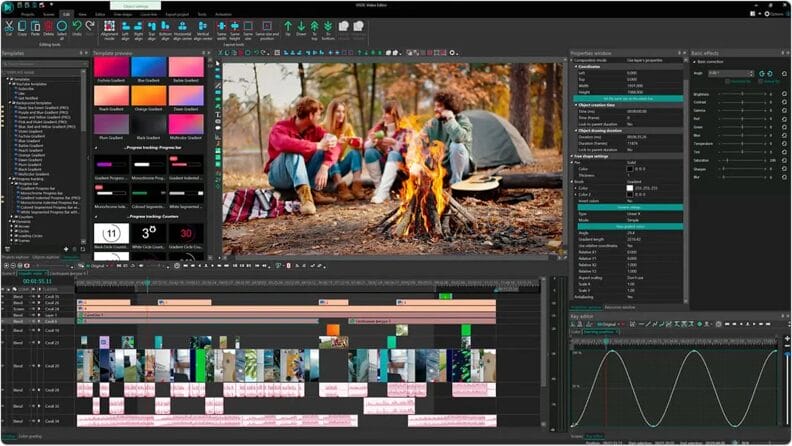
VSDC Video Editor is a free (for personal and educational use) training video creator that offers color correction, transition effects, video stabilization, and many other functionalities. The editor supports 4K and a wide range of media formats, with ready-made export profiles for different devices and direct uploading to YouTube. More advanced tools, including hardware acceleration, motion tracking, and enhanced video stabilization, require VSDC Pro.
How to create a training video in 4 steps
1. Plan the training content
Start with one clear learning objective: what should employees know or be able to do after watching? Outline the key points, write a short script, and decide what learners need to see on screen. Keeping each video focused on a single task or topic will make it easier to follow and update later.
2. Record and edit training videos
Record your screen, webcam, or both, depending on what you need to explain. Remove unnecessary pauses and mistakes, improve the audio, and add captions, annotations, or zoom effects where they help learners follow the demonstration.
3. Add interactions and quizzes
If the video is part of a course, add a few questions or a short practice activity to check understanding. You can also use role-plays or branching scenarios when learners need to make decisions, not merely remember information.
4. Publish or share the finished training
Export the video as an MP4 or share it through your company intranet or knowledge base. If you need to track completion and quiz scores, package the training for your LMS in a format such as SCORM, xAPI, or cmi5.
A training video can explain a process clearly, but it may not be enough on its own. Courses, assessments, and role-play simulations give employees a chance to practice what they have learned and show whether they can apply it.
With iSpring Suite AI, you can record and edit engaging video content, add quizzes and interactive activities, and publish the finished course to your LMS. Start a free 14-day trial and create a training project using your own materials.
How to choose training video software: four features that matter
Before comparing feature lists, map out how your team will use the software. Consider whether you will record screens or work from existing materials, how interactive the training needs to be, and where employees will watch it.
Focus on the recording and editing tools you will use
Start with the videos that are already on your production list. If they include software tutorials, you will need reliable screen capture and system audio; if they include instructors or subject experts, webcam and camera support will matter too. Make sure the software handles those everyday jobs well. Consider AI avatars and text-to-speech if your team creates presenter-led videos without access to a studio or a voice actor.
Check what happens after you publish
Think about what managers will need to see once the video is live. If viewing data is enough, an MP4 file or hosted link may do the job. If they also need learner-level completion records and quiz scores, look for SCORM, xAPI, or cmi5 support. Make sure both the authoring tool and your LMS support the standard you choose.
Look for assets you can use more than once
Customizable templates, characters, backgrounds, icons, and music can shorten production time, especially when several people create training content. Look beyond library size and check whether the assets suit your industry, audience, and visual style. The ability to save branded templates is particularly useful for keeping courses consistent as the library grows.
Choose analytics that answer training questions
Marketing-style metrics, such as views, are rarely enough for employee training. Your team may need to know who completed a video, how much they watched, where they lost interest, and whether they passed the follow-up assessment. Make sure the reporting setup can provide these answers without requiring hours of manual work.
Use the free trial to test these features with a real task. Record a short process, edit it, add a knowledge check, and publish it in the same way your team would handle a finished training video.
The best video training software tools shorten production, simplify updates, and provide L&D teams with practical software to create training videos without relying on professional editors.
FAQ
How do you make an effective video tutorial?
There are many factors that affect the quality of your instructional video: recording and video editing software, background, clothing, annotations, communication approach, cinematic rules, etc. See our guide on how to make an effective video tutorial.
Where can I host a training video?
You can store your training video on any data storage platform, like Google Drive. However, if you want to share your video with learners and monitor their progress, the best option is to upload your video along with other training content to a learning management system.
How long should training videos be?
There is no universal ideal length. Keep each video as short as the learning objective requires; short microlearning videos often fall around 2–5 minutes, while tutorials may need 6–10 minutes. Aim for one learning objective per video. This naturally keeps simple tutorials short and prevents more complex lessons from becoming difficult to navigate. Longer subjects are usually better presented as a series.
Can training videos be used in an LMS?
Yes. You can use an LMS to assign video clips, set deadlines, and make them available to the right teams. For reliable completion and assessment data, check which publishing standards both your training video software and LMS support.
Create your training video today
Choose one real task — an onboarding walkthrough, software demo, or compliance update — and build a short first version with iSpring Suite AI.
Create online courses and assessments in record time.


The 50+ Best Computer-Based Training Software

The 60+ Best Instructional Design Software and Tools for 2026
The 9 Best Screen Recorders for PC: Free & Paid

The Best Interactive Presentation Software and Tools for 2026
