
How to Convert Text to Speech in PowerPoint
 23 minutes





Using text-to-speech in PowerPoint sounds simple. However, if you’ve ever tried turning slide text into audio, you’ve probably noticed a limitation: PowerPoint can read content aloud, but it doesn’t turn that content into a reusable voiceover file.
What’s the difference? PowerPoint’s built-in read-aloud feature is designed for live playback. It can read selected text or slides during a presentation, but it doesn’t create a standalone audio track that you can edit, export, or reuse in other courses or training materials.
Good news: You can pair PowerPoint with external AI voiceover tools to create natural-sounding narration for a course or video tutorial. In this article, we’ll explain how to convert text to speech in PowerPoint, why you might use external AI tools, and how iSpring Suite AI can help.
Key takeaways
PowerPoint includes built-in text-to-speech features that can read slide content aloud using the Speak command (desktop) or Immersive Reader (web version). These tools are useful for accessibility, proofreading, and basic narration, but they don’t create reusable audio files and offer limited voice customization.
This guide explains how to use PowerPoint text-to-speech in the desktop and web versions, as well as through operating system accessibility tools. It also covers the differences between PowerPoint’s built-in options and modern AI voiceover solutions. You’ll learn how to create natural-sounding voiceovers with iSpring Suite AI, adjust pronunciation and pacing, generate multilingual narration, troubleshoot common text-to-speech issues, and choose the best approach for training, eLearning, presentations, and video tutorials.
Text-to-speech features for PowerPoint presentations
PowerPoint can read text aloud using the built-in Speak command in the desktop version or Immersive Reader in the web version. These features can be useful for reviewing content or following along throughout a presentation.
The downside of these built-in options is that PowerPoint only uses system-installed voices. This means that the available languages and voice quality depend on the operating system settings rather than PowerPoint itself.
Using PowerPoint’s built-in text-to-speech tools
You can use text-to-speech in a PowerPoint presentation in several ways, but the available options depend on the version you’re using. Some are built directly into PowerPoint, while others rely on web features or system accessibility tools outside the app.
Method 1: Use the Speak command in the desktop version
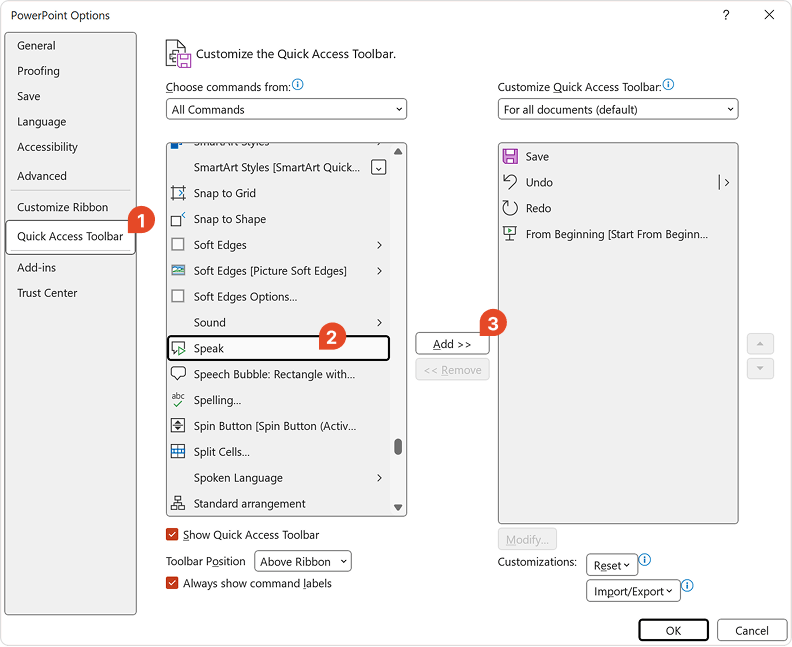
The Speak command is not visible by default, so you need to add it before using it. Follow these three steps:
- In the desktop version of PowerPoint, go to File → Options → Quick Access Toolbar.
- From the “Choose commands from” menu, select All Commands.
- Find Speak, then click Add → OK.
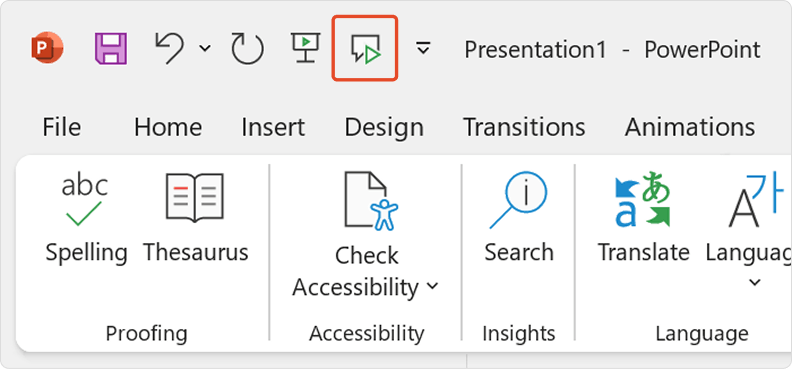
Select the text, click the Speak button on the Quick Access Toolbar, and the system will read the text aloud.
Method 2: Use the Speak command in the web version
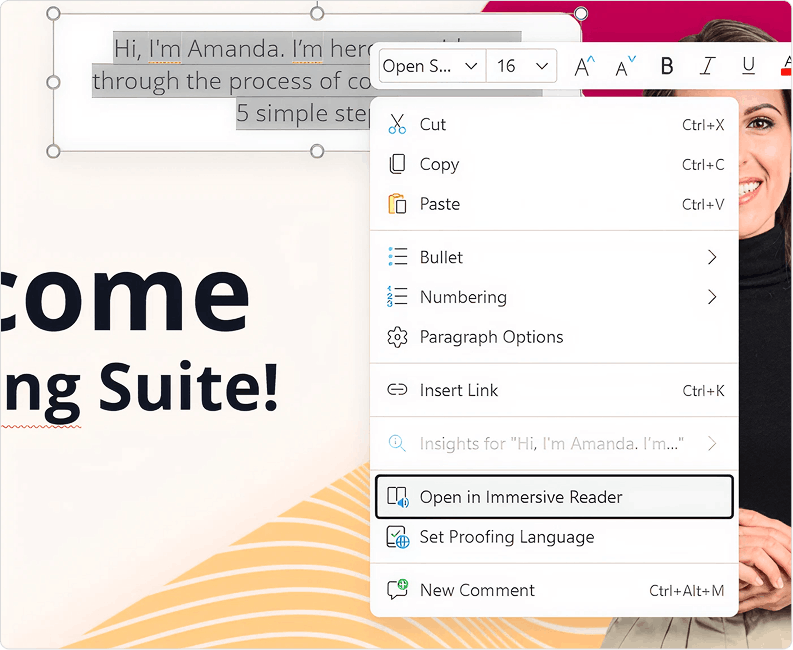
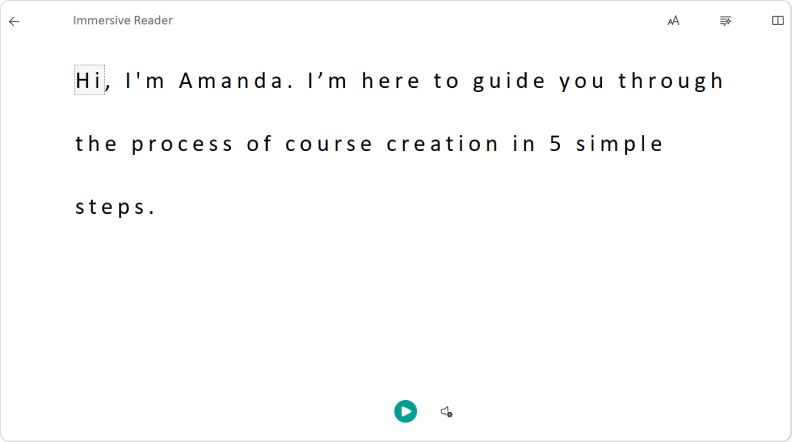
In the web version of PowerPoint for Microsoft 365, Immersive Reader is available by default. Here are two ways to read your text aloud:
1. Select the text and right-click it. Then select Open in Immersive Reader from the dropdown menu.
2. Select the text and click Immersive Reader on the ribbon.
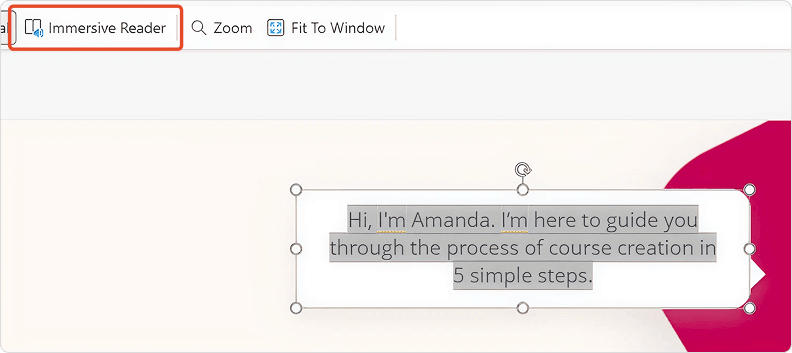
The text will open in a full-screen browser view, where you can play the audio.
Method 3: Use Windows or Mac accessibility voices
You can also use built-in system accessibility tools outside PowerPoint. Both Windows and macOS provide text-to-speech functionality at the operating system level.
In this case, the system reads PowerPoint content aloud using voices managed in your operating system settings rather than in PowerPoint itself.
Method 4: Use speaker notes as a script for narration
This method does not use PowerPoint’s text-to-speech features. Instead, you can use speaker notes as a script. PowerPoint doesn’t convert notes into audio automatically, but you can use them with third-party recording tools or narration features to create structured voiceover content.
This approach is commonly used when creating training materials or eLearning content that will later be recorded or exported as a video.
PowerPoint text-to-speech vs. AI voiceover tools
PowerPoint text-to-speech features are designed mainly for accessibility and quickly reading text aloud, while AI voiceover tools are designed to create high-quality, reusable narration. Although both convert text into spoken audio, they serve different purposes.
| Feature | PowerPoint Text-to-Speech | AI Voiceover Tools |
| Main Purpose | Read slide text aloud for accessibility or review | Create professional voiceovers |
| Voice Quality | Basic system-installed voices | Natural-sounding AI voices |
| Output | No audio file export | MP3/WAV export available |
| Editing Options | None or minimal | Advanced editing and regeneration options |
| Use Cases | Personal use, proofreading, accessibility | eLearning, training videos, presentations, marketing content |
In short, PowerPoint text-to-speech is helpful for reading and reviewing content, while AI voiceover tools are a better choice when you need polished, consistent, and reusable narration for professional learning or communication materials. Next, we’ll look at AI voiceover tools.
How to add AI voiceovers to PowerPoint with iSpring Suite AI
With iSpring Suite AI, you can generate realistic AI voiceovers directly in PowerPoint. Instead of recording audio from scratch, simply paste your script, choose a voice, and let the tool create professional narration in seconds.
Core iSpring Suite AI voiceover features
iSpring Suite AI uses AI text-to-speech to turn PowerPoint content into spoken narration. You can generate natural-sounding voiceovers directly from your script without recording your own voice.
You can choose from a vast library of voices in multiple languages and accents to create localized training materials. Once the narration is generated, you can edit the text, regenerate the audio in seconds, switch to a different voice, and keep your content up to date without re-recording.
iSpring Suite AI also gives you greater control over pronunciation, pacing, and delivery, helping you produce voiceovers that sound clear, engaging, and consistent throughout your entire course.

Professional voiceovers without a narrator
In iSpring Suite AI, you can select a voice, timbre, and tone. You no longer need a narrator or a fully equipped recording studio to create high-quality audio for your course.
Lesson on cybersecurity. Ryan’s voice
Voices in multiple languages
If you create courses for learners in different countries, simply select the language you need for the voiceover. There are 53 languages available, including English, Arabic, Spanish, Dutch, French, and Chinese. This allows learners to study materials in a language they’re fluent in.
French sample
Spanish sample
Easy editing
You can edit, add, or trim audio and text directly in the iSpring Suite AI interface, for example, to correct errors. The tone and timbre will remain consistent. This is useful if you need to revise the information or update your course by adding a section about new services, for instance.
You can also adjust the intonation and timbre, add pauses, and specify pronunciations as needed.
Gemini-powered AI voices from Google
Choose from 387 male and female voices, ranging from deep bass to lyrical contralto. Select the voice that fits the mood and theme of your course.
Bob’s voice
Mia’s voice
Changing the narration’s speed and intonation. From calm and relaxed to energetic and cheerful narration, iSpring Suite can read an entire text or an individual phrase at your preferred speed.
Maggie’s voice
Adjusting pauses between words and sentences. To make the narration sound more natural, you can adjust the length of the pauses between spoken words or sentences. The speech tool also takes punctuation into account to create natural intonation.
An excerpt from “The Road Not Taken” by Robert Frost
Abbreviations and expletives. The tool can read ordinal and cardinal numbers, fractions, and abbreviations correctly. If it encounters a swear word in the text, it can bleep it out when requested.
Taron’s voice with profanity filtering
Best use cases for PowerPoint TTS and AI voiceovers: iSpring Suite AI
PowerPoint text-to-speech works well when you need quick, accessible audio support. For full-scale narration, AI voiceovers are a better choice. Here’s how to add them with iSpring Suite AI.
Creating voiceovers for scrollable courses is now easier. With iSpring Suite AI, powered by ElevenLabs Multilingual v2, you can generate realistic voiceovers directly from your course text. The same feature is coming soon to PowerPoint slides. Upcoming updates will include an advanced AI voice generator and additional voice customization options, allowing you to add pauses, emphasize specific words, fine-tune pronunciation, and adjust speech settings for different types of content. Future releases will also expand support for expressive AI narration, including emotional cues and more natural speech patterns.
Voiceovers for corporate training, onboarding and eLearning courses
TTS and voiceovers help employees quickly review slide content in online courses or through audio-based learning. Here’s how to add TTS with iSpring Suite AI:
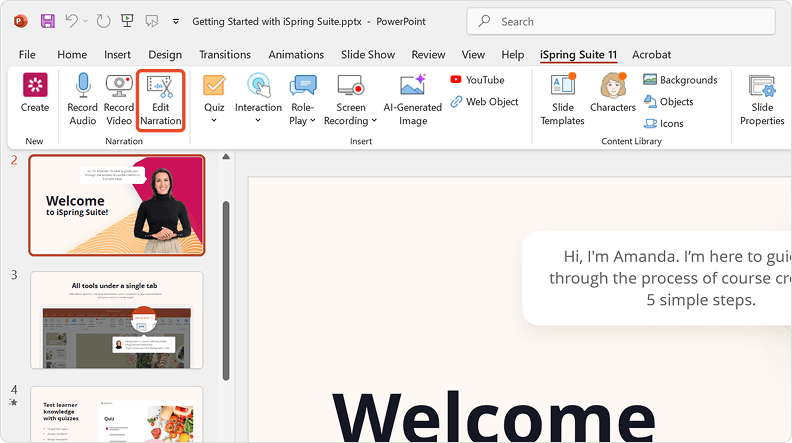
1. First, open a course and click Edit Narration on the iSpring Suite AI toolbar.
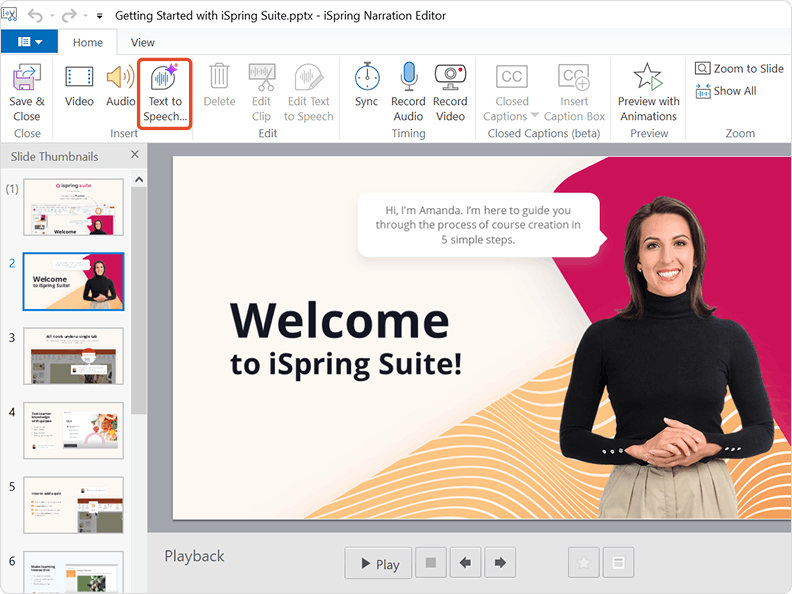
2. Click the Audio button and select Text to speech.
3. In the window that opens, select the language, speaker, and voice type.
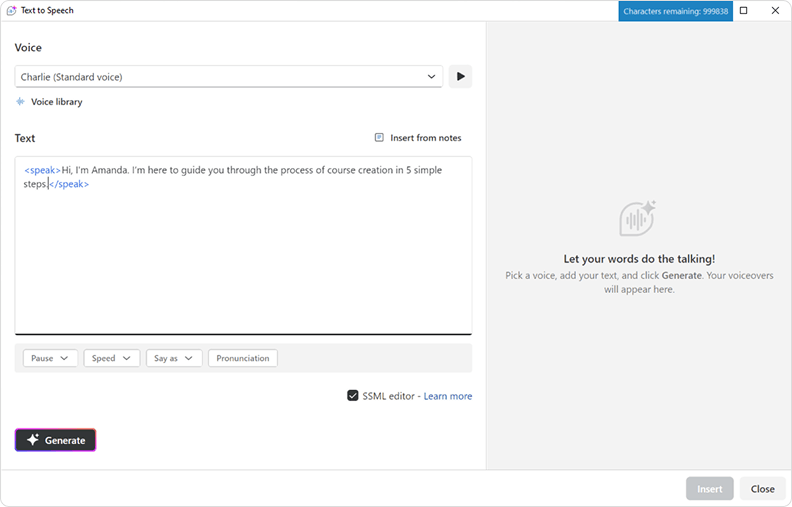
- Standard voice will be appropriate for an onboarding course on IT safety, for example.
- Natural voice may work well for a lesson on conducting a job interview or negotiating with a customer.
4. To hear what the speaker will sound like, click Preview voice. Select the voice you would like to use, enter the text to convert, and click Insert.
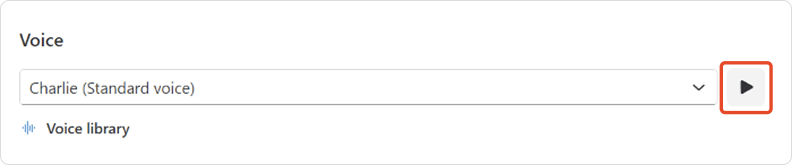
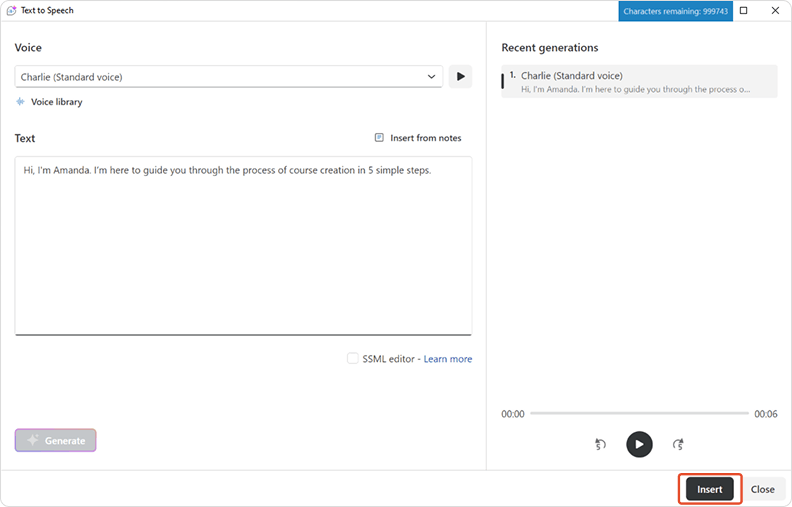
5. You can choose when the audio starts playing: immediately when the slide opens or later. When you’re finished, click Insert.
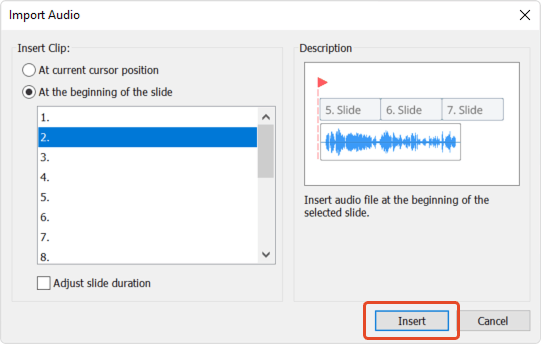
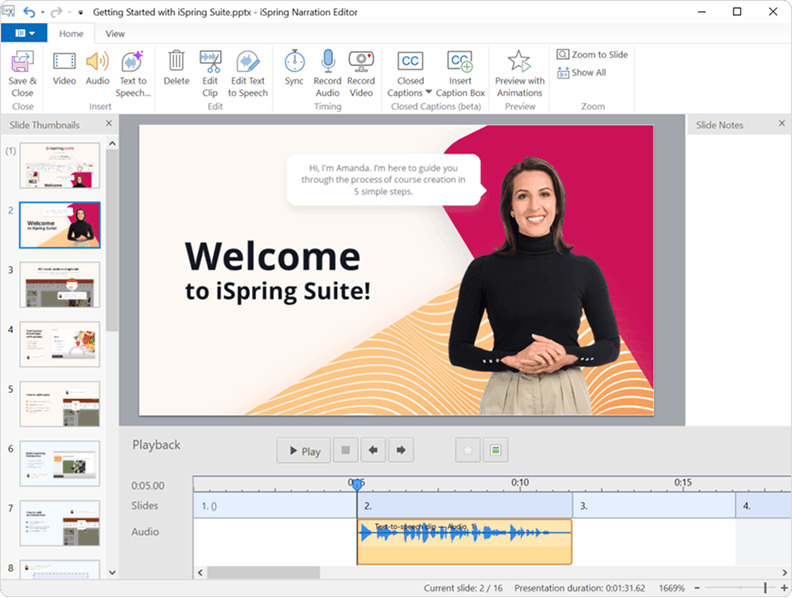
The voiceover will appear on the audio track below. Its name will be Text-to-speech clip — Audio 1.
Marketing and Product Explainer Videos
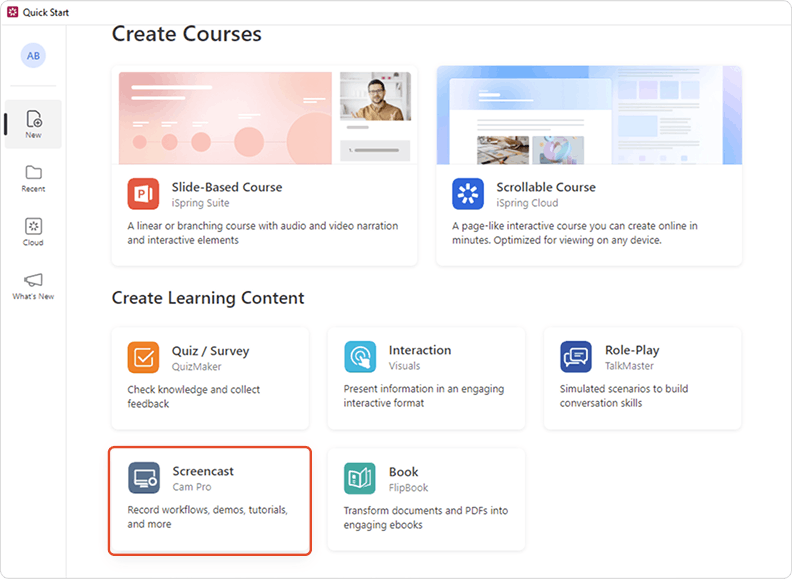
1. To add a voiceover to a video, click Screencasts on the iSpring Suite AI toolbar and open an existing video or create a new one.
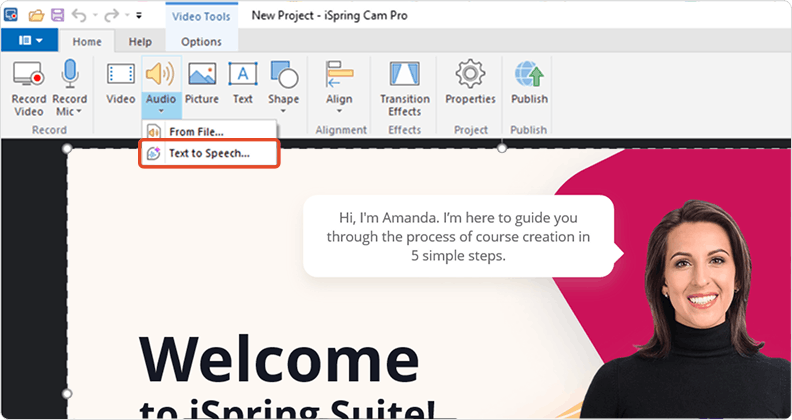
2. In the window that opens, click the Audio button and select Text to speech.
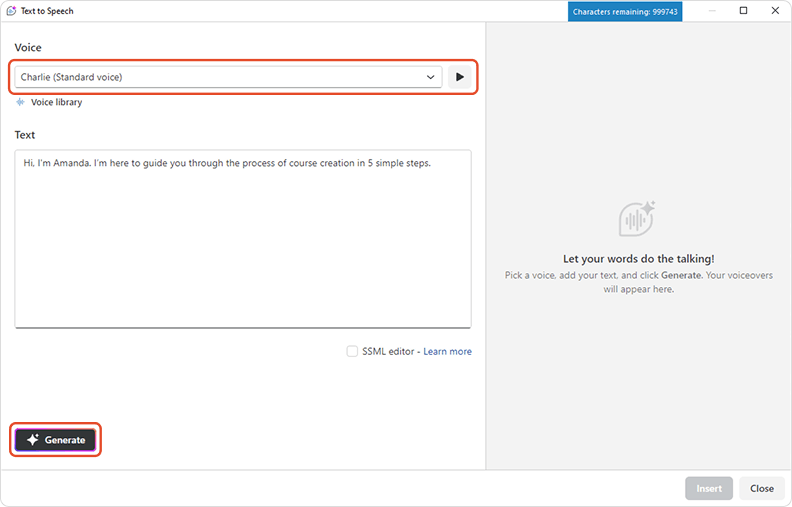
3. In the next window, select the language, speaker, and voice type.
4. To hear what the speaker will sound like, click Preview voice. Then click Insert.
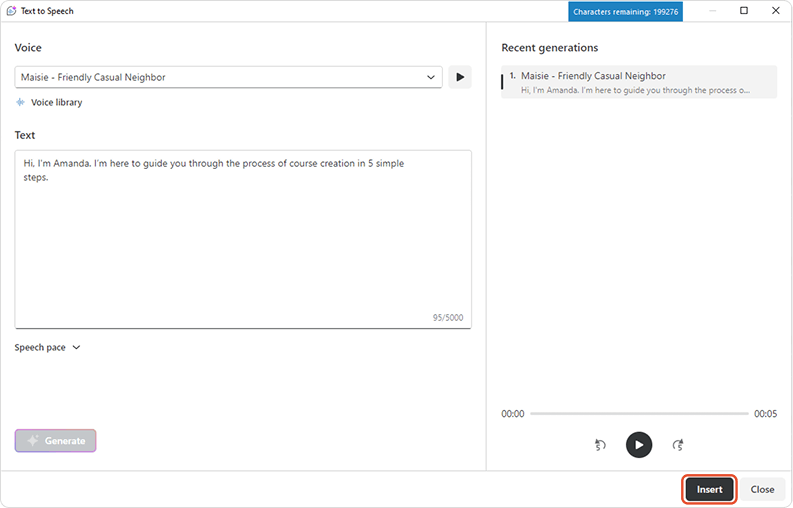
5. The voiceover will appear as a new audio track with the name Text-to-speech clip — Audio.
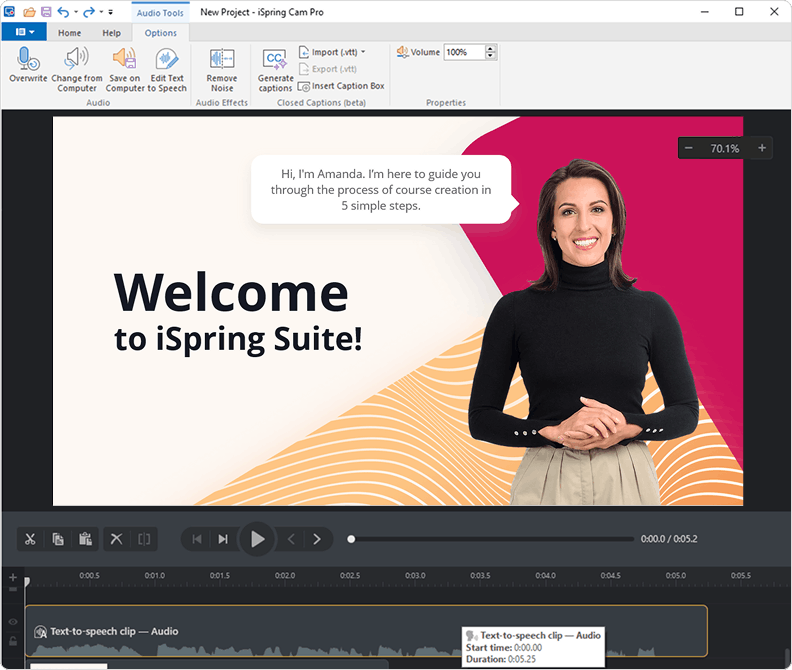
How to Edit a Voiceover
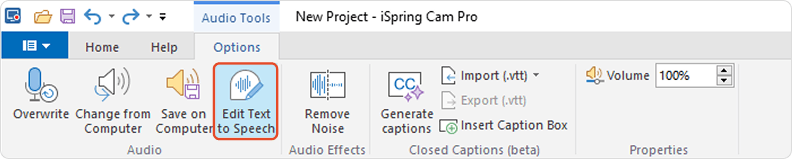
You can make changes to a text-to-speech clip, such as selecting another language or speaker. The following example uses a video tutorial, but you can adjust the audio for an entire course the same way.
1. To edit a voiceover, select the clip on the audio track and click Edit Text to Speech on the toolbar.
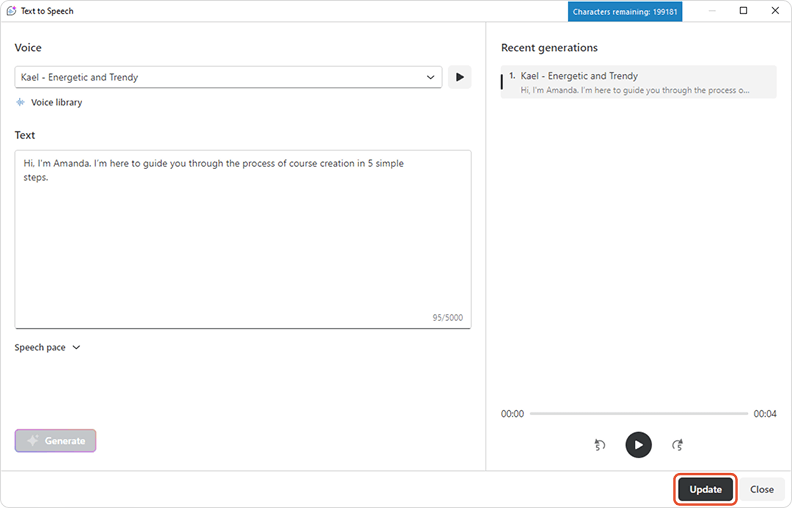
2. In the window that opens, you can revise the text and change the language or voice. To save your changes, click Update.
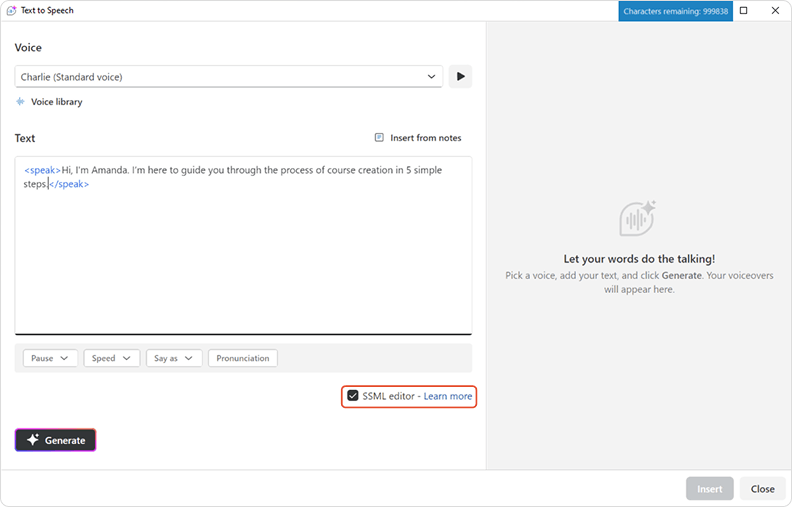
Change the speed and the lengths of pauses
To change the narration’s pace and intonation or add pauses, enable the SSML Editor.
Select the phrase or sentence you want to adjust. On the toolbar, click Speed and choose how quickly the speaker should read the text. You can add pauses and set their length in the same way.
The tool also recognizes punctuation and automatically adds appropriate pauses at commas, dashes, and periods.
Adjust the word pronunciation
iSpring Suite can read abbreviations, numerals, phone numbers, and fractions correctly. If necessary, it can even pronounce a word syllable by syllable or letter by letter. Specify the preferred pronunciation in the settings.
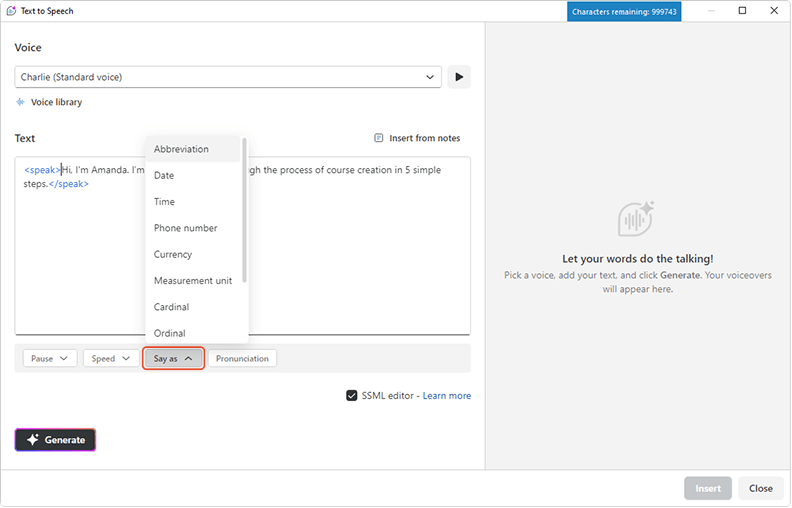
Select the word in the text, click Say As on the toolbar, and choose how the narrator should read it, such as a time, phone number, fraction, or expletive.
Bonus idea: Create AI Voiceovers in iSpring Cloud
iSpring Suite includes access to iSpring Cloud, an online course editor for creating responsive learning experiences on desktop and mobile devices. In addition to traditional PowerPoint-based courses, you can create lightweight lessons and add AI-generated narration.
iSpring Cloud’s text-to-speech technology is powered by ElevenLabs, a leading provider of AI voice generation. Instead of relying on robotic system voices, you can create polished voiceovers from your text.
Why use AI text-to-speech in iSpring Cloud?
The voice library includes voices contributed by creators around the world:
- Generate voiceovers directly from your text.
- Choose from more than 10,000 voices in 53 languages, with a range of accents and speaking styles.
- Find the right voice for training, marketing, social media content, or character-based scenarios by filtering the library by language, gender, age, and other characteristics.
- Update your script at any time and regenerate the narration in seconds instead of recording everything again.
- Localize courses quickly by combining AI translation with multilingual text-to-speech.
Custom voice cloning is not currently available. However, you can use the library to generate audio from more than 200,000 characters each month. Additional character packages are available through iSpring support or your account manager.
Two ways to generate a voiceover
If you’re working in PowerPoint, you can open iSpring Cloud directly from the iSpring Suite ribbon and continue working on your online course. This lets you move between slide-based learning and mobile-friendly microlearning within the same authoring workflow.
There are two ways to create a voiceover in iSpring Cloud, depending on whether you are working with existing text or starting from scratch:
- Generate from selected text. Use this option when your content is already on the page. The voiceover will be inserted before the selected text, and you can remove the text later if you want to keep only the audio.
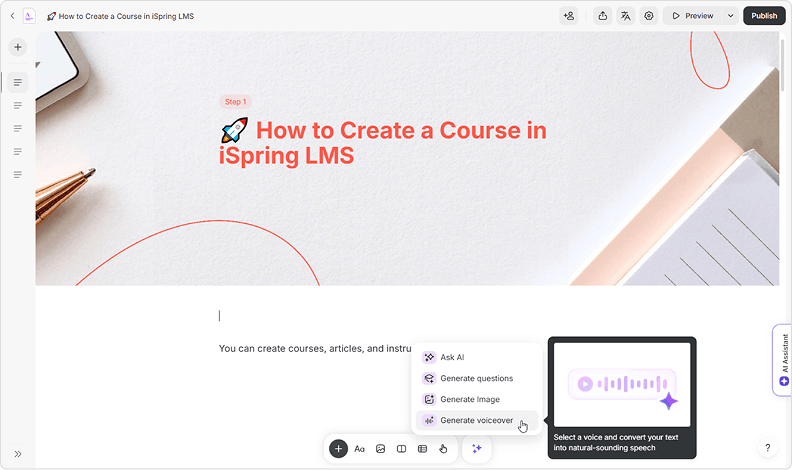
To do this, open a scrollable course, select the text, and then go to AI → Generate voiceover. You can review and edit the text before generating the final audio.

AI generated narration
- Generate from the toolbar. Use this option to create audio from text that is not yet on the page, such as an introduction or listening activity.
Place the cursor where you want the audio to appear. Then select + → AI → Generate voiceover, or open AI tools → Generate voiceover. Paste your text into the editor, and then click Generate.
Take a moment to listen to the sample course with AI narration:
Sample
Quick tip: You can emphasize specific words by writing them in ALL CAPS. To stress a syllable, place the cursor after the vowel and press Alt+769.
Future text-to-speech updates will introduce more expressive controls, including custom pronunciation, adjustable pauses, and a wider range of emotional delivery.
Book a Demo to Preview New Features!
Common Problems and Fixes
Text-to-speech in PowerPoint doesn’t always work as expected. Here are the most common issues and what causes them.
- Speak is missing. This usually means the command hasn’t been added to the Quick Access Toolbar. Follow the instructions above to add it.
- Text is skipped or mispronounced. This often happens with unusual formatting, symbols, or mixed languages. Simplifying the text and correcting the punctuation usually helps.
- The voice sounds unnatural. PowerPoint uses system voices, so the quality depends on your operating system. There’s little you can adjust in PowerPoint itself. However, you can use an external AI tool such as iSpring Suite AI, which offers a range of voices and customization options.
- Voice speed cannot be changed. Speed controls are limited or unavailable, depending on the PowerPoint version. For greater control, use an external voiceover tool.
- TTS does not work in the PowerPoint mobile app. Mobile versions have limited or no text-to-speech support. Most TTS features are available only on desktop or the web.
Bonus tips for better PowerPoint narration
If you’re preparing a PowerPoint presentation with narration, these tips can help you make it clearer and more polished:
- Write speaker notes the way people speak. Avoid formal written phrasing. A conversational script will sound better when read aloud.
- Keep sentences short and clear. Long sentences are harder for both people and TTS engines to process correctly.
- Use punctuation to control pacing. Commas and periods help create appropriate pauses in speech.
- Match the voice style to your audience. A training course and a sales presentation shouldn’t sound the same.
- Test each slide individually. Don’t assume the full presentation will sound right. Check each slide before publishing.
Once your narration script is planned and tested, you can use PowerPoint voiceover tools to turn it into audio. For reusable, natural-sounding narration, an AI voiceover tool such as iSpring Suite AI can simplify the process.
Try the new iSpring Suite AI features and share your feedback in the comments. If you don’t have an active subscription, you can download a 14-day free trial here.
FAQ
How do I get Microsoft PowerPoint to read text aloud?
Use the Speak command in the desktop version or Immersive Reader in the web version, if available.
Does PowerPoint have text-to-speech?
Yes. PowerPoint has the Speak function, but it uses system voices and its availability depends on the PowerPoint version and platform.
What is the difference between text-to-speech and voiceover in PowerPoint?
Text-to-speech reads content aloud live, while a voiceover is an audio track that can be added to one or more slides.
Can I save PowerPoint text-to-speech as audio?
No. PowerPoint does not export text-to-speech as an audio file, but external tools such as iSpring Suite AI can.
Can PowerPoint read speaker notes aloud?
Not directly. Speaker notes can serve as a script, but PowerPoint does not read them automatically. You can export the notes, create a voiceover with an external tool such as iSpring Suite AI, and add the audio to your slides.
Why can’t I find Read Aloud in PowerPoint?
The feature is called Speak in the desktop versions of PowerPoint. If you don’t see it, follow the instructions above to add it to the Quick Access Toolbar.
Can I change the PowerPoint TTS voice?
You can change it only through your system voice settings, not directly in PowerPoint.
Does PowerPoint text-to-speech work on Mac?
Support is limited and depends on your Office version and macOS accessibility settings.
Does PowerPoint text-to-speech work on mobile?
Generally, no. PowerPoint mobile apps have very limited text-to-speech functionality.
What is the best AI voiceover tool for a PowerPoint presentation?
It depends on your needs, but iSpring Suite AI offers natural-sounding, reusable narration for training courses and presentations.
Create online courses and assessments in record time.





PowerPoint Add-ins and Plug-ins: 13 Essential Picks for 2026

The Best Interactive Presentation Software and Tools for 2026

How to Voice Over a PowerPoint Training Presentation
How to Make a Training Video Right in PowerPoint
