The best AI voiceover tools: 9 picks for 2026
 34 minutes



An AI voiceover tool can turn a script into narration for an online course, video, or presentation. But choosing one takes more than listening to a convincing voice sample: tools differ in how they handle pronunciation, revisions, and exports.
For L&D teams, the priority might be keeping narration consistent across training modules and updating individual lessons without rerecording the entire course. YouTube creators may need a narrator who can carry a story, while marketing teams need voiceovers that work with visuals and sound effects. AI voice generator tools can also support accessibility by making written content available in audio form.
We tested nine tools and compared their voice quality, pronunciation, editing workflows, and export options. This guide covers standalone voice generators, audio and video editors, and course authoring tools to help you choose based on what you’re creating, not just how realistic a voice sounds.
Key takeaways
Even realistic voiceovers need to be checked in the finished video or course. Here are the most useful things to consider when choosing a tool:
- Match the tool to the output: a reusable audio file, a narrated video, or an editable eLearning course.
- Check natural changes in emphasis, not only whether the voice pronounces the words correctly. In several tested voices, words like “CRM” and “SSO” sounded overly separated.
- Try one real script correction before choosing a subscription. Regeneration controls, slide timing, and export access can add work after the first recording.
- Free generation does not guarantee free downloads or commercial-use rights.
The best AI voiceover tools at a glance
Some AI voiceover tools generate standalone audio, while others let you add narration directly to videos or eLearning courses. The table below shows what each tool is best for and what to consider before choosing.
| Tool | Best-fit task | What to consider |
| Tool | Best-fit task | What to consider |
| ElevenLabs | Standalone voiceovers and voice cloning for videos and eLearning. | For courses, narration needs to be imported and synced with slides and animations in an authoring tool. |
| iSpring Suite AI | Creating and publishing PowerPoint-based courses with integrated narration. | Sold as an annual authoring subscription rather than an audio-only service. |
| Murf | Producing voiceovers alongside visuals and background music. | Creating and publishing interactive eLearning courses requires a separate authoring tool. |
| Speechify Studio | Creating voiceovers and dubbing videos into other languages. | Changes to the script, speed, pitch, or emotion require regeneration and consume additional credits. |
| Descript | Editing AI narration alongside audio and video through a text-based editor. | Changing spoken words requires regenerating the AI speech. |
| WellSaid | Producing training narration with pronunciation and delivery controls. | Plans limit how many minutes of generated audio you can download. |
| Adobe Firefly | Generating voiceovers using Adobe and supported partner voice models. | Speech generation uses Firefly credits, with different rates for different models. |
| Synthesia | Creating narrated training and explainer videos, with or without AI presenters. | Video-first workflow; audio-only export depends on the editor and plan. |
| Microsoft Clipchamp | Creating simple narrated videos in a video editor. | Voice controls focus on pitch, speed, and pauses, with limited delivery customization. |
How to choose an AI voiceover tool
- Start with the deliverable. ElevenLabs is an option for reusable narration files; iSpring Suite AI is worth considering when the final product is an editable PowerPoint-based course. Descript fits text-driven audio and video editing, while Synthesia is designed around creating narrated videos. Check the exact output and workflow you need before comparing voices.
- Check whether the voice is natural sounding and pronounces names, abbreviations, and numbers correctly — especially in technical scripts. For stories or dialogue, voice styles and emotional control may matter more. Pronunciation dictionaries, options to add pauses or adjust pitch, and phonetic spelling allow different kinds of fine-tuning; availability depends on the voice model.
- Include the work after generation. Audio for another editor needs exporting and placement; a narrated lesson needs slide timing and review. Test the export options and one revision, not just the opening sample.
- Compare pricing models carefully: some plans charge for generated characters, others for generated seconds, downloaded minutes, or shared AI credits. A premium plan may unlock more features, but check what it covers for revisions and approved exports.
The reviews mentioned in this article come from users on G2 and TrustRadius, and some were incentivized. They show how people use these tools and what issues they’ve run into. Keep in mind that individual reviews can’t tell us how common those problems are or which tool has the best voice quality.
What our tests actually showed
To compare the tools under similar conditions, we created a short employee onboarding script for a fictional company called Nivora. We included details that can be challenging for AI narration: an unfamiliar company name, acronyms, an invoice amount, a date and deadline, a question, and instructions for reviewing an invoice.
Welcome to Nivora’s onboarding session. Open the CRM and use SSO to sign in. Check the customer record before you approve the sample invoice for $1,250.50, dated November 4, 2026. Does the amount match the original request? If not, select Review and notify your team lead. The deadline is 4:45 p.m. on Friday. Finally, save your changes and leave a note for your team lead.
We used this as our baseline script, making small changes where needed to test editing and regeneration features.
All nine tools were tested, although the scope varied and not every audio export option was independently verified. We focused on one selected voice per test, changing voices only to troubleshoot.
| Tool and test setup | What we heard or changed | Output obtained / access limit |
| Tool and test setup | What we heard or changed | Output obtained / access limit |
| ElevenLabs — Remi, v4 (Free) | Clear initial narration; pause tags improved command boundaries; in Studio we regenerated an edited paragraph. | MP3 audio exported. |
| iSpring Suite AI — Jonathan Livingston, Multilingual v2 (paid functionality) | A five-slide lesson: switching voice improved “Nivora”; the amount needed to be spelled out; edited a slide narration clip and synchronized imported audio. | HTML5/SCORM 2004 package published; LMS launch/tracking not tested. |
| Murf — Charles, Conversational (free trial) | Intelligible overall; CRM and SSO sounded too separated; slight synthetic quality. | Playback only; audio download required upgrade. |
| Speechify Studio — Clara (Free) | Clear overall; mechanical initialisms and an unnatural rise on a statement. | Audio downloaded in our Free account; MP3 was selected in the export dialog. |
| Descript — voice labeled Ken (Free) | Engaging but insufficiently context-sensitive delivery; over-articulated initialisms. Script edit triggered regeneration. | Some voice previews failed or mismatched labels. MP3, WAV, and M4A exports are supported. |
| WellSaid — Alana B., Narration (Caruso), Free trial | Clear overall; an awkward pause in the amount improved with Rewrite for Speech. Smart Suggestions helped correct the stress in “Nivora” after regeneration. | Audio generated and previewed in the free trial; MP3 audio was successfully downloaded from the free trial; the account showed a three-minute download allowance. |
| Adobe Firefly — Jennifer, Firefly Speech (Free) | Pleasant overall; unusual pause within 4:45 p.m. and over-articulated initialisms. | WAV downloaded; no format selection shown. |
| Synthesia — Sarah, Syren (Free) | A clean reading in an avatar-free 32-second video; script retained exactly. | Watermarked video downloaded; audio-only export not found in Syren. |
| Microsoft Clipchamp — Ava Multilingual (Free) | Smooth reading; pitch, pace, and pause controls in the editor. | Audio-only M4A downloaded; no format selection shown. |
Please note that these are observations from one script and a small set of selected voices. Results describe the account and interface we used; they are not blanket claims about every plan or supported format.
AI voiceover tools for content creation
ElevenLabs
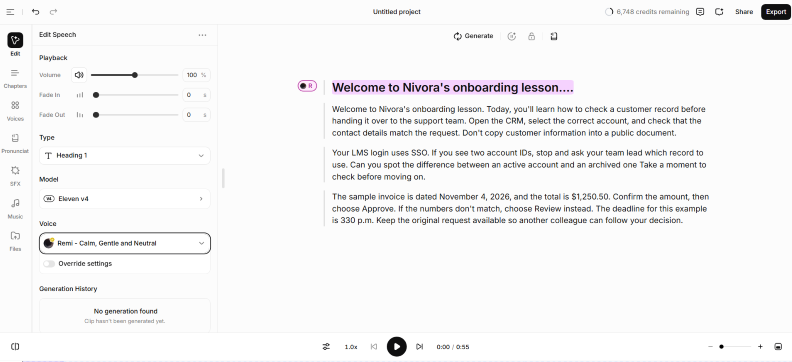
ElevenLabs is an AI voice generation platform for creating narration, voiceovers, and cloned voices. You can choose from a large voice library, turn scripts into voiceovers, and download the audio for videos, podcasts, or eLearning courses. ElevenLabs also powers AI narration in iSpring Suite AI, which we’ll review separately as a course authoring tool.
For longer projects, ElevenLabs Studio lets you organize a script into sections, assign voices, and regenerate individual passages when something needs changing. So, you don’t have to regenerate an entire recording just to revise one paragraph.
Voice cloning is another option for projects that need the same recognizable speaker across multiple lessons or videos. You can clone your own voice or work with recordings from a speaker who has given permission.
For eLearning, you’ll still need to import the audio into your authoring tool and synchronize it with slides and animations. This is worth considering if you update your courses regularly.
For recurring narration tasks, ElevenLabs integrates with Zapier to generate speech automatically from text in forms, emails, or spreadsheets. Setup requires an API key and available ElevenLabs credits.
Revision costs also deserve attention. In an incentivized July 2026 G2 review, Curran M. described using ElevenLabs for temporary voiceovers before recording a human narrator, but disliked spending credits on unsuccessful generations. Another reviewer, Himanshu S., reported problems pronouncing names and foreign words. Test those terms with your script before choosing a plan.
Our hands-on test
In our ElevenLabs test, we used the Remi voice with the Eleven v4 model for a sample onboarding instruction.
In the first reading, we found the product name, abbreviations, date, and amount acceptable, but wanted clearer separation before the Approve and Review commands. Adding [short pause] tags improved those pauses. We then generated a revised full-length recording after changing the deadline.
In Studio, a separate three-paragraph version allowed us to regenerate the edited paragraph, although another paragraph needed an additional generation before final export. That extra step occurred in this project; its cause was not established.
Pricing and access
The Free plan includes 10,000 credits per month but no commercial-use rights.
Starter costs $6/month with 30,000 credits; Creator costs $22/month with 121,000 credits and Professional Voice Cloning. For teams, Scale costs $299/month and includes three workspace seats and collaboration features. Pro users can also purchase additional seats.
Annual billing costs the equivalent of 10 months. Credit usage depends on the model, and additional generations may consume credits. Commercial rights on paid plans don’t apply retroactively to audio that was generated with the Free plan.
iSpring Suite AI
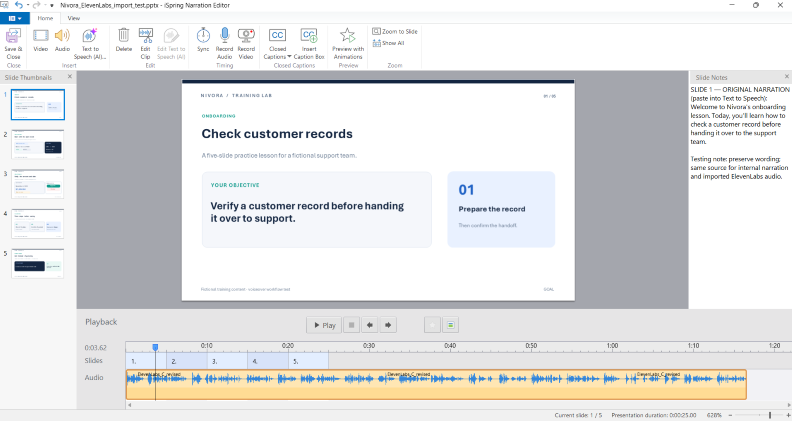
iSpring Suite AI is a good fit for training authors who want to turn their PowerPoint presentations into narrated courses. Its AI voiceovers are powered by ElevenLabs, with legacy Google voices also available. The advantage is the authoring workflow: you can generate narration, add it to slides, revise it, and publish the finished course without moving audio between separate tools.
You can import text from PowerPoint speaker notes, generate narration, and add it to your slides through the Narration Editor. When you insert audio at the beginning of a slide, the Adjust slide duration option can automatically match the slide length to the narration. You’ll still need to synchronize individual animations manually, but the course content and its voiceovers stay in the same authoring project.
This is especially useful when training content needs updating. For example, if you’re preparing an onboarding course and the deadline mentioned on slide three changes. You can edit the existing text-to-speech clip, regenerate the narration, check the timing, and republish the lesson. There’s no need to return to a separate voice generator, download a replacement file, and import it again.
Course authors have highlighted similar benefits in public reviews. In an incentivized May 2026 G2 review, Robert C. described turning existing PowerPoint slides and AI-read scripts into onboarding and safety training. He also noted that synchronizing animations with narration could be tedious. Catherine C. appreciated being able to add AI voiceovers and quizzes to presentations she already had.
The default ElevenLabs model in iSpring is Eleven Multilingual v2. You can adjust the speaking speed, but the integration doesn’t offer all the controls available in the standalone ElevenLabs service. For example, SSML (Speech Synthesis Markup Language) editing isn’t available for ElevenLabs voices in iSpring, although Multilingual v2 supports pause tags when used directly. Legacy Google voices in iSpring offer SSML controls for adjusting pauses and pronunciation.
Our hands-on test
We created a five-slide PowerPoint lesson to see how the voiceover workflow holds up in practice.
Our first choice, Odom, pronounced the fictional name Nivora incorrectly. Switching to Jonathan Livingston fixed the name, although a question still sounded more like a statement. We also had to spell out $1,250.50 in words to get the intended pronunciation.
Then we tested a common course maintenance task: changing a deadline on slide three. We used Edit Text to Speech (AI) to revise the existing clip and regenerate the narration without adding a second audio clip. After setting the slides to advance automatically, we published the lesson as an HTML5/SCORM 2004 course package.
The workflow let us create and revise narration within the course project. We checked the published files but didn’t test how the course launches or tracks learner progress in an LMS.
Pricing and access
iSpring Suite AI costs $1,290 per author/year, including course authoring and AI narration. For company training, a Business License is required.
ElevenLabs voices include 200,000 characters every 30 days, shared with Cloud AI; legacy Google voices have a separate 1,000,000-character allowance. The 14-day free trial requires no credit card and includes 10,000 text-to-speech characters. Published trial content is watermarked.
iSpring Suite AI makes sense when you need to create, update, and publish PowerPoint-based courses. If you only need occasional standalone voiceovers, a dedicated text-to-speech service may be more economical.

Murf
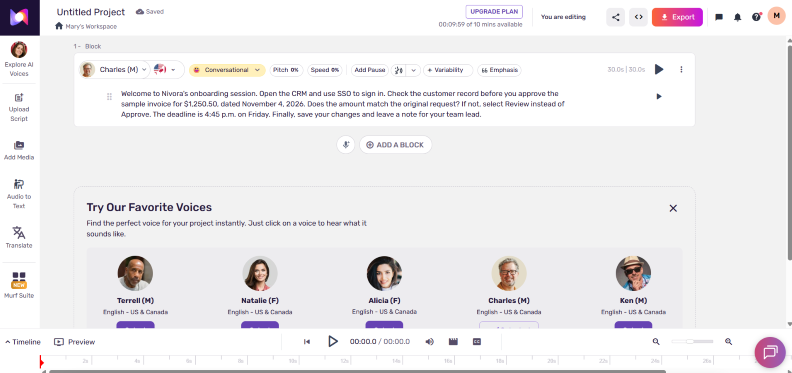
Murf is an AI voiceover studio where you can turn a script into narration and combine it with images, video clips, and background music. You can choose a voice, adjust its speed and pitch, add pauses, and arrange the narration alongside visuals on a timeline.
This makes Murf useful for explainer videos, product walkthroughs, and narrated training materials. You can preview how the voiceover works with your visuals before exporting the project. For an interactive eLearning course, you’ll still need a separate authoring tool to assemble and publish the lesson.
Murf also integrates with Zapier for certain automated text-to-speech workflows. API access has separate conditions from the free Studio trial.
Our hands-on test
In our Murf test, the Charles (US English, Conversational) voice read the Nivora script without obvious errors in names, numbers, or dates. CRM and SSO sounded unusually separated, and the delivery had a slight synthetic quality overall.
This describes one voice and style rather than Murf’s entire library. We also tried the editor’s option to keep the pasted script in a single block.
Pricing and access
Murf Creator costs $228/year ($19/month equivalent, billed annually), including 24 hours of voice generation per year, unlimited downloads, and commercial-use rights.
The free trial includes 10 generation minutes but doesn’t allow downloads or commercial use. Check the separate monthly billing terms if you don’t want an annual subscription.
Speechify Studio
Speechify Studio lets you create AI voiceovers and dub videos into multiple languages. You can generate narration from a script and adjust its delivery, including speed, pitch, and emotion. Speechify advertises over 1,000 AI voices in 60+ languages, including different accents and dialects. For video dubbing, you can upload a video or provide a YouTube link.
Studio is a separate product from Speechify Text to Speech Reader, an app that reads PDFs, articles, and other documents aloud.
Speechify Studio can be useful when you need both original narration and translated versions of video content. However, pronunciation and delivery may still need adjustments, particularly when working across languages or accents.
A December 2025 G2 review by B S. describes creating Hindi and English voiceovers for gaming videos and animated shorts. The reviewer appreciated the pronunciation editor but encountered export freezes on longer projects and had to adjust a strongly accented voice clone. These are individual experiences, but they highlight two things worth checking with your own content: pronunciation and full-project export.
Our hands-on test
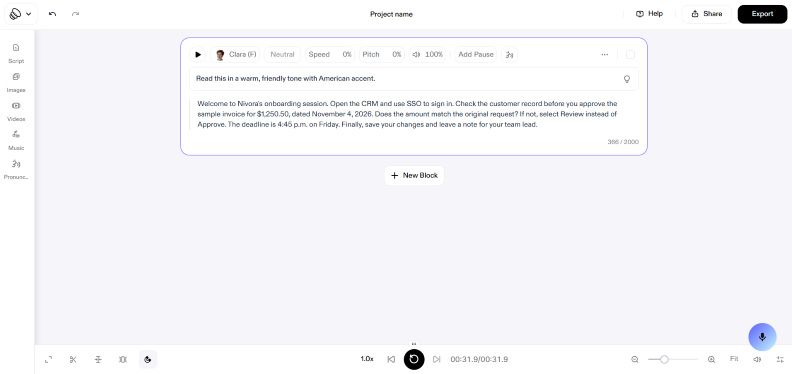
We tested Speechify Studio’s Free plan using Clara (US English). Our project included a short instruction to read the script in a warm, friendly tone with an American accent.
The narration was largely accurate, although CRM and SSO sounded overly separated. The sentence “If not, select Review instead of Approve” also ended with an unnatural rise in pitch.
We successfully downloaded the generated audio. MP3 was selected in the export dialog, and WAV appeared as another option. This result differs from Speechify’s published FAQ, which describes MP3 downloading as a paid feature.
For training videos, Speechify Studio is worth considering if you need to create narration and adapt it for different languages. Before choosing it, test a longer script with your technical terms and check the final export.
Pricing and access
Speechify Studio’s Free plan includes 600 credits without commercial-use rights. Starter costs $100/year with 86,400 credits and commercial use rights.
Voiceover generation uses one credit per second; dubbing uses three. Both share the same credit pool, and revisions requiring new AI processing consume additional credits. The timing of annual credit allocation isn’t clearly documented.
Descript
Descript is an AI-powered audio and video editor with built-in voice generation. It lets you record your screen, import existing footage, and edit recordings by changing the text of an automatically generated transcript. You can also create narration using AI voices, including a clone of your own voice.
Beyond voice generation, Descript offers tools for removing filler words, cleaning up background noise, and adding captions. This makes it useful for software tutorials, training videos, interviews, and podcasts, where producing narration is only one part of the editing process.
For example, when updating a software tutorial, you can remove an outdated explanation, generate a new line of narration, and adjust the audio alongside the screen recording. Editing the transcript lets you cut or rearrange existing speech, but replacing spoken words requires AI generation. You’ll still need to check whether the new audio fits the timing and delivery of the original recording.
In an April 2026 G2 review, Magdalena O. described using text-generated voiceovers and an AI version of her own voice for SaaS tutorials. She found it easy to get started, although some editing controls, particularly for pauses and zooming, were less intuitive.
Our hands-on test
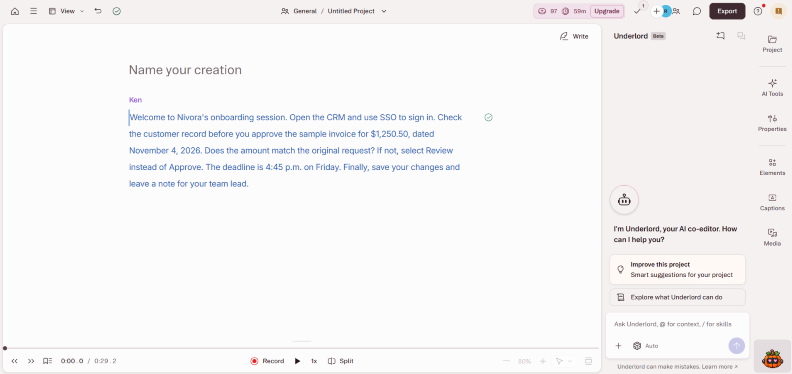
We tested the free plan AI Speech editor with a voice labeled Ken. The reading was clear and engaging, but the delivery remained in much the same expressive style across different instructions; CRM and SSO were over-articulated.
During voice selection, some samples failed to load, and some spoke names that did not match their labels, so we cannot independently confirm the identity of the sampled voice. The text edit described above was easy, but its regeneration scope was not visible.
Pricing and access
Descript’s Free plan includes 100 one-time AI credits and limited AI Speech access. Hobbyist costs $24/month with monthly billing or $192/year ($16/month equivalent) with annual billing, including 400 AI credits and 10 media hours per month.
Creator costs $35/month with monthly billing or $288/year ($24/month equivalent) with annual billing, including 800 AI credits per month. Business costs $65 per editor/month with monthly billing or $600 per editor/year ($50/month equivalent) with annual billing, including 1,500 monthly AI credits per editor and additional team features. Extra editor seats are billed separately.
Credits and media hours are tracked separately. AI credit usage varies by feature and model, so the allowance doesn’t translate into a fixed number of narration minutes.
WellSaid
WellSaid is an AI voiceover tool for creating narration for training courses, videos, presentations, and other business content. You can choose an AI voice, paste or import your script, and generate audio without recording it yourself.
WellSaid Studio lets you work on a script in sections, generate several takes, and compare them before choosing the version you want to download. This is useful when a voiceover needs a few revisions or when you’re looking for the right delivery.
The editor also offers tools for improving pronunciation and controlling how speech sounds. You can adjust the pronunciation of names, acronyms, and technical terms using phonetic spellings. With Caruso voices, Voice Cues let you change the pace, pitch, loudness, and pauses in selected passages. Emotional presets help set the tone of an entire section, such as calm, excited, or serious.
For training teams, a particularly useful scenario is updating existing courses. Suppose a compliance policy changes and you need to replace a brief explanation. You can update the relevant script section, regenerate it using the same AI voice, and download the updated audio to replace the original clip in your course.
An enterprise user described a similar workflow in an incentivized August 2026 G2 review. They appreciated being able to make small narration updates while keeping the voice consistent throughout a course. However, they felt some recordings could use more personality and expressiveness.
WellSaid is primarily an audio production tool, so you’ll need to add the finished narration to your course or video editor. It also offers integrations with Adobe Express and Premiere Pro on eligible plans.
Our hands-on test
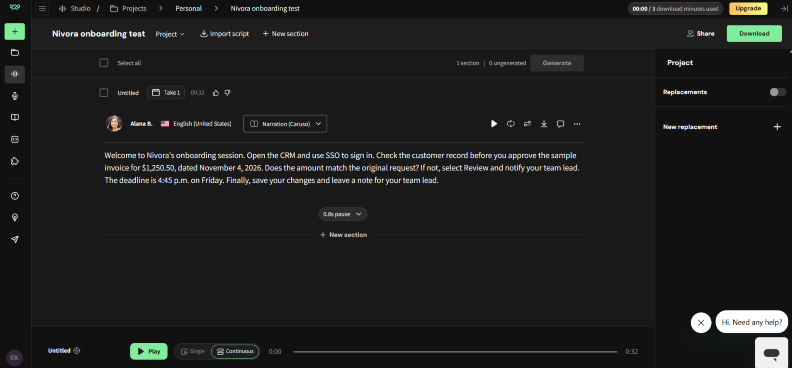
We tested WellSaid’s free trial with the Alana B. voice (US English, Narration/Caruso) and our Nivora onboarding script. The first 32-second take sounded clear overall, but there was an unnatural pause after “one thousand” in the dollar figure, and the phrase “If not, select” sounded flat.
Using Rewrite for Speech improved the monetary phrasing. In the next take, however, the stress in “Nivora” shifted to the first syllable. Smart Suggestions offered three phonetic spellings, and selecting “nih-VOH-ruh” restored the intended pronunciation. The phrase “If not, select” also sounded better in the final take without additional voice cues.
The test demonstrated that WellSaid provides useful tools for correcting names and numbers, although each regenerated take still needs review. We generated, previewed, and downloaded the final recording as an MP3 in the free trial.
Pricing and access
WellSaid’s free trial includes 3 downloaded minutes per month without commercial rights.
Starter costs $19/month with monthly billing (20 download minutes per month) or 120/year(10/month equivalent) with annual billing (240 download minutes per year).
Pro costs $49/month with monthly billing (180 download minutes per month) or 396/year(33/month equivalent) with annual billing (2,160 download minutes per year).
Paid plans allow unlimited generation but limit downloaded audio. Annual allowances don’t roll over, and WAV/OGG exports require the Business or Enterprise plan.
Adobe Firefly
Adobe Firefly includes a Generate Speech tool for creating AI voiceovers from written scripts. You can paste text or import a document, select a voice, adjust the language or accent, and control the speaking speed and pitch before generating audio.
This can be useful when you need narration for training videos, presentations, or other creative work and already use Adobe tools for content production.
Firefly offers its own speech model as well as supported partner models from ElevenLabs, including Multilingual v2 and v4. These models have different controls and credit costs, so the choice affects how you generate and revise your audio. Using an ElevenLabs model in Firefly also differs from working in the standalone ElevenLabs editor.
Our hands-on test
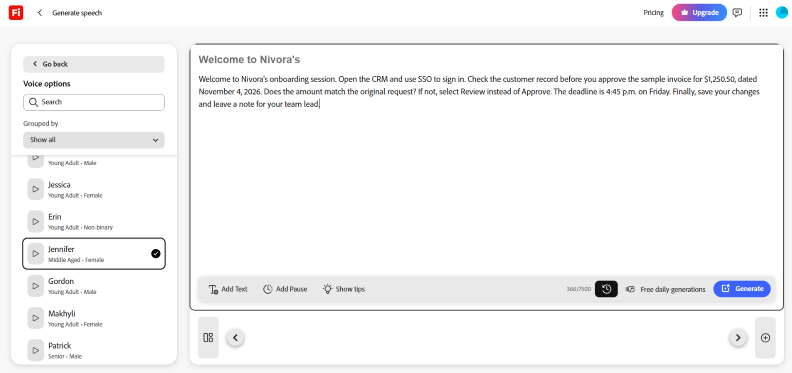
In our Firefly Speech test, Jennifer produced a generally pleasant reading. CRM and SSO sounded mechanical; the amount $1,250.50 was read without “and” before cents (an acceptable American English variant), and there was an unusually long pause within “4:45 p.m.”
We downloaded a WAV audio file from the free account without seeing a choice of output formats. The voice list became available after signing in.
Pricing and access
Firefly Standard costs $9.99/month, with 2,000 generative credits shared across speech generation and other creative work. Limited free generations are also available.
Firefly Speech consumes 10 credits per 1,000 characters, ElevenLabs Multilingual v2 uses 15, and ElevenLabs v4 uses 20. Be sure to allocate extra credits for revisions.
Synthesia
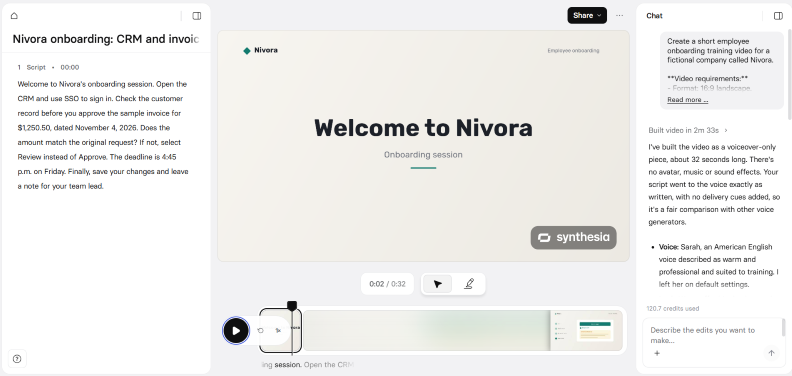
Synthesia is an AI video creation platform for training, tutorials, and business communication. You can build a video scene by scene, add a narration script, and choose whether to include an AI presenter. The editor combines spoken content with visuals, making it useful when you need a finished training video rather than a standalone audio file.
For example, a training team could use Synthesia to create a short onboarding video explaining a company process. The narration can accompany on-screen instructions, with an AI presenter appearing where it adds value. You can also create videos without a presenter.
Synthesia additionally documents a Voices workflow for standalone audio generation. Paid Studio plans allow WAV audio downloads from finished videos, although we were unable to confirm standalone clip download availability across all plans. In our free Syren test, we could export a narrated video but didn’t find an audio-only option when on Free.
Customer reviews also highlight a few things that are worth checking. A December 2025 TrustRadius reviewer praised Synthesia’s voices for digital courses but found the avatar’s mouth movements distracting. In a May 2026 G2 review, Rebecca B. described spending time correcting pronunciation with phonetic spellings and using credits during generation.
Our hands-on test
Our free Syren test generated an approximately 32-second Nivora onboarding video automatically from a prompt, retaining the narration script word for word, without an avatar or music. The selected Sarah (American English) voice sounded clear and pleasant, with no obvious pronunciation errors to our reviewer. We downloaded the video with a watermark; an audio-only download option was not available. The test consumed 120.7 credits as reported by the editor.
Pricing and access
Synthesia’s Basic plan is free, with watermarked videos. Starter costs $19/month or $168/year; Pro costs $89/month or $708/year. Enterprise offers custom pricing, live team collaboration, additional editor seats, and SAML/SSO for larger organizations.
Starter adds 1,250 credits per month or 15,000 per year with annual billing, on top of the free monthly allowance. Credits are shared across video and other AI features. The published allowances don’t establish a predictable unit cost for standalone audio generation.
Microsoft Clipchamp
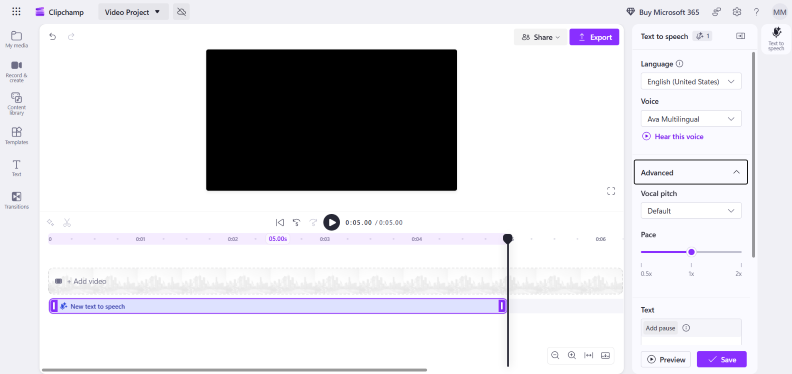
Microsoft Clipchamp is a video editor with a built-in AI text-to-speech feature. You can paste a script, select a language and voice, adjust the pitch and speed, and add the generated narration directly to your video timeline.
Clipchamp can be a practical option for short training videos, screen-recorded tutorials, and simple product demonstrations. You can work with video clips, narration, and other audio tracks in a single editor without subscribing to a separate voice generation service.
For more demanding projects, the trade-off is control. Clipchamp offers basic voice adjustments, but it doesn’t provide the same range of specialized voice generation and correction tools as dedicated AI voiceover platforms.
Our hands-on test
Our free Clipchamp test used Ava Multilingual (English US). The Nivora narration sounded smooth, without obvious errors. The editor had pitch, speed, and pause settings; its audio-only download was saved as M4A, without offering other formats in the tested flow. New users were directed to register or sign in with a Microsoft account.
Pricing and access
Clipchamp’s personal editor is free, including AI text-to-speech and audio-only export. Premium editing features are available with eligible Microsoft 365 subscriptions.
Work and school access depends on the organization’s licensing. We could not confirm a numeric text-to-speech generation allowance.
AI voiceover pricing: what you actually pay for
AI voiceover tools charge for different resources, including generated characters, audio minutes, and shared AI credits.
Assume you need 60 minutes of finished narration, plus 30% extra generation for corrections: 78 generated minutes in total — an illustrative scenario, not a fixed estimate for every project.
For easier comparison, prices are shown as monthly costs or monthly equivalents. Annual subscriptions also show the total amount billed upfront. Usage allowances retain their actual allocation periods, which may differ between monthly and annual plans.
| Tool and plan | Price and included resources | What it means for a 60-minute project |
| Tool and plan | Price and included resources | What it means for a 60-minute project |
| ElevenLabs Creator | $22/month (billed monthly); 121,000 credits/month | Compare the total characters generated, including revisions, against the selected model’s credit rate. |
| iSpring Suite AI | $107.50/month equivalent ($1,290 billed annually); 200,000 characters/30 days | Check whether the full script and revisions fit the allowance. The price also covers course authoring and publishing. |
| Murf Creator | $19/month equivalent ($228 billed annually); 24 generation hours/year | The annual allowance covers 78 generated minutes, including the assumed corrections. |
| Speechify Studio Starter | $8.33/month equivalent ($100 billed annually); 86,400 credits/year | At one credit per second, 78 generated minutes use 4,680 credits. Dubbing and other AI tasks use the same pool. |
| Descript Hobbyist | $24/month (billed monthly); 400 AI credits/month | AI Speech consumption varies by operation and model. Test the actual workflow to estimate usage. |
| WellSaid Starter (annual) | $10/month equivalent ($120 billed annually); 240 download minutes/year | Covers 60 minutes of finished audio. Monthly Starter provides only 20 download minutes. |
| Adobe Firefly Standard | $9.99/month; 2,000 credits/month | Speech consumes 10–20 credits per 1,000 characters, depending on the model. These credits are shared across script revisions, voice generation, and other Firefly creative tasks. |
| Synthesia Starter | $19/month (billed monthly); 1,250 credits/month | Synthesia’s video-centric credit model does not provide a clear baseline for standalone audio pricing. |
| Microsoft Clipchamp | Free text-to-speech in the personal editor | No verified numeric TTS allowance. Check script limits and export requirements. |
These allowances measure different things. A plan that covers 78 minutes of generation may have different download limits, while some products charge by character or AI operation.
For eLearning, consider the work beyond voice generation. A standalone tool may cost less if you already have an authoring solution. iSpring Suite AI includes narration as part of creating, updating, and publishing a course.
AI voiceover for eLearning
Course narration needs to remain manageable after an update. When creating or revising AI voiceovers for eLearning, pay attention to three things:
- Keep narration easy to update. Keep a clip for each slide or scene, with its script and approved voice settings. This makes the affected passage easier to locate and gives another author a starting point for future revisions. A change to a deadline on one slide should also be reviewed in the finished lesson: the revised speech can alter when an animation appears or how long a learner has to inspect the screen.
- Check pronunciation and translations. A human reviewer should approve product names, abbreviations, and numbers, using an explicit pronunciation reference for technical terms. Check them again in any translated version. A translated script may also be longer than the original, so review the spoken instruction alongside the visual action and captions.
- Consider accessibility. Audio versions of digital content may help people with visual impairments, but narration alone does not make a course accessible. Include transcripts or captions where appropriate, check them against the final script, and keep important instructions understandable without sound.
Our test: Built-in vs. imported narration
For a PowerPoint-based lesson, we compared two routes into the same iSpring project: generating narration inside Suite AI and generating it in ElevenLabs before importing it. Both routes still required course review and publication. The key differentiator was the effort required to create and revise the finished lesson.
We imported the approximately 77-second ElevenLabs recording into a separate copy of our five-slide project. The Sync tool let us mark slide transitions while listening, then adjust two mistimed boundaries directly on the timeline. After extending the last slide, the narrated presentation played through with the expected transitions.
The imported clip offered a Change Clip action, while Edit Text to Speech (AI) was unavailable for that file.
For a broader course-development workflow, see how to create an online course with AI.
AI voice generation: from script to narration
To evaluate an AI voiceover tool for a real project:
1. Draft a listening-friendly script with a few names, numbers, and instructions that reflect your content.
2. Generate a representative passage, press the play button, check pronunciation and emphasis, and then correct one line.
3. Place the audio in the actual video or course; verify visual timing, captions, and accessibility in the context.
4. Save the approved script, voice settings, and files so the next update does not start from scratch.
For ideas when preparing narration and lesson scripts, see AI prompts for instructional designers.
When a human voice may be a better fit
A 2025 listening study found that people often struggled to distinguish AI-cloned voices from human recordings. But a convincing voice sample doesn’t guarantee that the delivery will suit every lesson, story, or sensitive topic.
AI voiceovers can save time and reduce recording costs because you can create or revise narration without booking a studio session. However, every revised clip still needs review, and repeated corrections may reduce those savings.
A human narrator may be a better fit for sensitive conversations, stories drawn from real life, or campaigns that need a specific performance. A director can discuss the intended meaning with the speaker and adjust the delivery during recording.
AI-generated voices: stock voices and cloning
A stock voice comes from the provider’s library. A clone reproduces a particular speaker’s voice from recordings. Routine instructions may need a consistent narrator; a project built around a named speaker may also need that person’s identity.
Before creating voices from someone’s recordings, obtain the speaker’s permission and follow the provider’s verification process. Agree on the intended uses and who can access the voice. For long-running content, retain the approved settings and a plan for replacing a voice that becomes unavailable.
FAQ about AI voiceover tools
What is the best AI voice generator?
For standalone audio, start with ElevenLabs or WellSaid. Descript and Murf combine narration with editing; Clipchamp offers a free entry point for simple videos. iSpring Suite AI is relevant when you also need to build and maintain courses. The strongest choice within each group depends on the script, correction controls, and required output.
Is there a free AI voice generator?
Yes. Free voices can help with initial testing, but free generation and free downloading are different. In our hands-on checks, ElevenLabs, Speechify Studio, Adobe Firefly, and Clipchamp allowed us to obtain audio files; Murf allowed playback but placed downloads behind an upgrade. Synthesia let us download a watermarked video, but we did not find a separate audio download in the free Syren interface. We also successfully downloaded MP3 audio from WellSaid’s free trial, which included a three-minute download allowance. Check commercial-use rights separately from export access.
Can I use AI voiceovers commercially?
Check the terms of the specific plan and model you use. Some providers include commercial rights in paid plans while restricting free output. Voice cloning adds questions about the speaker’s permission and the intended use of their voice.
Can AI voiceovers be used for eLearning?
Yes. AI narration can explain lessons, demonstrations, and other learning materials. Review technical terms, pacing, captions, and synchronization in the finished course. For localization, include a reviewer who knows the target language and subject.
What is the difference between AI voiceover and text-to-speech?
Text-to-speech (TTS) is the underlying AI engine that converts written text into speech. Neural models predict pronunciation and prosody — stress, rhythm, and intonation — to approximate human speech. AI voiceover tools use advanced TTS engines together with production tools to add editing, scene timing, or dubbing to create a finished narration for a video, course, or presentation.
Choose the tool that fits the project
Choose an audio generator when you need narration files, an editor when the work is focused on a video, and an authoring tool when you need a course you can maintain and publish. The best AI voiceover tool for your project is the one that makes corrections and final delivery effortless.
If you are building PowerPoint-based training, try iSpring Suite AI with a short narrated lesson and check the voice, slide timing, and published output together.
Create online courses and assessments in record time.





iSpring Suite AI Updates: Smarter Authoring, Seamless Global Reach

Practical AI Prompts for Instructional Designers

The 10 best AI tools for teachers: a practical comparison

The 12 Best AI Quiz Generators & Test Makers