iSpring Suite AI Updates: Smarter Authoring, Seamless Global Reach
 10 minutes




Course creation in iSpring now extends well beyond the desktop. iSpring Suite AI combines PowerPoint-based authoring with Cloud AI, providing course developers with AI tools for writing, translation, image creation, quizzes, narration, and other production tasks that often take the most time to complete.
Cloud AI is included with iSpring Suite AI and can also be purchased separately for creating slide-based courses online. In this update, we’ll cover the latest features in both products and show how this AI-powered eLearning authoring tool has changed the way course developers can approach their work.
iSpring Suite Max is now iSpring Suite AI
The shift to iSpring Suite AI marks a major evolution in how you create and manage training: smarter workflows, faster production, and deeply integrated AI capabilities.
With iSpring Suite AI, you can now plan course structures, create content, design interactive quizzes, and generate images in seconds — all without the usual manual work.
Here’s a look at iSpring Suite AI’s features:
1. Break down language barriers: Translate entire courses with AI
Creating another language version is now much easier. The built-in AI translator can handle an entire course at once, including slides, quizzes, interactions, and role-plays. You can also translate only specific slides, if desired.
The feature supports 70+ languages and is available in both iSpring Suite AI (unlimited) and iSpring Suite (up to 5). You can translate up to 350,000 characters at a time, although the exact limit may vary according to language and formatting.
There’s no need to copy course content into a separate translation tool and then transfer it back: quizzes, interactions, and role-plays can be translated along with the main course content.
Why it’s useful:
- Accessible training: Employees can learn in their native language, improving clarity and retention.
- Speed and flexibility: Update policies, product knowledge, or training materials quickly.
- Lower localization costs: Translate content internally and eliminate the need for expensive external vendors.
How to use it:
To translate a course with AI, open your course and go to the iSpring Suite AI tab. Select Translation > Translate with AI. Choose your target language, and confirm the iSpring AI notice and the text replacement notice.
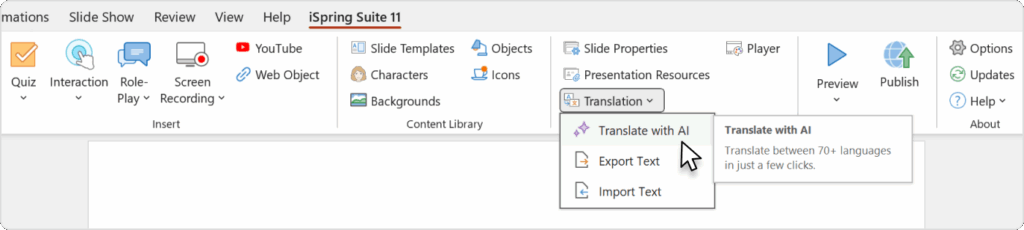
To translate only part of the course, press and hold Ctrl and select the slides you need before starting the translation.
Once you click on Translate, the system processes the content and delivers a draft in the new language within minutes. All that’s left is to review the formatting and upload the finished course to your LMS.
Please note: If you’d like to keep the original version, create a copy before translating.
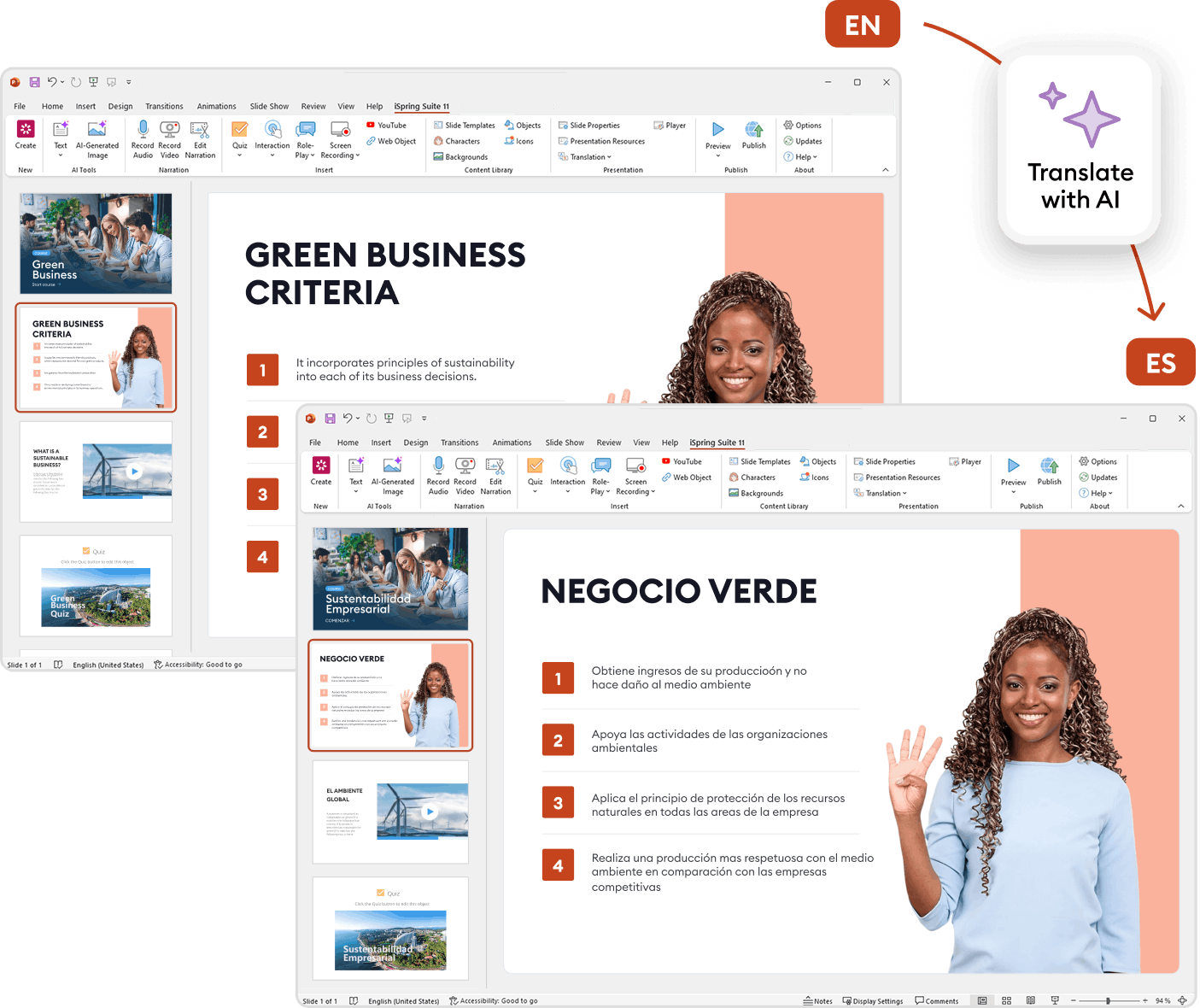
Learn more about Course translation with AI
2. Faster course creation from the ground up
Starting with a folder of source materials can be one of the slower parts of course development. With the AI course creator in iSpring Suite AI, you can turn those materials into a structured slide-based course draft in minutes:
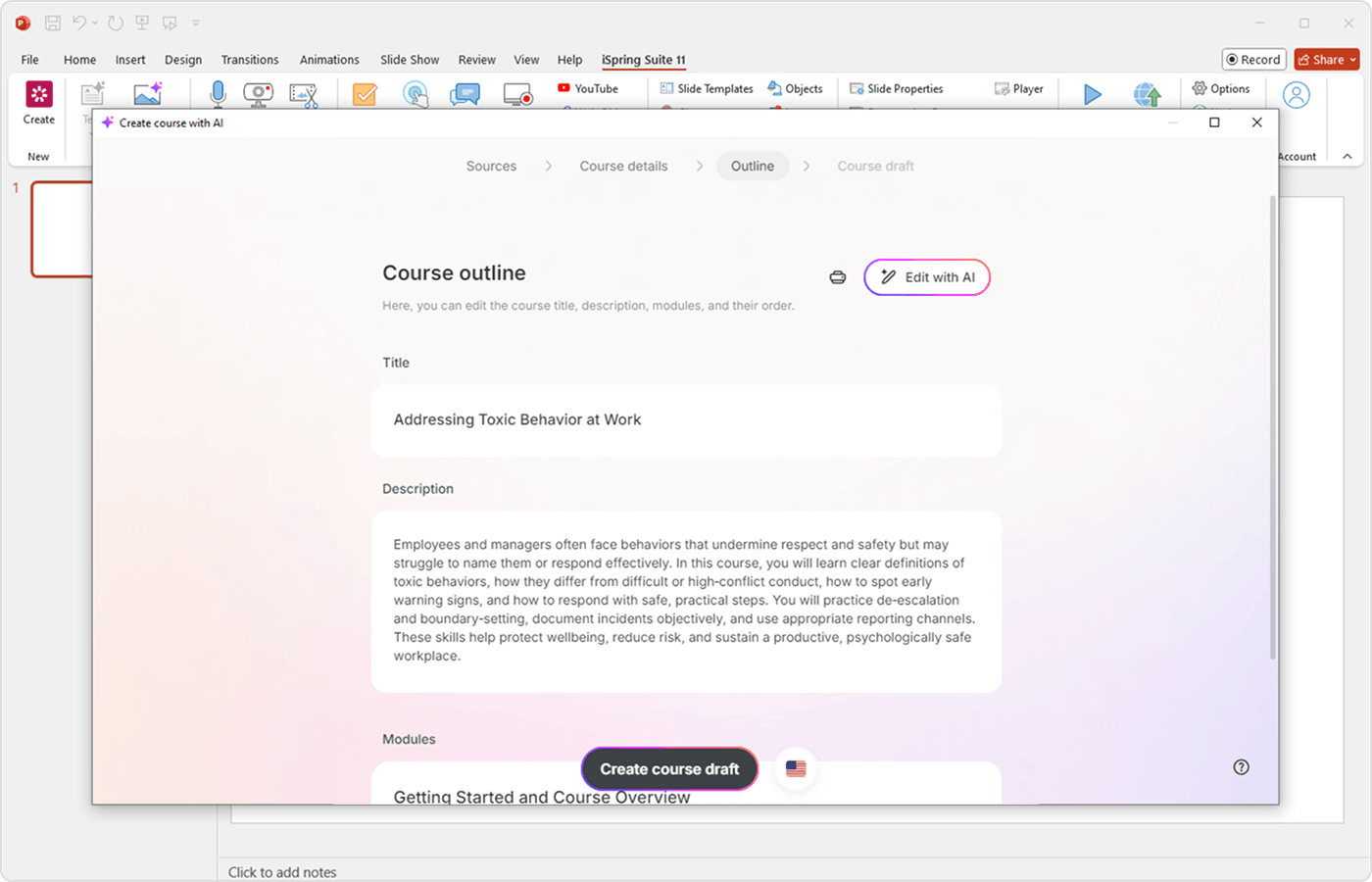
- Add your source files and tell AI what you want the course to cover. It uses that information to prepare a brief with the learning goals, audience, writing style, and other course parameters. You can review and edit the brief before proceeding.
- Next, AI generates the course structure. Once you’re happy with it, AI creates the slide-based course itself, deciding what each slide should cover and drafting its heading and text. Where relevant, the draft can also include narration and suggestions for visuals.
You still decide what makes it into the finished course. Review the generated slides, edit the content and design, or regenerate the draft if you want to take it in a different direction.
The new AI text editor also helps with the work that follows the first draft. You can generate or rewrite text, adjust the tone, expand key points, shorten long passages, and organize information into lists — all within your existing workflow.
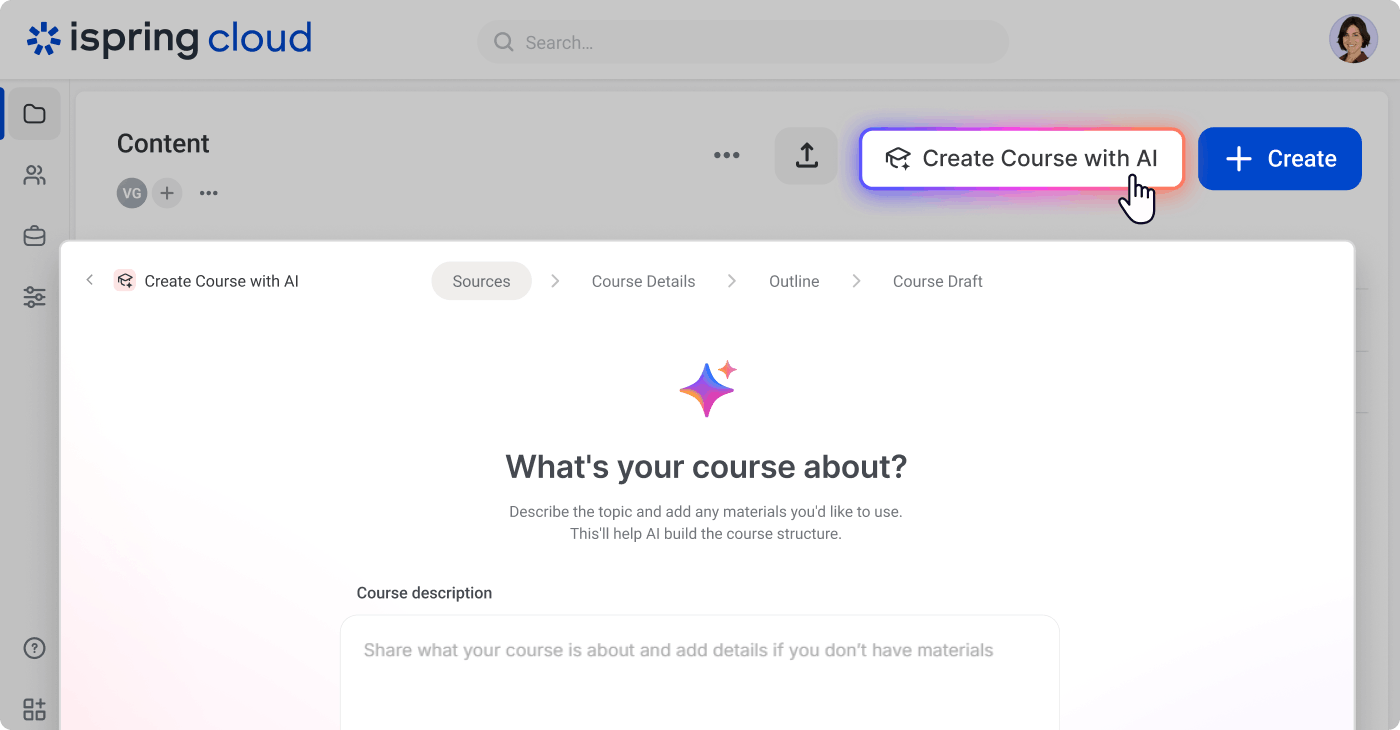
With Cloud AI, you can also use AI while creating scrollable courses. Ask it to draft or rewrite text, develop course ideas, create quiz questions, organize content into lists, add headings, or highlight key information. Draft creation is also available.

3. AI-powered image generation
With image generation available in both iSpring Suite AI and Cloud AI, you can create a visual while you’re working on the course. Describe the image you need in a text prompt and let AI generate it.

This tool lets you:
- Generate images from text prompts
- Choose from specific artistic styles
- Create images with transparent backgrounds
In Suite AI, this works directly in the desktop authoring environment, so you can generate an image without interrupting your work on the slides. Cloud AI brings the same option to online course creation, including scrollable courses.
Learn more about AI-powered image generation
4. Create natural-sounding voiceovers with text-to-speech
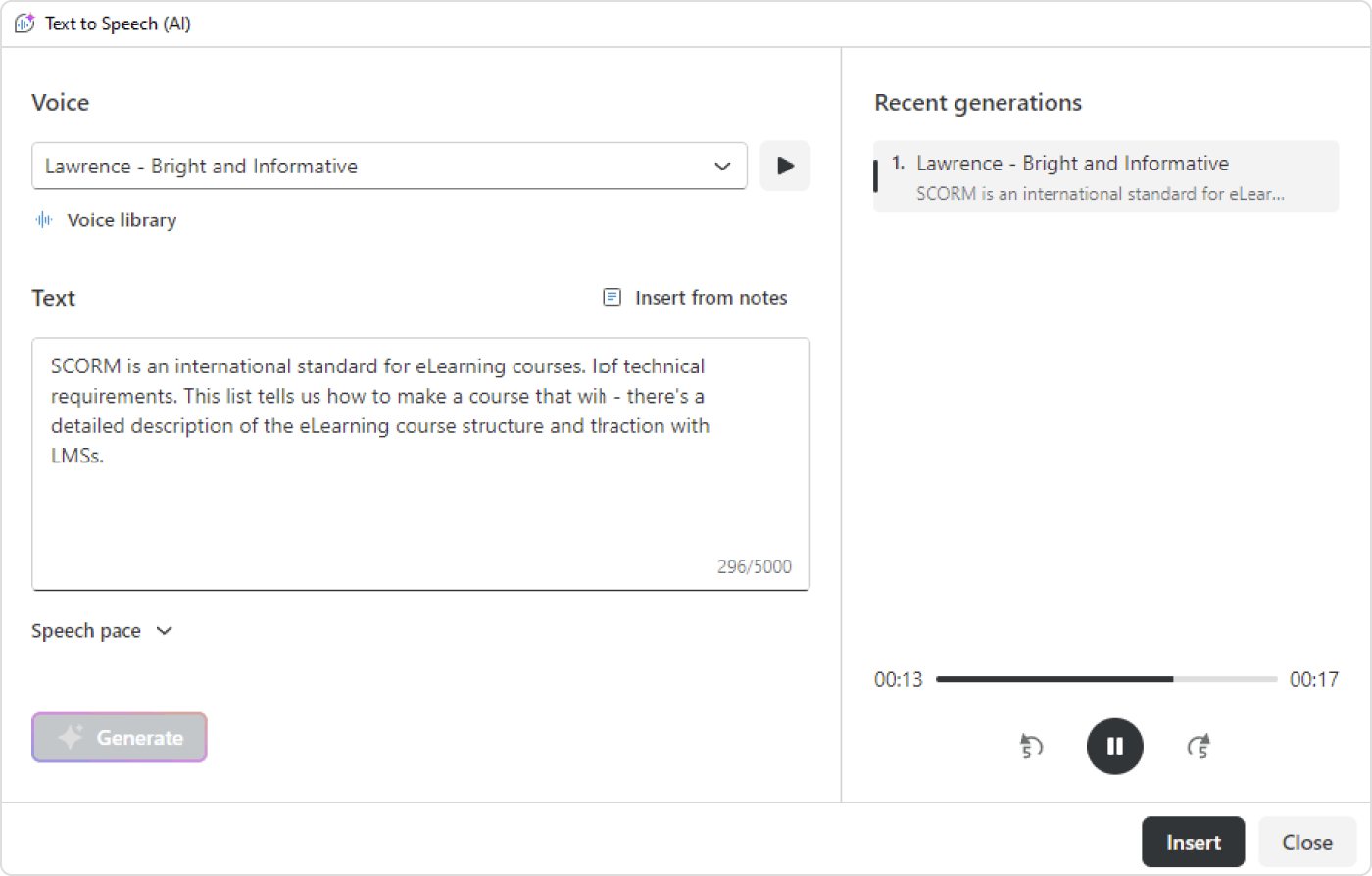
The text-to-speech function in iSpring Suite AI and Cloud AI lets you generate a voiceover from your text.
iSpring Suite AI uses AI voices powered by ElevenLabs to produce natural, expressive narration. In a video project, paste in your script, choose a language and voice, and preview the result before generating it. You can try different voices, compare the versions, and insert the one you want into the project. Generated audio can also be edited, replaced, sped up, or slowed down.
To add text-to-speech narration, launch iSpring Suite AI, open your screencasting project, click on Audio > Text to Speech (AI), select your preferred voice style, and preview it before creating.
Text-to-speech is also available in Cloud AI for scrollable courses. The two products share a 200,000-character limit for ElevenLabs voices every 30 days, so narration generated in Suite AI and Cloud AI counts toward the same allowance. Additional characters are available separately.
In Suite AI, you can generate up to 5,000 characters at a time with an ElevenLabs voice. Regular iSpring Suite doesn’t include text-to-speech as a plan feature, although each author gets a trial allowance of 10,000 characters for 30 days.
5. Get answers to questions about iSpring Suite with the AI Assistant
When you run into a question about iSpring Suite AI, the AI assistant provides a way to look for the answer without leaving the software. The built-in chatbot handles technical questions about iSpring Suite and links to the relevant Help Docs when there’s more information on the subject.
Here’s how it helps you overcome roadblocks:
- Instant expertise: Get immediate help with software questions, complete with relevant links to help documents.
- Multilingual support: Ask your question in any language, and the AI Assistant will search our English knowledge base and translate the answer for you.
Open the iSpring Suite tab in PowerPoint and click on AI Assistant to get started. Type what you need help with, and you’ll get step-by-step instructions.
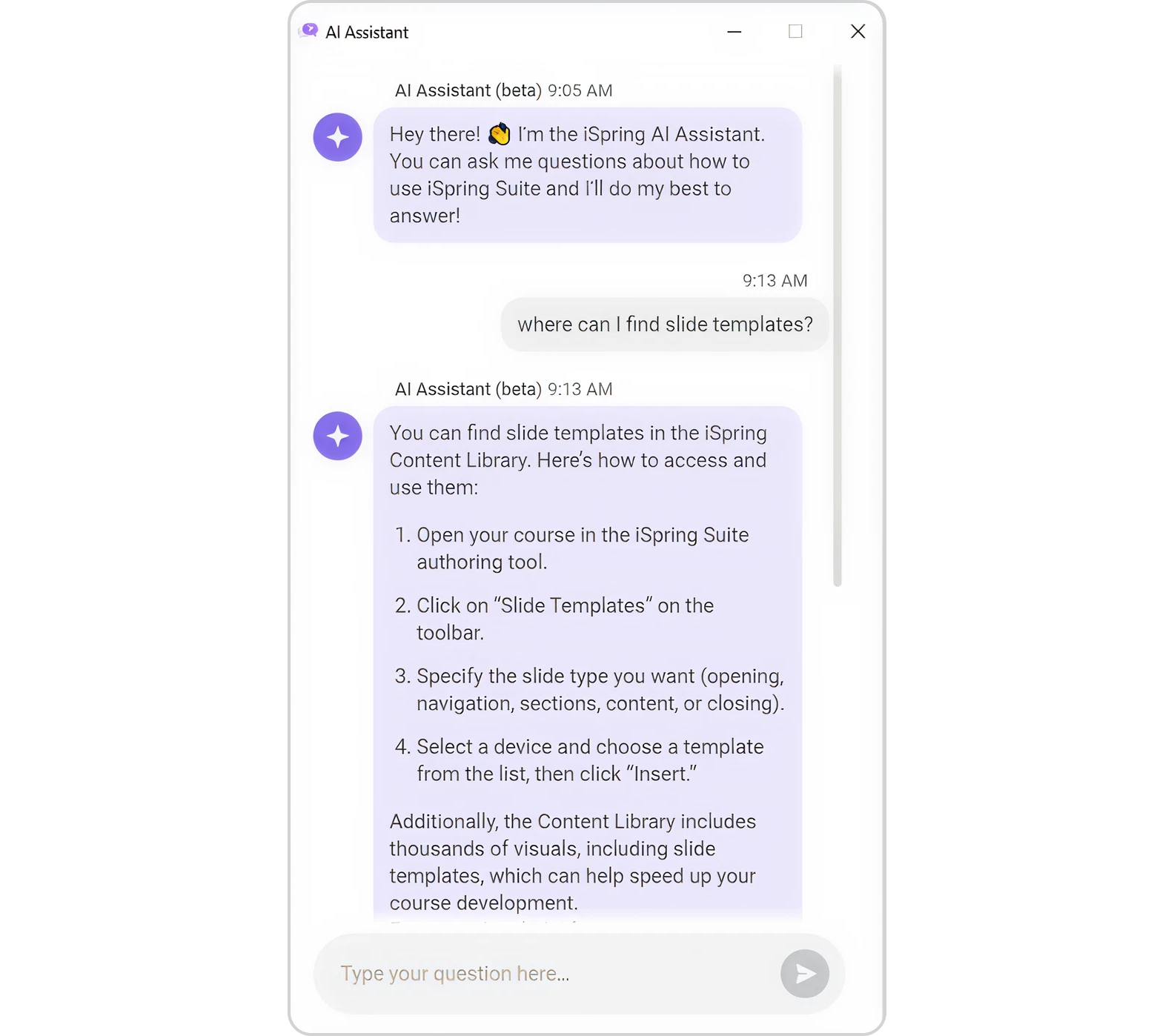
The scope is deliberately narrow: the AI Assistant answers questions about iSpring Suite rather than writing course content or handling general requests. The search history isn’t saved. You can also interrupt an answer or hide the assistant and return to it later.
Please note: This feature is temporarily unavailable for users with an .eu account.
Learn more about iSpring’s AI Assistant
6. Create training videos with AI avatars
AI avatars will be available in iSpring Suite soon. Users will be able to enter a script, choose an avatar, a voice, and a background, and generate a presenter video with natural facial expressions and lip-syncing.
Course creators will be able to:
- Add a virtual presenter to a course without arranging a video shoot
- Make lessons feel more personal and visually engaging
- Produce and update video content quickly at no additional cost
We’ll share more details closer to the release.
For some companies, the first consideration is whether their security policy allows cloud tools at all. iSpring Suite gives these teams a desktop authoring option without Cloud AI. Other organizations can use AI in iSpring Suite AI on desktop and work in Cloud AI in a browser.
Create online courses and assessments in record time.





 AI
AI