Does iSpring work on Mac?
Yes, iSpring is compatible with Mac computers. While iSpring's desktop products were initially designed for Windows, they can run on Mac if you have a licensed copy of Microsoft Windows. Intel-based Mac computers allow you to install Windows as an additional boot option or as a virtual system within macOS. You can also set up a Windows virtual machine on a Mac with Apple silicon (M-series) chips, which will also allow you to install and use iSpring Suite on your Mac. Alternatively, you can use iSpring Cloud AI, our cloud-based tool for creating courses and assessments without the need to install Windows on your Mac.
Find an answer to your question:
-
Can you create courses with iSpring on macOS?
-
Why don’t iSpring’s desktop tools work natively on macOS?
-
Other solutions for Mac without Windows installation
-
How to check if your Mac is Intel-based
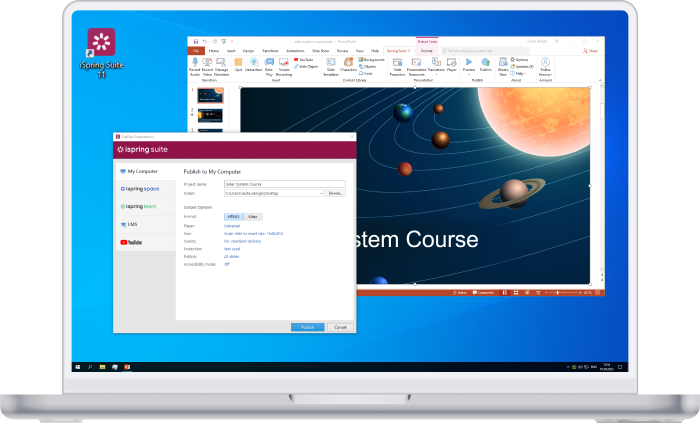
Can you create courses with iSpring on macOS?
Yes! You can use iSpring Cloud AI on macOS. It’s a cloud-based authoring tool for creating lightweight interactive courses and assessments. You can also use it to collaborate on the content with your team or SMEs, store drafts and final projects in a secure online environment, and build impressive course portfolios.
Why don’t iSpring’s desktop tools work natively on macOS?
iSpring's desktop tools are built on PowerPoint to HTML5 conversion technology, which depends on PowerPoint extensions called add-ins. To function properly, these tools require an environment that fully supports Microsoft PowerPoint with add-ins. This compatibility allows other applications to utilize PowerPoint features like slide information and object positioning.
Even though Mac users can install Microsoft Office for Mac with PowerPoint, it doesn't fully support add-in technology, likely because it was considered unnecessary for Mac users. As a result, there are no known tools that can convert PowerPoint to HTML5 natively on Mac due to this limitation.
Other solutions for Mac without Windows installation
If you have Microsoft Office for Mac, you can use PowerPoint while in the authoring stage. It will create a .ppt file that can be copied to any Windows computer and opened directly without any additional steps. If you have access to a computer, you can install iSpring there and use it for conversion purposes while using your Mac to create presentations.
How to check if your Mac is Intel-based
Apple transitioned to Intel processors in their computers back in 2006, replacing the older PowerPC (IBM) processors. From then until 2020, all Apple computers, including Mac mini, iMac, Mac Pro, MacBook, MacBook Air, and MacBook Pro, have utilized Intel-based CPUs. This shift made it possible to run Windows on Mac computers.
From 2020 to 2023, some computers were released with the new Apple M chips, while others were released with Intel processors. Starting in 2023, the company fully transitioned to producing devices with Apple M chips.
If your Mac was released between 2007 and 2019, you have an Intel-based Mac.
Note: If you’re not sure when your Mac was released or what processor or chip it has, check the System Overview section.
Do the following to check it in System Settings:
-
Open Finder.
-
Click on the Apple menu and select About This Mac.
-
Check what processor your Mac has
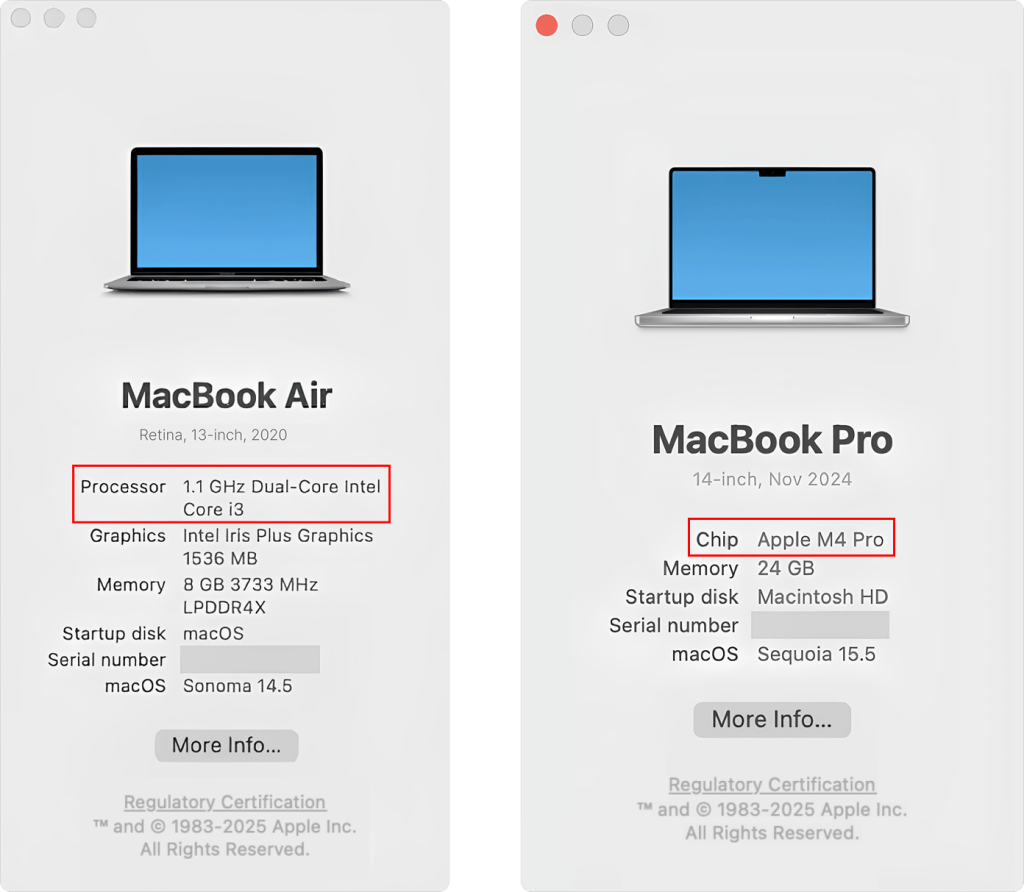
If you own an Intel-based Mac, you can install Windows and run programs like iSpring Suite for eLearning authoring. Check out our other article on how to install Windows on your Mac for detailed instructions: How to install Windows on your Mac.
