PowerPoint Add-ins and Plug-ins: 13 Essential Picks for 2026
 18 minutes






At iSpring, we live and breathe presentations. We know that whether you’re training a team, pitching a client, or teaching a class, your success hinges on two things: clarity and captivation. An effective presentation informs, but an engaging presentation inspires, persuades, and sticks.
Our team has researched, tested, and rated the very best tools that plug directly into PowerPoint. Below is our curated list of the 13 must-have PowerPoint add-ins for 2026, designed to solve every presentation challenge you might encounter.
To help you scan and compare at a glance, here’s our overall rating of each one:
| # | Add-in Name | Primary Use Case | iSpring Rating | Key Strength |
|---|---|---|---|---|
| 1 | iSpring Suite | eLearning and interactive courses |  (5.0/5) (5.0/5) | All-in-one authoring: quizzes, interactions, video, and SCORM |
| 2 | Mentimeter | Live audience interaction | (4.8/5) | Real-time polls, quizzes, and word clouds |
| 3 | ClassPoint | Interactive teaching and quizzes | (4.7/5) | Seamless built-in PowerPoint gamification and teaching tools |
| 4 | Pear Deck Learning | Student-paced learning and assessment | (4.5/5) | Formative assessment and student engagement |
| 5 | iSpring Free | Course conversion to HTML5 and SCORM | (4.9/5) | Free, reliable publishing with quiz support |
| 6 | HTML5Point | Converting PPT to mobile-ready HTML5 | (4.3/5) | Faithful conversion of slides, fonts, and media |
| 7 | Power-User | Professional slide design and productivity toolkit | (4.7/5) | 1,500+ templates, advanced formatting tools, and fast layout automation |
| 8 | Build-a-Graphic | Professional graphics and infographics | (4.5/5) | 10,000+ customizable infographics and icons |
| 9 | Pickit | High-quality stock photos and icons for slides | (4.5/5) | Extensive library of royalty-free images and icons |
| 10 | Beautiful.AI | AI-powered slide design | (4.6/5) | Automated, professional slide formatting |
| 11 | SlidesAI | AI-generated slide decks from text | (4.5/5) | Creates presentations from prompts or documents |
| 12 | Pexels | Free stock photography | (4.6/5) | Vast library of high-quality free images |
| 13 | PhET Simulations | Interactive STEM simulations | (4.5/5) | Research-based science and math models for education |
Now, let’s get into the details. We’ve divided the top add-ins into 6 essential categories to help you find exactly what you need. For each one, we’ll break down exactly what it does, who it’s for, and why it earned a place on our list.
Best PowerPoint Add-ins and Plug-ins for Interactive Presentations and eLearning
Here is the definitive list of PowerPoint add-ins to create interactive, visually stunning, and professional presentations in 2026. These tools turn passive slides into engaging, two-way experiences and full eLearning courses.
1. iSpring Suite
A complete authoring toolkit for interactive courses, quizzes, and video lectures.
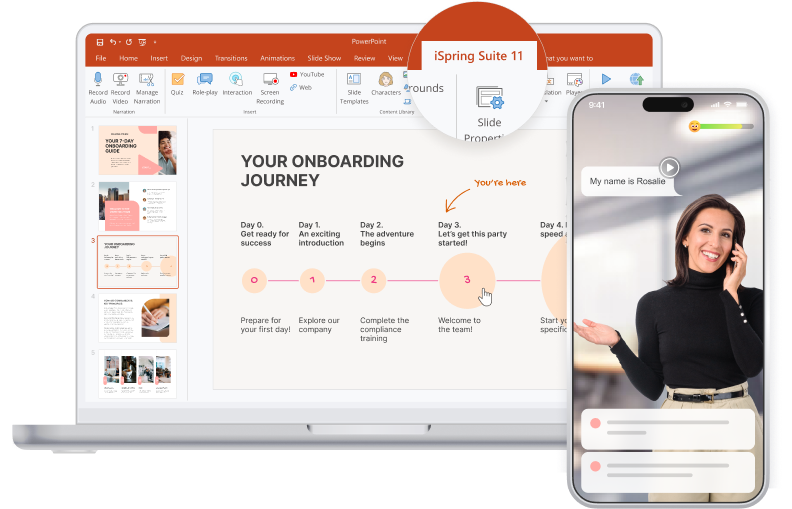
iSpring Suite is the ultimate PowerPoint extension for creating professional eLearning content. It transforms static presentations into interactive, mobile-ready courses, assessments, and video tutorials directly from your familiar PowerPoint interface.
Key Features:
- Convert PPT to advanced formats: Publish presentations to HTML5, SCORM, AICC, xAPI (Tin Can), or MP4 for playback on any device or LMS.
- Build interactive quizzes: Create engaging assessments with 14 question types (drag-and-drop, hotspot, matching, etc.) and customizable grading.
- Add interactive modules: Enhance slides with ready-made interactive templates, such as timelines, catalogs, FAQs, and processes.
- Create video lectures and screencasts: Record and edit video presentations, sync them with slides, and create software tutorials.
- Develop role-play simulations: Build branching dialogue simulations for soft skills training using a library of characters and backgrounds.
- Access a content library: Speed up development with a built-in library of templates, characters, icons, and stock photos.
Pricing: From $970 per user/year, with a free trial available.
Value: Unmatched for organizations and professionals needing a single, powerful tool to create, publish, and track interactive learning content directly from PowerPoint.
Rating: (5/5)

2. Mentimeter
A PowerPoint extension to get your audiences involved with interactive polls and quizzes, GIFs, and word clouds.

Mentimeter is a dynamic PowerPoint extension that turns your slides into a two-way conversation. It allows you to embed live polls, quizzes, word clouds, and Q&A sessions directly into your PowerPoint deck, with real-time results displayed as your audience votes from their smartphones.
Key Features:
- Live interactive slides: Insert polls, multiple-choice quizzes, scales, open-ended questions, and word clouds directly into your presentation flow. Easily add polls to gather instant feedback.
- Real-time results and engagement: Display live, updating graphs and visualizations of audience responses on your slides as votes come in.
- Audience Q&A management: Host structured Q&A sessions where participants can submit and upvote questions from their devices.
- Export and analyze: Download response data and analytics after your session for insights and reporting.
- Visual variety: Choose from different themes and visualization styles to match your presentation’s look and feel.
Pricing: Freemium model. A robust free plan is available. Paid plans start at $11.99 per user/month (billed annually).
Value: An essential tool for presenters, educators, and facilitators who want to boost engagement, gather instant feedback, and make every presentation memorable and participatory.
Rating: (4.8/5)
3. ClassPoint
A PowerPoint tool that lets you create gamified quizzes.
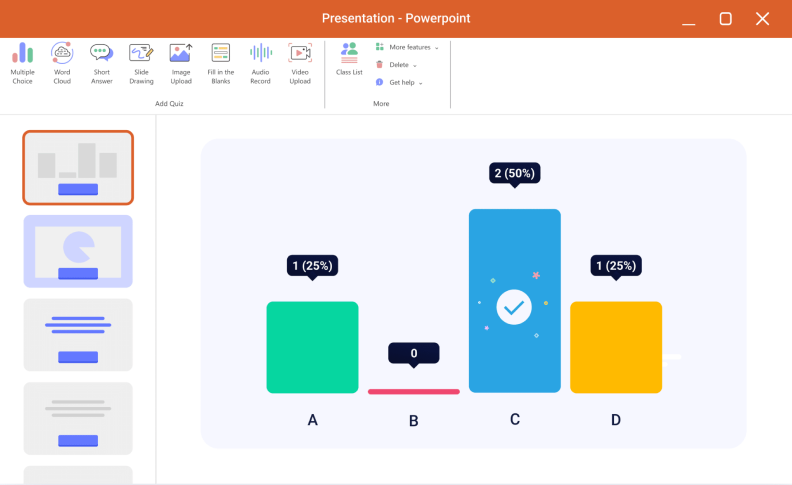
Among the most intuitive Microsoft PowerPoint add-ins, ClassPoint turns your slides into an interactive learning environment. Add quizzes, polls, and whiteboard tools directly into your presentation to increase student participation and gather real-time feedback without switching apps.
Key Features:
- In-slide quizzes and polls: Embed multiple-choice, short-answer, and image-based questions directly into slides.
- Gamification tools: Reward participation with digital stars, a leaderboard, and interactive badges.
- Whiteboard and annotation: Use drawing tools, drag-and-drop activities, and a digital whiteboard in real time.
- Automatic class management: Students join easily with a class code; no separate accounts are needed.
Rating: (4.7/5)
Pricing: Freemium; Pro plans start at $8/month (billed annually).
Value: A uniquely integrated PowerPoint tool for educators and trainers who want to boost interaction without leaving the interface they already know and use.
Too much to read? Get a summary from AI
4. Pear Deck Learning
Facilitates student-paced lessons with embedded questions and formative assessments.
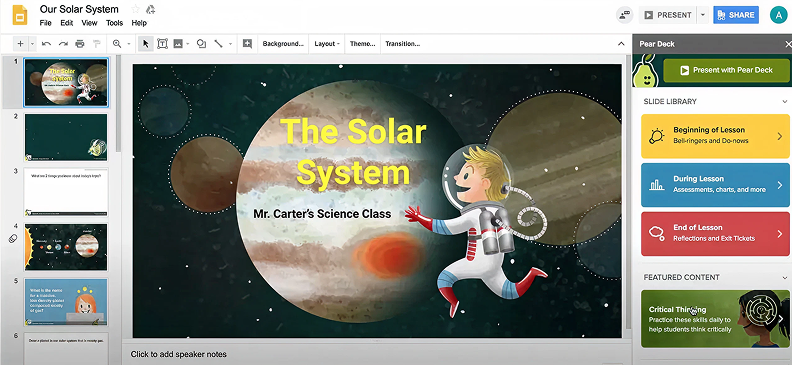
A standout among Microsoft PowerPoint add-ins, Pear Deck Learning is a popular tool for PowerPoint Online and Google Slides. It allows students to follow along and respond to embedded questions on their own devices, giving every voice a chance to be heard.
Key Features:
- Student-paced participation: Learners engage privately with interactive slides, reducing pressure and increasing honesty.
- Formative assessment tools: Use multiple-choice, draggable, text, and number response questions to instantly gauge understanding.
- Teacher dashboard: View individual and aggregated student responses in real time to guide instruction.
Value: An essential PowerPoint extension for educators prioritizing inclusive participation and real-time formative feedback.
Pricing: A free plan is available. Premium plans start at $125 per year.
Rating: (4.5/5)
Best Add-ins for Converting and Publishing Slides
Essential tools for sharing your presentations beyond the PowerPoint window.
5. iSpring Free
Publish PowerPoint slides to web-ready HTML5 or LMS-ready SCORM, with quiz support.

iSpring Free helps you turn your PowerPoint projects into full-fledged eLearning courses. Publish PowerPoint slides to web-ready HTML5 or LMS-ready SCORM, with quiz support. After conversion, all the transitions, animations, and triggers are kept intact.
Embed quizzes, surveys, videos, and web objects to make your content interactive. All published courses are mobile-responsive and play perfectly across smartphones, tablets, and laptops.
Value: A reliable PowerPoint extension for basic eLearning publishing.
Pricing: Free
Rating: (4.9/5)
6. HTML5Point
A PowerPoint plug-in for converting your presentations to HTML5.
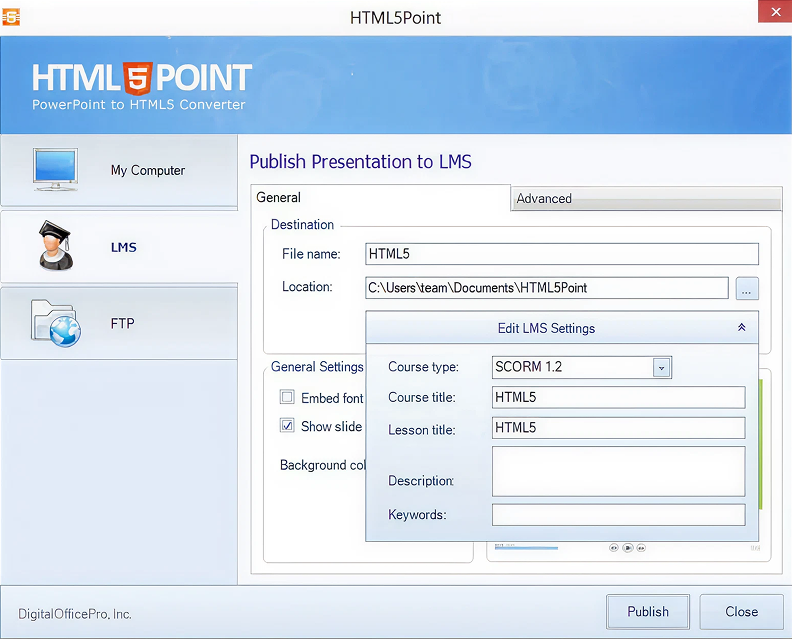
HTML5Point converts PowerPoint presentations to HTML5 content that can be viewed on iPads, iPhones, and other mobile devices. All presentation materials, fonts, rich media content, and most animations and transitions used in presentations are accurately preserved.
Value: The price is steep, considering the low number of features. But what it does, it does well.
Pricing: You can own the tool for a onetime payment of $247.
Rating: (4.3/5)
Best PowerPoint Add-in for Creating Slideshows
Here is a PowerPoint plug-in that helps you create slideshows that keep audiences engaged.
7. Power-User
A PPT add-in for designing beautiful presentations and spreadsheets quickly.
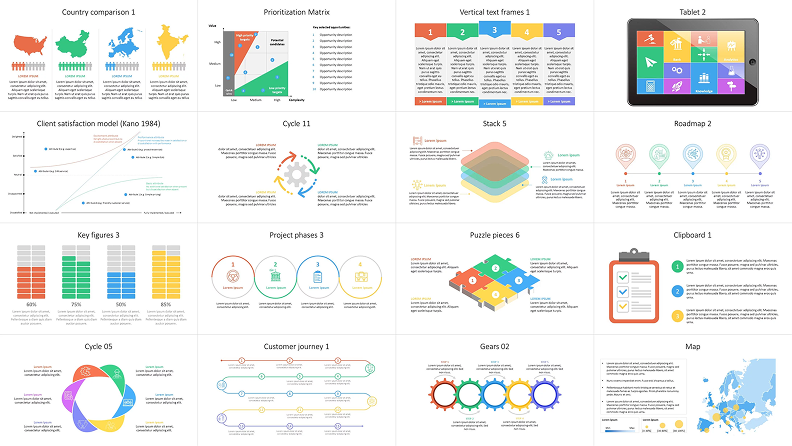
Power-User is one of the best PowerPoint add-ins that offers an impressive number of powerful tools to enhance PPT presentations. Insert professionally designed templates, icons, flags, pictures, logos, and maps directly into PowerPoint.
You can also create advanced chart types, such as Waterfall, Marimekko, Sankey, Tornado, or Gantt, link your Excel charts and tables to PowerPoint, and automate formatting to routinely create a table of contents, clean the presentation, or make titles, colors, fonts, and bullets consistent throughout the presentation.
Value: Enhances presentation clarity and audience understanding by providing visual continuity, which is particularly useful for complex, data-heavy training presentations in which context is key.
Pricing: Onetime license fee of $49.95 per computer.
Rating: (4.7/5)
Best Add-ins for Stunning Visual Design
Professional visuals can take your slides from average to extraordinary. These tools help you build presentations with appealing animations, sophisticated layouts, and polished graphics — even if you lack advanced designer skills.
8. Build-a-Graphic
A PowerPoint plug-in for creating professional, editable graphics quickly and easily.
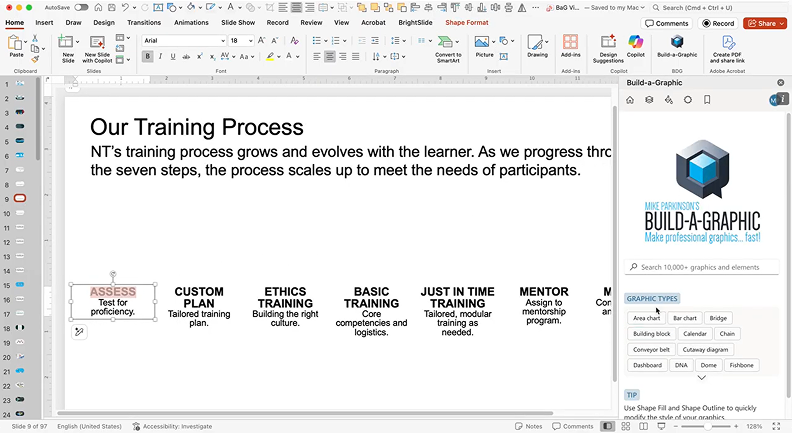
Access 10,000+ infographics, icons, diagrams, and more, all fully customizable in PowerPoint (Windows, Mac, Online). Export or copy graphics to other apps like Microsoft Word, Google Slides, or Adobe tools. Build-a-graphic is perfect for visually rich slides without spending hours designing.
Value: Saves time and delivers polished, professional visuals.
Pricing: Subscription, ~$199/year.
Rating: (4.5/5)
9. Pickit
A PowerPoint plug-in for creating courses fast using a 100% legal public image library.
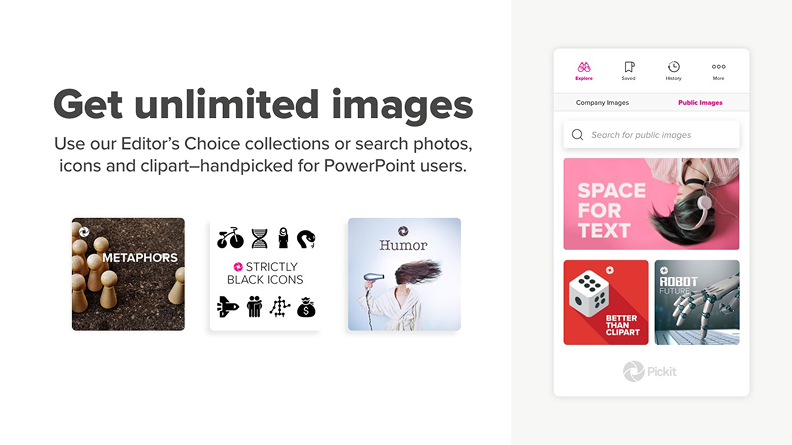
Pickit is a PowerPoint app that offers high-quality stock photos and icons. The tool has an extensive library of images to help you build online courses, create presentations, and more. You can also opt for custom images from the user community.
Value: Provides an extensive collection of legally cleared, high‑quality images, saving time and ensuring license compliance.
Pricing: Basic usage has a free option. Paid subscription plans start at approximately US $1.99/month for individual users, with business/enterprise plans scaling up depending on storage and features.
Rating: (4.5/5)
Best AI-Driven Add-ins
10. Beautiful.ai
A PowerPoint extension for designing professional slides with AI assistance.
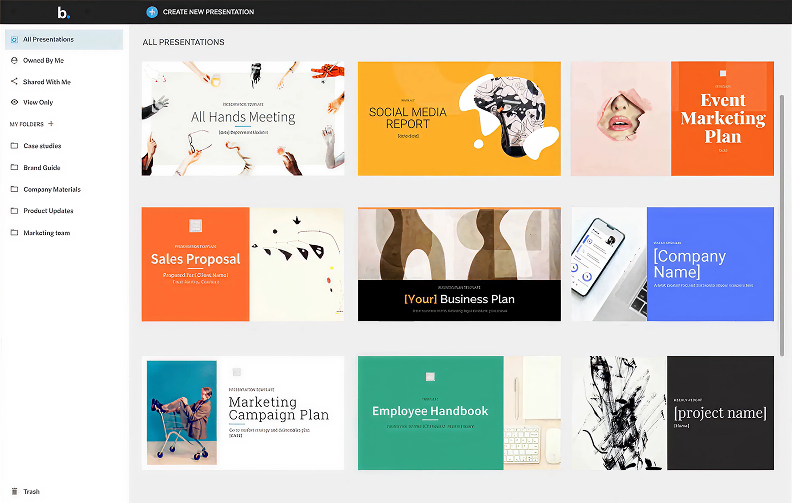
Beautiful.ai helps you create polished, well-formatted presentations quickly by automatically adjusting layouts, spacing, and styling as you add content. It includes pre-designed templates, smart slide formatting, and automated alignment to make slide design faster and easier.
Value: Ideal for users who want fast, visually appealing slides without spending hours on design. Some customization options are limited.
Pricing: A free plan is available. Paid plans start at $12.50/month, billed annually.
Rating: (4.6/5)
11. SlidesAI
An AI-powered plug-in that generates entire slide decks from text prompts or documents.

SlidesAI is an AI-powered tool for Google Slides and PowerPoint that generates structured presentations from text prompts, outlines, or existing documents, automating content organization and applying design templates.
It can turn raw ideas or documents into presentation-ready decks in minutes, accelerating the initial drafting phase and increasing PPT productivity.
Value: It’s excellent for creating first drafts, storyboards, or content-heavy presentations from Excel data reports or text documents.
Pricing: There is a free tier with limited credits. Pro plans start at approximately $10/month, billed annually.
Rating: (4.5/5)

Best Free PowerPoint Add-ins
Here you’ll find a few more excellent add-ins for PowerPoint that are extremely helpful and totally free to use.
12. Pexels
Direct access to massive libraries of high-quality free stock photos.

Pexels is the best PowerPoint image plug-in that serves as a one-stop resource for free stock photos. Use the Search by Color option and other image filters to find the perfect pictures for your PowerPoint presentation. You can highlight and save your favorite images in order to access them later with a few clicks.
Value: An essential tool for maintaining visual appeal and supporting brand messaging at zero cost.
Pricing: Free
Rating: (4.6/5)
13. PhET Interactive Simulations
A free educational plug-in that brings interactive STEM simulations directly into PowerPoint.
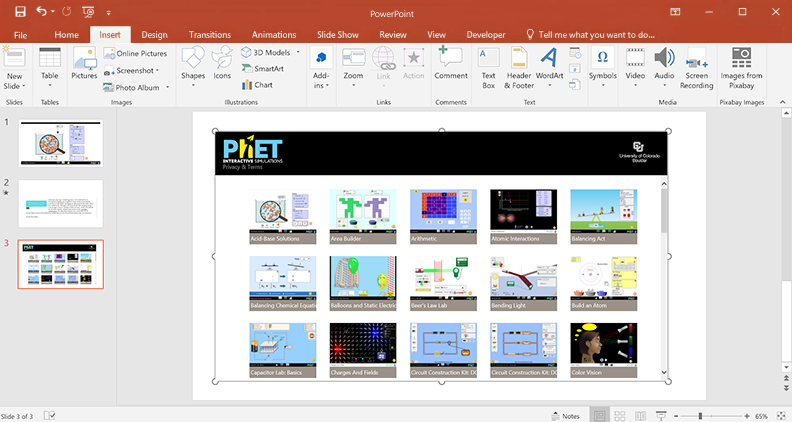
PhET Interactive Simulations from the University of Colorado Boulder offer fun, interactive tools for teaching science and math to students from grades K-12 through university. These simulations are based on education research and help make complex ideas easy to understand by allowing students to explore and discover concepts on their own. They can be used in different ways, such as during lectures, labs, or as homework, and are great for hands-on learning.
Value: Offers free, research‑based, interactive simulations in physics, chemistry, biology, earth science, and mathematics, allowing students to explore and visualize complex scientific phenomena dynamically.
Pricing: Free
Rating: (4.5/5)
Tips for Using PowerPoint Add-ins and Plug-ins Effectively
No matter which plug-ins you choose, here are some useful tips to get the best PowerPoint experience possible:
- Avoid overloading your presentation. Less is more. Limit the number of PowerPoint extensions to create tidy and professional presentations.
- Choose the right plug-in for the job. Opt for PowerPoint tools that align with your presentation goals and content.
- Research and test plug-ins before installing. Check user reviews, the plug-in’s features, and whether they’re compatible with your version of PowerPoint.
- Keep plug-ins updated. Download PowerPoint add-ins from official sources and install the latest updates to avoid malware and compatibility issues.
- Customize the plug-in’s settings. Make it a point to adjust the tool’s settings and tailor its functionality to your specific needs.
How to Install Add-ins in PowerPoint
There are three ways to download and install PPT plug-ins: from the MS Office Store, from within PowerPoint, and from other sources. Below, you’ll find step-by-step guides for each of them.
Method 1: Download add-ins from the Microsoft Office Store
If the PowerPoint add-on you’re looking for is listed in the MS Office Store, it would be easiest to download it from there. Here’s a quick guide to the entire process.
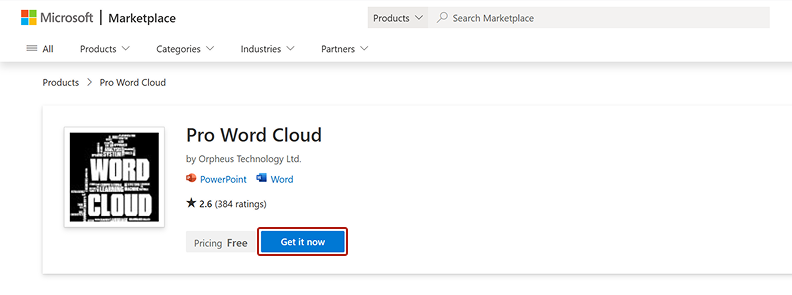
- Go to the Microsoft Office Store.
- Find the add-in.
- Click on Get it now.

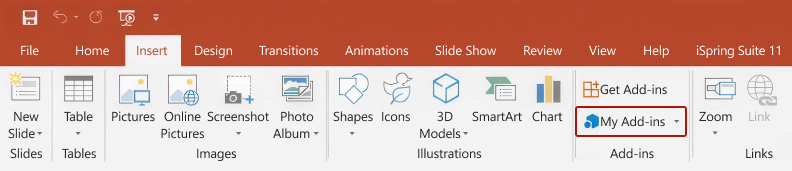
- Go to PowerPoint and click on Insert. Then, select the My Add-ins tab.

- In the opened window, click on Refreshand select the add-in you’ve installed. That’s it!
Method 2: Include add-ins from sources other than the Microsoft Office Store
Installing plug-ins for PowerPoint from other sources is also quite simple but requires a few extra steps. Follow the steps here:
- Download the add-in.
- Open PowerPoint and go to File> Options. Then, select Add-ins.

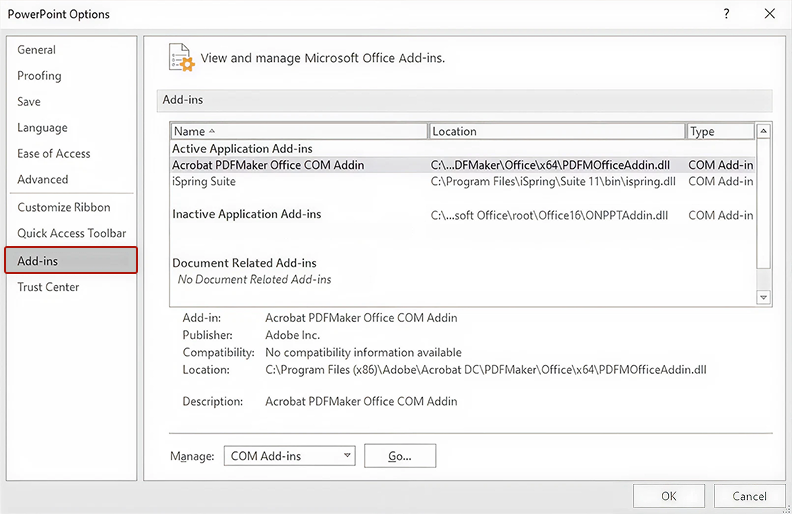
- Go to the bottom of the window, where you’ll see Manage. Select PowerPoint Add-ins in the drop-down list and click on Go.

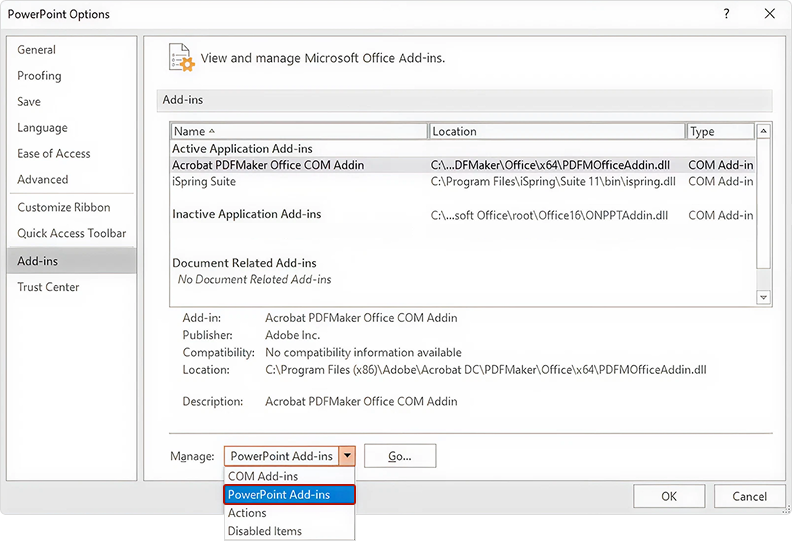
- In the opened window, click on Add New. Find the plug-in on your computer and click on OK.

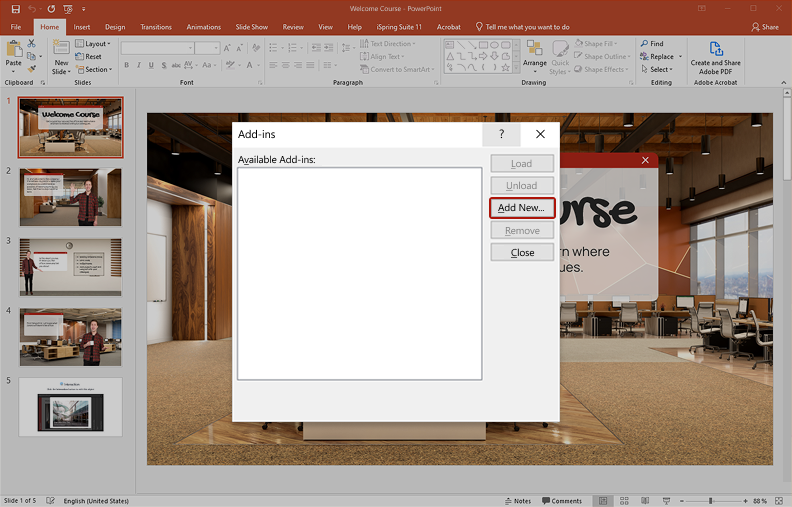
And that’s it; you’re good to go!
Method 3: Download add-ins from within PowerPoint
- In the PowerPoint ribbon, select Insert > Get Add-Ins.
- Browse for add-ins on the store pane, and install the ones you need.
How to remove an add-in from PowerPoint
- If you no longer use some of your PowerPoint add-ins and want to uninstall them, go to File > Options > Add-ins.
- Toward the bottom of the window, where it says Manage, click on Go.
- In the opened window, select the PowerPoint add-ins you want to remove.
- To turn off the plug-in, just uncheck the box next to its name. To uninstall it, select the plug-in and click on Remove.
- Click on OK to save your changes.
If you’re not taking advantage of some of our favorite PowerPoint add-ins, you’re definitely missing out.
Find your favorites and install them to make your PowerPoint presentation even better and the creation process more manageable.
If you know of other great PowerPoint extensions, please share them in the comment section.
FAQ on PowerPoint Add-ins
If you have other burning questions about PowerPoint add-ins, keep reading.
What are Microsoft PowerPoint add-ins?
Add-ins for PowerPoint are third-party tools or extensions that you can add to the program to enhance its functionality. They help you design better visuals, automate tasks, create smarter charts, maintain brand compliance, or boost overall PPT productivity. Add-ins provide access to custom features that PowerPoint alone doesn’t provide, such as advanced graphics, data automation, eLearning tools, and AI-driven layout engines.
How do PowerPoint add-ins work?
There are plenty of PowerPoint widgets, many of which work in a specific manner, so there’s no universal approach for all of them.
For example, tools like iSpring Suite or iSpring Free add a dedicated toolbar where you can upload, publish, or convert content. Others, like charting or branding tools, add custom buttons for rapid formatting and brand consistency.
What are the best PowerPoint add-ins?
There’s no single “best” tool, only the right PowerPoint add-ins for your use case.
- For eLearning, tools like iSpring Suite are top-rated.
- For brand consistency and brand compliance, Beautiful.ai helps teams maintain visually coherent and well-structured slide designs.
- To boost PPT productivity, tools like Power-User dramatically speed up workflow.
If you’re a power user looking for more add-ins, the ideal choice depends on whether you need design automation, data visualization, collaboration, or publishing features.
Create online courses and assessments in record time.





How to Create a PowerPoint Template with Company Logo

How to Convert Your PowerPoint Slides to an eLearning Module


How to Make an Interactive Game in PowerPoint: A Step-by-Step Guide