The 15 Best Flash Player Alternatives for 2026
 15 minutes


2020 was a turning point in many ways, one of them being the year that Adobe dropped support for Flash Player. Since then, Google and Mozilla no longer have the Flash plug-ins supported in their web browsers, while Microsoft, in turn, completely removed it from Windows.
However, having once been pioneering technology for rich-media content on the Net, Flash still has a vast heritage and never goes out of fashion. This may lead you to ask yourself what to use instead of Adobe Flash Player and if there is anything that can replace it. To help you with that, we’ve compiled a list of the best flash player alternatives to date.
| Name | Platform/Browser | Pricing |
| Lightspark | Windows, Linux | Free, open-source |
| BlueMaxima’s Flashpoint | Windows | Free |
| FLV Media Player | Windows | Free |
| SWF File Player | Windows | Free, open-source |
| Shubus Viewer | Windows | Free |
| OpenSilver | Windows | Requires a Microsoft account |
| Ruffle | macOS, Windows, Linux; Google Chrome, Safari, Firefox, Edge | Free, open-source |
| Gnash | macOS, Windows, cross-platform plugin | Free, open-source |
| Elmedia Player | macOS | Freemium software |
| SuperNova Player | Windows; Google Chrome | Free |
| Photon Flash Player | Android devices | Freemium software |
| Lunascape | macOS, Windows, iOS, Android | Free |
| CheerpX | Google Chrome, Safari, Mozilla, Edge, Opera | License-based |
| FlashFox Browser App | Windows, macOS, Android | Free |
| XMTV Player | Android devices | Free |
Key Takeaways
The article explains that after Adobe officially ended support for Flash Player in 2020 and browsers removed it, many people still need ways to run or access legacy Flash content. To address this, it lists the 15 best alternatives to Adobe Flash Player in 2026, covering software, browsers, extensions, and apps that let you view, play, archive, or emulate Flash files on various platforms and devices. The piece helps users choose solutions based on their needs and device compatibility, providing descriptions and key details for each alternative.
The 15 Best Adobe Flash Player Alternatives in 2026
For your convenience, the top Flash player alternatives in this article are divided into three rubrics based on the platforms, browsers, and devices you can use to install them. Feel free to explore all the categories to find one or two solutions that match your needs more closely.
Adobe Flash Player Replacements for Windows
Below are several software options you can use to manipulate Flash files on Windows PCs.
1. Lightspark
Best for viewing and editing Flash content on Windows and Linux
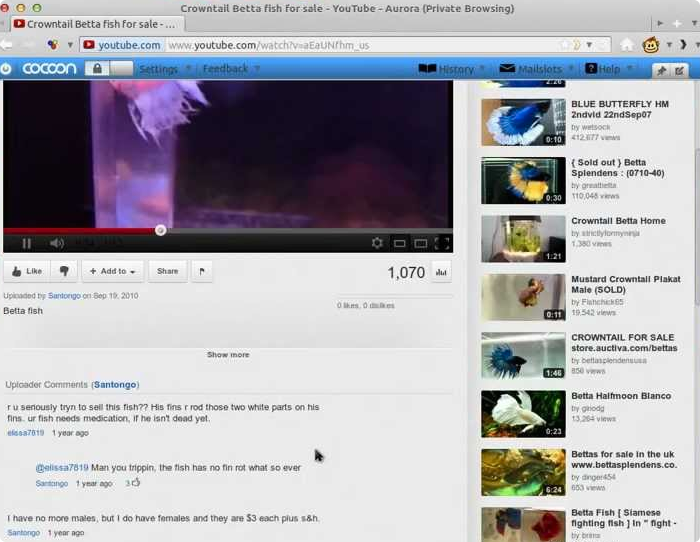
Lightspark an open-source alternative to Flash Player that is available both as a desktop application and a browser extension. This player runs any kind of Flash-based format on Windows and Linux and works well in Chrome, Opera, Firefox, and other browsers. Lightspark provides an extended set of code-editing features and also allows for viewing H.264 Flash videos on YouTube. You can download it here.
Pros
- Compatible with both Windows and Linux
- Operates in major browsers
- Customization through code editing
- Support for embedded video
Cons
- Occasional bugs reported
2. BlueMaxima’s Flashpoint
Best for preserving and archiving legacy Flash files
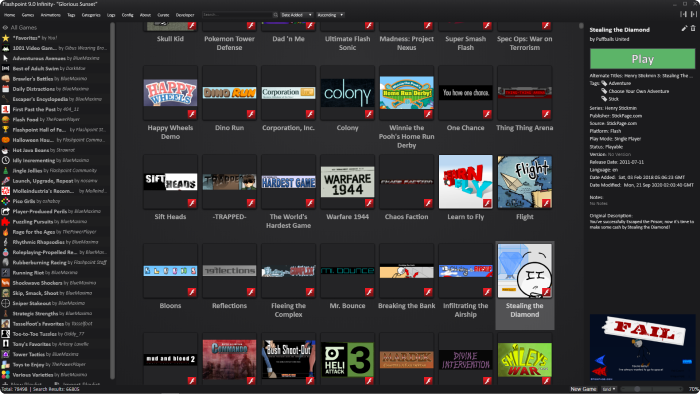
This is another free-of-charge Flash alternative designed to outrun the disappearance of content made in Flash and preserve it for posterity. Flashpoint is an entire webgame preservation project and can serve as your personal archive of Flash-based creations. With this tool, you can play and organize Flash games and other content for easy access in a personal library. Apart from its archiving functionality, Flashpoint also allows for code editing.
Other merits of BlueMaxima’s Flashpoint include the Apache program launcher and its compatibility with major web browsers and different APIs. You can download Flashpoint here.
Pros
- Flash content archiving and data management
- Enhanced safety due to the Apache program launcher
- Vast compatibility
- Easy-to-use interface
Cons
- Antivirus programs may falsely detect the app as a virus
3. FLV Media Player
Best for playing downloaded Flash videos on Windows
FLV Media Player is a specialized player for FLV (Flash) videos that enables you to open Flash projects and view content without a browser. It is an easy-to-use and compact app for Windows that also supports organizing videos in playlists, managing playback, and making screen captures. All in all, it’s a classic player that’s free and robust in its functionality. You can download it here.
Pros
- Easy to use
- Organizes content in playlists
- Can rotate videos, add subtitles, and add to favorites
- Creates screen captures
Cons
- None detected
4. SWF File Player
Best for opening SWF files directly in Windows
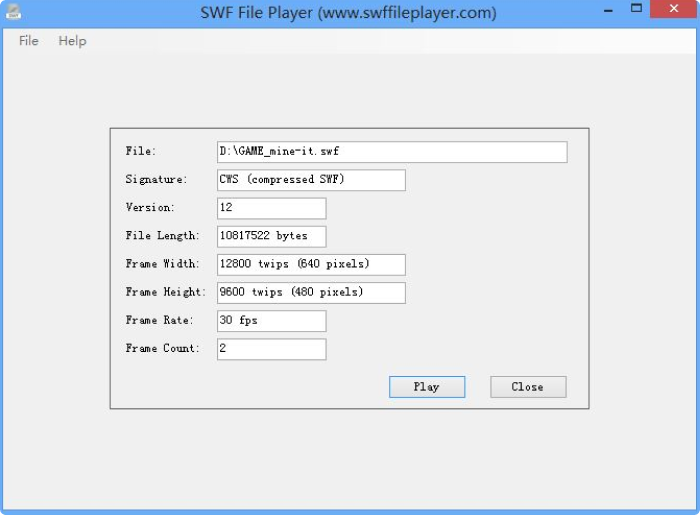
SWF File Player is a free and straightforward standalone app that allows you to open downloaded SWF files on the spot, without an internet connection. It’s a simple no-frills tool that will open any classic Flash file and won’t take up much space on your PC. SWF File Player is also able to read six different types of file meta tags – which may come in handy. You can download SWF File Player here.
Pros
- Lightweight
- Easy to use
- Can run interactive games
Cons
- Plain-looking, old-school interface
Too much to read? Get a summary from AI
5. Shubus Viewer
Best for playing Flash and making encoding easier on Windows

Shubus Viewer is a cool file viewer for running Flash games. This lightweight utility allows the gaming and streaming of Flash content, creating and viewing HTML pages, running animations, and even editing files. Users can select between various encoding options to view the text in different formats.
Shubus Viewer works well with diverse multimedia content and processes DCR and Unity3D files smoothly. Another nice feature of Shubus Viewer is that it can be integrated with a web browser and Google Search. You can download Shubus Viewer here.
Pros
- User-friendly interface
- Vast editing features
- Supports various types of games
- Can create texts and HTML pages
Cons
- Reported to have limited compatibility with some browsers
6. OpenSilver
Best for running SWF files and web development for advanced users
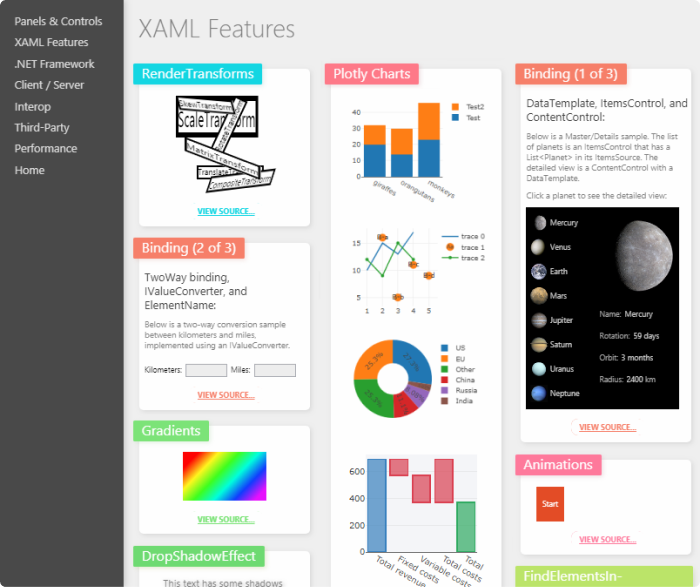
OpenSilver is a free open-source tool serving as an alternative to Microsoft Silverlight. OpenSilver is more a development tool than a player, but you can use it to run Flash-based content on your Windows PC. OpenSilver is compatible with both desktop and mobile browsers. Powered by WebAssembly, it not only supports SWF format but also enables work with different programming languages for web development. You can download OpenSilver here.
Pros
- Customization through code editing
- Operates in major browsers
Cons
- For tech-savvy users
Adobe Flash Player Alternatives for Mac
Here are some software solutions that can be downloaded and used as standalone players on macOS.
7. Ruffle
Best for safety-conscious viewing of Flash content

Ruffle is another free open-source Flash player emulator that can be used both on a desktop and in a browser via WebAssembly. It’s written in the Rust programming language and compatible with all operating systems, including Mac. Ruffle proves to be highly secure and gets regular updates. It is more oriented to older versions of Flash and has limited support for ActionScript 3. However, you can absolutely use it to run early old-school animations and games made in Flash. You can download Ruffle here.
Pros
- Compatible with Mac
- Regular updates
- Available for Chrome, Edge, Opera, and Firefox
- Customization through code editing
Cons
- Doesn’t play ActionScript3 files
- Can encounter bugs while coding
8. Gnash
Best for viewing Flash content on Mac

Gnash flash player is a solid replacement for Adobe Flash Player that comes as a standalone desktop player and a web browser plug-in. It supports all Flash-based multimedia formats and serves as a great alternative to Adobe Flash Player for Mac. As a plugin, Gnash is available in many popular browsers. Its version for Windows, however, has not received updates since 2012, so it provides no support for SWF version 10. You can download Gnash here.
Pros
- One of the safest extensions
- Available for major browsers
- Customization through code editing
Cons
- The app for Windows is outdated
- Limited support for ActionScript and SWF v10
9. Elmedia Player
Best for streaming Flash videos via AirPlay
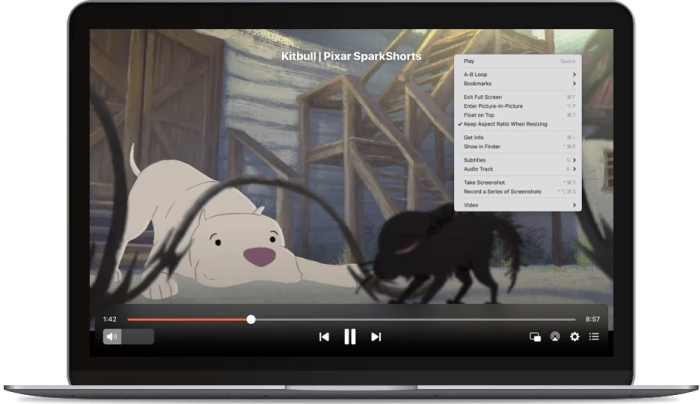
Elmedia Player is a media player that supports displaying different video formats on Mac, including FLV and SWF files. Users can stream videos in Flash format from their macOS devices via AirPlay and broadcast them on a smart TV. Elmedia Player also enables playback control and working with subtitles, and lets you enjoy viewing Flash videos in a full screen mode. You can download it here.
Pros
- Works with lots of video formats on Mac
- Supports any version of SWF files
- Complete customization for audio and video playback
- Wireless streaming to a variety of devices
- Can create playlists
Cons
- Limited SWF playback on M1 Macs
- Crushes due to the Rosetta compatibility layer
Flash Player Replacements in Web Browsers and on Mobile
These are browsers, browser extensions, and apps that you can use to interact with Flash content on different types of devices, including smartphones and tablets.
10. SuperNova Player
Best for playing browser-based SWF games
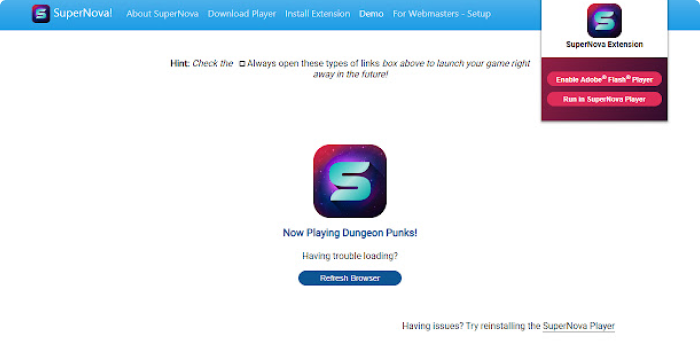
SuperNova Player is a dedicated app for running SWF files in Microsoft Edge and Google Chrome browsers. This means that you’ll be able to play SWF games on any website without hassle. Although its functionality is fairly limited, this Adobe Flash Player alternative is straightforward, which makes it worth considering. Plus, SuperNova is good for the hassle-free processing of graphic-rich files.
However, the significant drawback of SuperNova player is that antivirus apps, especially McAfee, get triggered with it and find it suspicious. So, you’re likely to have trouble opening SuperNova Player when antivirus software is enabled. You can download SuperNova Player here.
Pros
- Easy to use
- A standalone Flash player
- Plays all SWF files
Cons
- Restricted compatibility of the browser extension
- Some antivirus systems might perceive it as malware and block it
11. Photon Flash Player
Best for running Flash files on Android devices
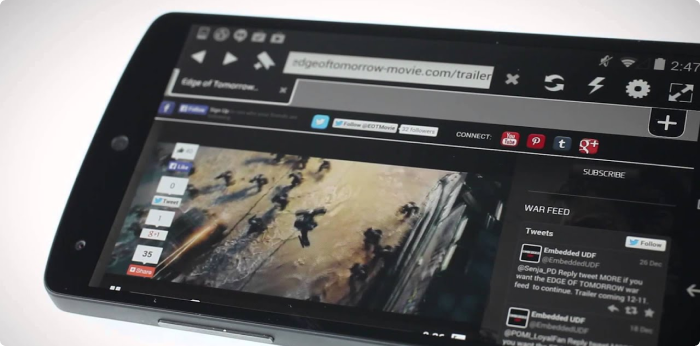
The Photon Flash Player is the plugin that comes with the Photon browser. It’s specifically designed for playing Flash websites, games, and videos when using Android devices. You can use Photon browser on computers, smartphones, and tablets, and not only view Flash content in its diversity, but also enjoy other features like full screen support.
Pros
- Supports SWF files
- Works as a player and a feature-rich browser
- Enables playing Flash websites and content on Android
Cons
- Occasional bugs reported
12. Lunascape
Best for internet geeks who like visiting Flash websites
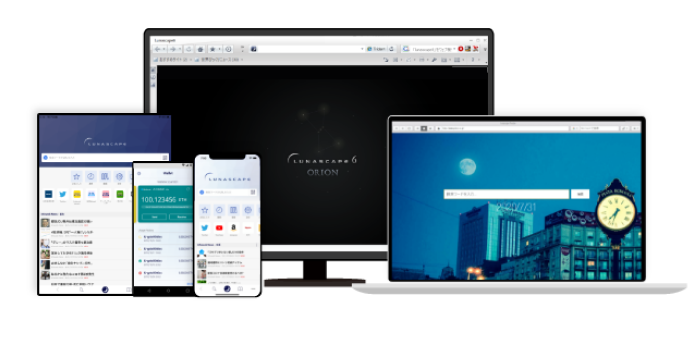
Lunascape is a cross-platform web browser developed in Japan. Its key differentiator is that it enables users to switch between three rendering engines. Among its many nice features is that Lunascape can play Flash games, videos, and websites seamlessly. It works on all devices and operating systems, and provides broad flexibility in navigating the Internet.
Lunascape is quite unique yet still user-friendly and free. If you want to go beyond standard browsers and explore the net in a brand-new way powered by three different rendering engines, Lunascape is a fine choice. You can download it here.
Pros
- A fully functional free browser
- Supports all kinds of Flash content
- Auto-switch rendering engine
Cons
- None detected regarding Flash
- May be somewhat advanced for basic users
13. CheerpX
Best for use in organizations
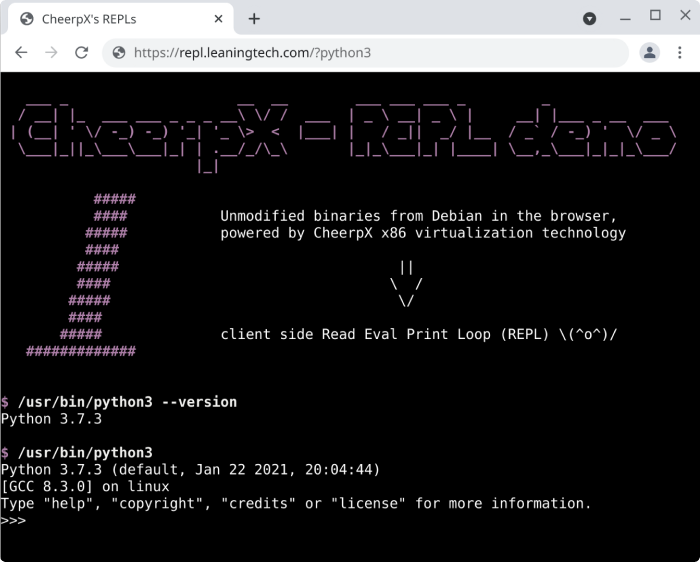
CheerpX is a Flash player emulator that can process different programming languages and formats, and demonstrates comprehensive compatibility with Flash. It not only enables users to access Flash content in standard browsers but also facilitates more advanced features that businesses frequently need. For instance, it’s powered by WebAssembly, comes with API compatibility, and can run any third-party software without a hitch. This way, CheerpX primarily targets enterprises and might not be an easy option for personal use.
Pros
- Doesn’t require any installation or plug-ins
- Supports the major browsers
- Runs almost every programming language in a browser
- Extended API compatibility
Cons
- Not for personal use
- May have difficulty reading files on a PC
14. FlashFox Browser App
Best for streaming Flash games on Android devices
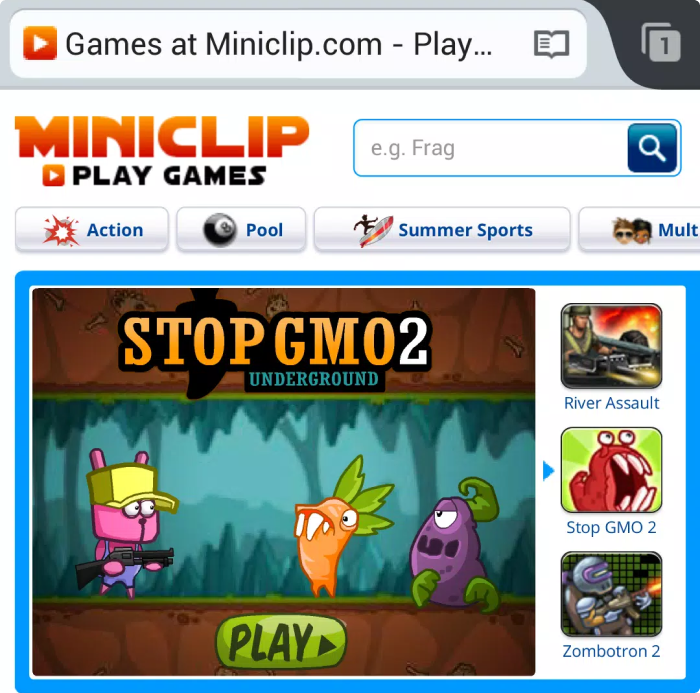
FlashFox Browser App is another browser that still supports Flash. It’s highly suitable for browser-based games and is available both on Windows and macOS, as well as Android devices. Users point out that it’s a good option for video streaming, so big fans of Flash can stream their gaming process seamlessly from any kind of device. Apart from displaying Flash content, the FlashFox browser provides helpful features like bookmarking and synchronization of open tabs across devices.
Pros
- A fully featured and multi-tabbed browser
- A trouble-free display of Flash content
- Compatible with Android
- Robust security features
Cons
- Too many ads in the free version
- Reported as being rather unstable
15. XMTV Player
Best for streaming Flash videos to Google Chromecast
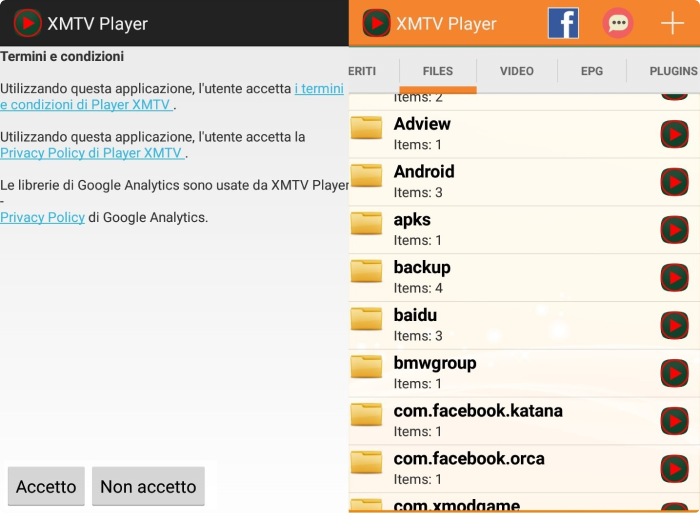
XMTV Player is another lightweight Flash player alternative that enables viewing any kind of video saved on your Android device. It’s good for video streaming to Google Chromecast devices and has other decent features for streamers. For example, XMTV Player allows for quick and easy work with subtitles and audio tracks. It also enables creating playlists and has a child lock for your children to have a safe viewing process.
Pros
- Google Chromecast functionality
- Suitable for family use
- Can create subtitles and audio tracks
- Can create playlists
Cons
- Cumbersome interface
How to Choose the Best Option between Adobe Flash Player Alternatives?
It’s highly recommended that you compare various software items and ensure that they’re compatible with your operating system. Another point to consider is that, while preparing the list of top Flash alternatives, we’ve read a lot of different product descriptions that contradict each other.
So, it’s best to get acquainted with relevant user reviews and see the pros and cons of each tool and learn its actual technical requirements and limitations, as we did for this list. One more suggestion is to look for the tool that is frequently updated and provides technical support.
The Best Flash Format Alternative – HTML5
Moving from Flash player alternatives in terms of software, let’s talk a bit about its main alternative in terms of format. A standard that replaced Flash is HTML5. It provides web developers with an opportunity to create interactive content for the Web, as they had with Adobe Flash. HTML5 rendering is now implemented into web browsers, making it really easy to maintain and update.
But, most importantly, HTML5 finally gave the Internet a chance to look good on both desktop and mobile devices. That was just in time for the eLearning boom and the increased use of mobile devices for learning. When made in HTML5, web pages, online courses, and mini games can now automatically adapt to the size of the screen you’re viewing them on.
A Reliable and Easy Way to Create HTML5 Courses
It’s never too late to learn how to make HTML5 courses and quizzes for training and educational purposes. Plus, you can create them completely free of charge. All it takes is MS PowerPoint and iSpring Free – a lightweight authoring tool for creating multimedia courses without a special technical background. It’s easy to use and free, and it lets you convert your existing PPT presentations to HTML5. Here’s how:
- Make sure you have Microsoft PowerPoint installed on your PC. If you’re on a Mac, check out our guide on how to install Windows on Mac.
- Download iSpring Free here and install it.
- Open a presentation in PowerPoint.
- Go to the iSpring Free tab.
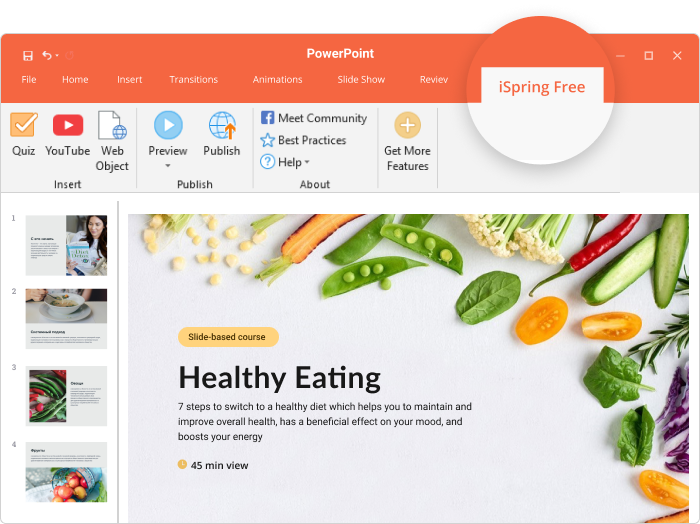
- Click on Publish and select one of two main options: HTML5 or SCORM. HTML5 content is designed to be viewed in the browser while the SCORM version is for uploading to an LMS.

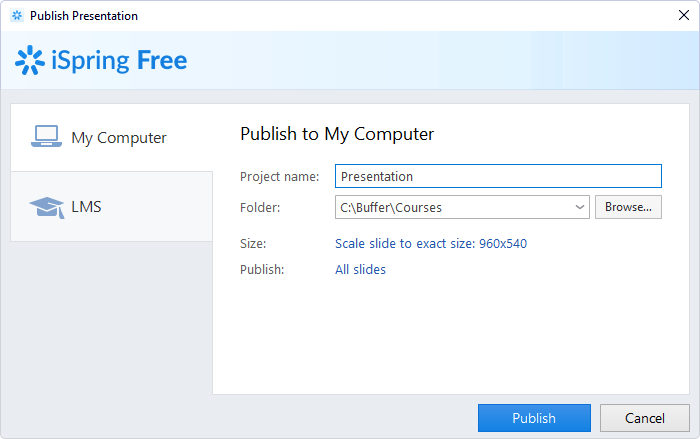
After publishing is complete, you will get a fully functional HTML5 version of your presentation.
FAQ on Adobe Flash Player Alternatives
Here are some more questions and answers that might help you understand how best to choose a proper replacement for Flash.
What should I use instead of Adobe Flash Player?
There are still lots of options for viewing, managing, and even editing Flash content. Among many offers on the market, you can choose a cross-platform plugin, a standalone tool, or a mobile app.
The format you can use instead of Flash for creating online courses is HTML5. iSpring’s authoring tools and QuizMaker will allow you to create HTML5 courses with ease in PowerPoint.
Also read: How to Convert PowerPoint to MP4 Video on Windows & macOS
Is it safe to use Adobe Flash Player alternatives?
It really depends on the tool you consider as a replacement because some applications can be regarded by your antivirus system as malware, sometimes falsely. Double-check information and learn about other users’ experiences with security when selecting any type of software over the net. All of the Flash alternatives mentioned in the list above are considered to be safe.
What is the best alternative to Adobe Flash Player?
This can be one tool for macOS and another for Windows, and it really depends on your purpose. Streaming Flash games is, by default, different from viewing FLV videos. That’s why we’ve put the most advisable use of each tool right off the bat. Check out the list and see what suits your device and your purpose more closely.
Does Microsoft Edge replace Adobe Flash Player?
Microsoft Edge indeed supports Flash, and if you’re comfortable with this browser, you can keep using it for interacting with Flash-based content on a basic level.
Conclusion
If you’re wondering what to use instead of Adobe Flash Player at some point, we hope this list is a timesaver for you. And if you’ve ever created eLearning content in Flash, you can now see that HTML5 format is a more convenient and widely accessible Flash alternative for education and training. Unleash the power of HTML5 with iSpring Free – download it today free of charge!
Create online courses and assessments in record time.





eLearning Standards Comparison: AICC vs SCORM vs xAPI vs cmi5 vs IMS Common Cartridge

The Best Interactive Presentation Software and Tools for 2026