How to Insert Slides From Another PowerPoint Presentation
 8 minutes






When you create a course in PowerPoint, you’ll eventually need to reuse slides or presentations in a new one. For example, you might need to repeat the same module in different courses, build a larger course from related modules, or insert SME (Subject Matter Expert) content.
Here are three ways to insert slides from another PowerPoint presentation more effectively than manually copying slide content. The first two options are built into PowerPoint and involve transferring slides between presentations. The third requires a PowerPoint add-in and lets you move an entire presentation with complex interactivity elements, such as role-plays, quizzes, and screencasts.
A Quick Comparison of Methods
Here’s a summary of the ways I offer to add slides from another presentation. Click on the one that interests you, or keep reading for a full overview of each method.
| Method | Best for | Speed (1-5) | Simplicity (1-5) |
|---|---|---|---|
| Copy and paste slides from one presentation to another |
| 4 | 5 |
| Move slides from another presentation with the Reuse Slides feature |
| 5 | 4 |
| Embed a presentation into another PowerPoint presentation as a web object using a PowerPoint add-in | Embedding full presentations with complex interactivity | 5 | 4 |
Way 1. Copy and Paste Slides
- This way of inserting slides from one PowerPoint to another is just that simple. You open two or more presentations and right-click on the slides you want to copy, and then select Copy.
To copy several slides, click on the first one. Then, scroll to the final slide and click on it while holding the Shift key down. If the slides you want are scattered, click on the first one. Then, hold the Ctrl key down and click on each additional slide. Copy the selected slides in the same way.

- Head over to the PowerPoint presentation where you want to add the slides. In the left pane with the slide thumbnails, right-click between the slides that you want to paste the imported slide.
You’ll have three pasting options: match your slides to this second presentation theme, keep their original formatting, or paste them as a picture on a slide.

That’s it!
Best for:
- Quick importation of slides with light interactivity from one presentation to another.
- Users working in the PowerPoint web and Mac versions.
Limitations: People often complain that mixing multiple presentations requires keeping several PowerPoint windows open.
Too much to read? Get a summary from AI
Way 2. Import Slides Using the Reuse Slides Feature
Note: Microsoft announced it will discontinue the Reuse Slides in PowerPoint feature on January 1, 2026. However, it may still work in older versions of PowerPoint that don’t receive updates.
- To import slides from one presentation to another with this method, you need to head to Insert → New Slide → Select Reuse Slides.
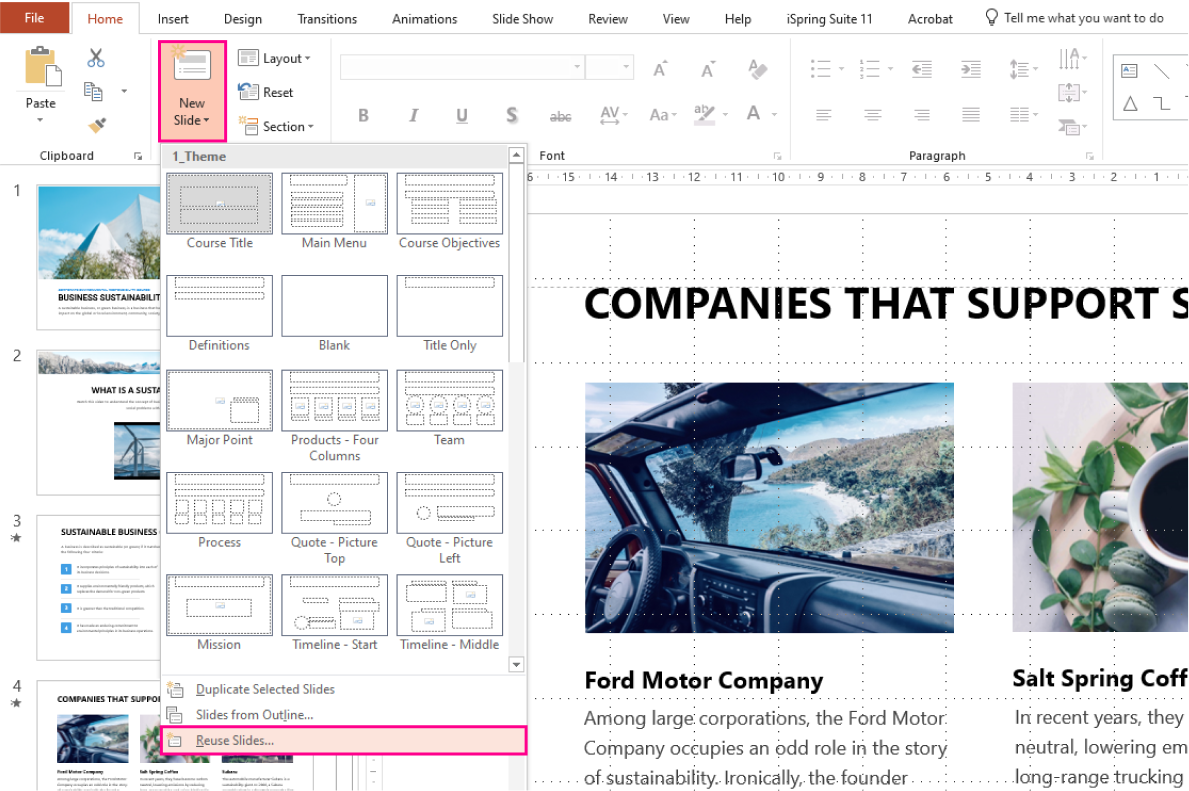
- In the Reuse Slides pane, click on Open a PowerPoint File and browse the file containing slides you need to reuse.

- Mark the checkbox Keep source formatting if you want the slides to insert exactly as they appear in the original presentation.

- Go to the slide after which you want to reuse a slide. Click the slide you want to insert, and it will appear in the destination presentation.

- In case you need to import all the slides with the PowerPoint reuse tool, you can right-click on any slide in the source presentation and choose Insert All Slides.

Best for:
- Inserting slides from multiple presentations without opening multiple PowerPoint windows.
- Importing an entire presentation with light interactivity.
Limitations:
 Microsoft announced it will discontinue the Reuse Slides in PowerPoint feature on January 1, 2026. However, it may still work in older versions of PowerPoint that don’t receive updates.
- You can’t select and move only part of a source presentation by continuing to hold the Shift key. You have to click on each slide individually.
 Microsoft announced it will discontinue the Reuse Slides in PowerPoint feature on January 1, 2026. However, it may still work in older versions of PowerPoint that don’t receive updates.
Way 3. Embed a PowerPoint Presentation as a Web Object
Sometimes you don’t just want to reuse a few slides but need to insert a complete, polished presentation that works like a mini-course inside your main deck. In this case, the third method is your go-to solution: convert your presentation into an HTML file and embed it into another as a web object.
This method requires the iSpring Suite PowerPoint add-in. It’s a paid authoring tool, but if you just need it once, there’s a 14-day free trial with no credit card required.
Here’s how to embed a PowerPoint presentation into another one using iSpring Suite.
- Download the add-in and install it on your computer. Open the PowerPoint presentation you want to import. In the ribbon, click on the iSpring Suite tab, and then hit the Publish button.

- Click on My Computer. In Output Options, choose HTML. Then, if needed, configure your HTML file.

In Player, you can select whether you want the presentation to display using the iSpring Suite player or not.

- After you’ve set up everything you need, click on Publish. This creates a folder with all PowerPoint presentation files (HTML, JS, media, etc.).
- Now open the destination presentation. Head over to the place in the presentation where you want to insert the slide deck you just converted into an HTML file.
- In the iSpring Suite tab, navigate to the Insert group and click on Web Object.

- Select Local path from the Web address dropdown menu on the upper left.

- Find a folder with all the PowerPoint presentation files you need to insert. Double-click on it. Open index.html.

- Mark the Include all files and subfolders checkbox.

 Tip: You can save frequently reused presentations as HTML files in a separate folder. This lets you add them later without reopening multiple presentations or copy-pasting slides from each one.
Best for:
- When you also need a simple tool to turn presentations into interactive courses faster than doing so with PowerPoint alone. With iSpring Suite, you can quickly add audio or video narration, quizzes, interactions, characters, backgrounds, images, and role-play simulations.
- Embedding an entire presentation with complex interactivity. iSpring Suite preserves all animations, transitions, branching, voiceover sync with animation, hyperlinks, and any other elements you might have in your PowerPoint course. There’s no need to double-check if everything is transferred correctly.
Limitations:
- You won’t be able to edit the inserted presentation within the new one, including applying the destination presentation’s theme.
- This method is only available to Windows users.
Conclusion
Sometimes even the smallest task, like adding slides from one presentation into another, can unexpectedly take a lot of time. Now you know three reliable ways to insert slides from another PowerPoint presentation faster and keep everything looking the way it should. You’ll probably use all of them for different tasks in the future, whether you’re making quick edits or building a full course.
Save this guide — your future self will be glad you did.
Also read: How to Structure a PowerPoint Presentation
FAQ on How to Add Slides from One PowerPoint Presentation to Another
Here are answers to common questions trainers have when searching for how to insert a slide from one PowerPoint to another.
How do I copy a slide template from one PowerPoint to another?
- Open both files: the source presentation (with the slide template you need) and the destination presentation.
- In each presentation, go to the View tab → Slide Master.
- In the source file, right-click on the Slide Master thumbnail (the big one on top of its layouts) → Copy.
- Switch to the destination presentation’s Slide Master view.
- Right-click in the thumbnail pane (below existing layouts) → Paste.
- Close Master View (the rightmost button on the ribbon).
- Select the slides that should use the new layouts. Then go to Home → Layout, and choose the imported layouts.
Also read → How to Create a PowerPoint Template with a Company Logo
Can I combine two PowerPoint slides?
Yes, but it will be a manual process. Here are two approaches:
- Copy-paste elements from one slide to another.
- Insert one slide into another as a static image (Paste Special → Picture).
Can I use portrait and landscape slide orientations in the same presentation?
Yes, you can. There are at least 2 ways to do this:
- Place a portrait-oriented image or shape onto a landscape slide. When projected, it will appear the same as it would on a portrait slide.
- Use iSpring Suite to convert your portrait-oriented presentation into an HTML file, then insert it as a web object using the steps I outlined earlier.
How do you merge PowerPoint presentations?
If you have two versions of the same presentation and need to create a single deck from them, here’s what to do in PowerPoint:
In the file you want to keep, go to Review → Compare, select the other deck, and click on Merge.
Use the Revisions pane on the right to accept or reject changes to your current presentation.
Create online courses and assessments in record time.





How to Email a PowerPoint Presentation: 5 Proven Ways

How to Create an Interactive PowerPoint Presentation

PowerPoint Add-ins and Plug-ins: 13 Essential Picks for 2026
How to Add Action Buttons to Set Up Navigation and Commands in PowerPoint